
Content & Media Overview
The Content section in the viewneo CMS is where you manage all your media files and create new content for your screens.
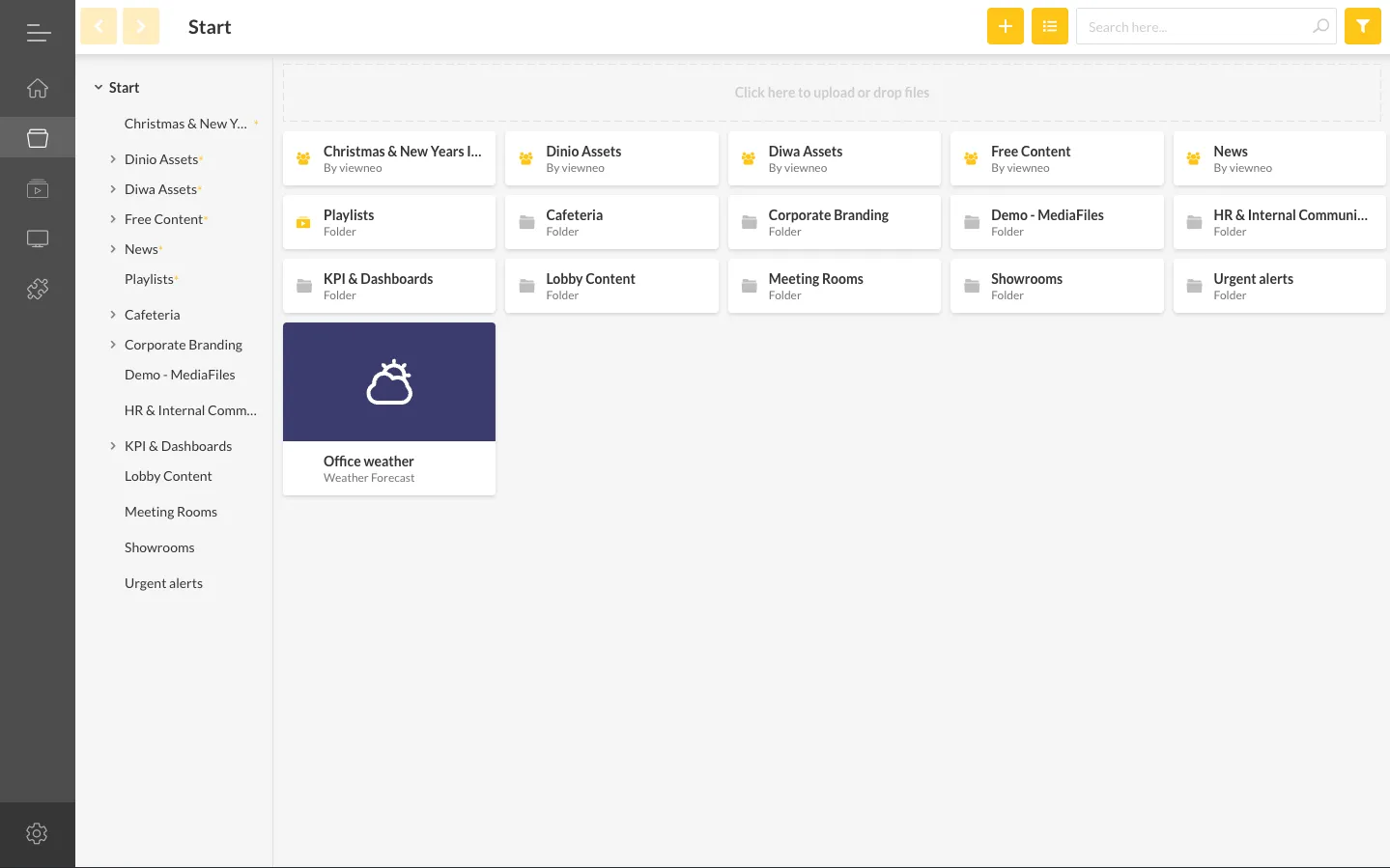
Navigation and Layout
Section titled “Navigation and Layout”The Content section consists of three main areas:
- Tree view (left) — Shows all folders and subfolders in your media library. Click a folder to display its contents. Expand subfolders using the arrow icons.
- Content area (center) — Displays the files in the selected folder. Each item shows a label indicating its type (image, video, dynamic content, social media, etc.).
- List/grid toggle — Switch between icon view and list view using the toggle button above the content area.
Uploading Files
Section titled “Uploading Files”You can upload files to the media library in three ways:
- Drag and drop — Drag files directly from your computer into the content area
- Add button — Click Add and select Upload file
- Right-click menu — Right-click in the content area and select Upload file
Uploaded files are placed in the currently selected folder. You can move files later by dragging them to a different folder.
Supported File Formats
Section titled “Supported File Formats”| Type | Formats |
|---|---|
| Images | GIF, JPEG, JPG, PNG, BMP, TIFF, ICO |
| Video | MP4, 3GP, AVI, FLV, MOV, WMV, MPEG, WebM, M4V |
| Audio | MP3, AAC, AMR, FLAC, M4A, OGG, WAV, WMA, MIDI |
| Documents | PDF, DOC, DOCX, PPT, PPTX, XLS, XLSX, TXT, ODP, ODS, ODT |
Content Types
Section titled “Content Types”viewneo supports several types of content:
- Images and Videos — Upload and display static media files
- Slides & Templates — Create custom designs with the built-in Content Designer
- Websites — Embed any website as screen content
- RSS Feeds — Display dynamic news and data feeds
- Live Video Streaming — Stream live video to your displays
- Pixabay — Access over 1 million free stock images and videos
- Content Plugins — Add social media, weather, and other dynamic content
- AI Content — Generate content using AI tools
Search
Section titled “Search”Use the search box at the top of the content area to find files by name. The search covers the current folder and all its subfolders. To search across your entire library, navigate to the root folder first.