
Share folders
If you share a folder of your media library, the selected sub-accounts see it in their own media library – e.g. logos, images or Templates from the head office.
Share a folder
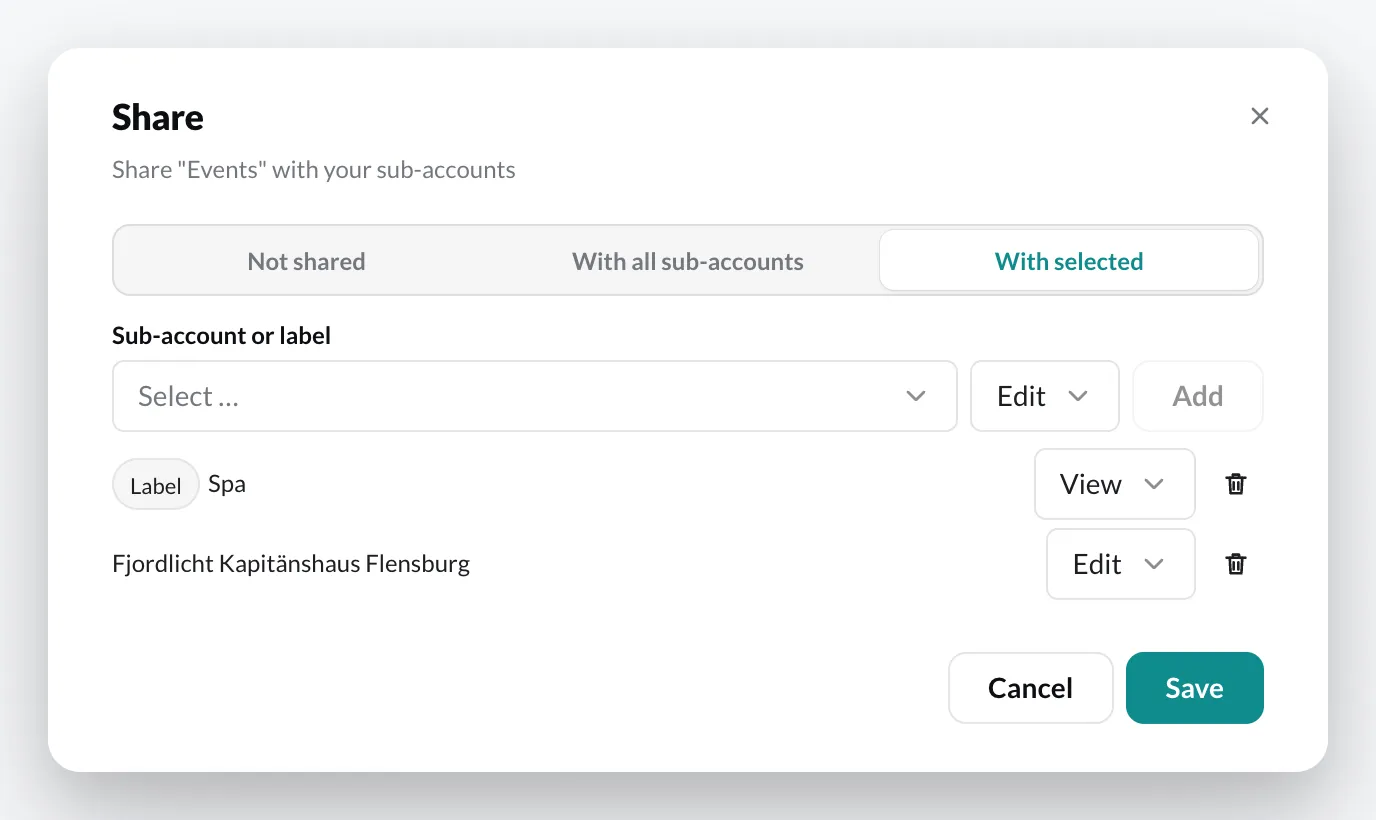
Section titled “Share a folder”- Open the Media library and, on the folder, the context menu › Share.
- Choose who should see the folder:
- Not shared – only your account.
- With all sub-accounts – every sub-account, including those you create later.
- With selected – under Sub-account or label, choose a sub-account or a label and click Add. A label reaches all sub-accounts that carry it.
- Click Save.
What the sub-account sees
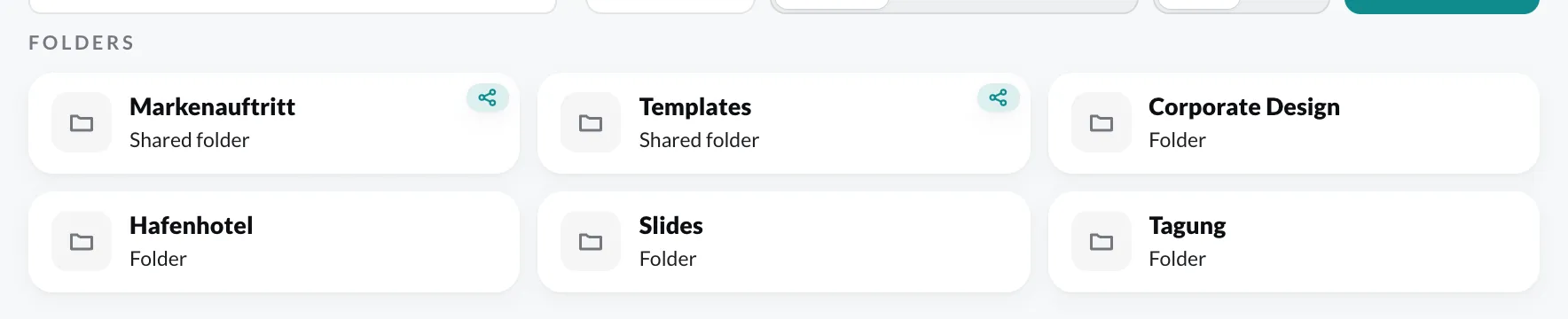
Section titled “What the sub-account sees”Shared folders appear in the sub-account’s media library as a Shared folder with a share icon. The sub-account can view the content but cannot change, move or delete it.
If the sub-account adds content from a shared folder to a playlist, viewneo creates a copy of it in the sub-account’s root folder and inserts that copy. Changes to your original do not reach this copy.
Via the context menu › Stop sharing you withdraw the share. The folder then disappears from the sub-accounts. Copies that have already been created are kept.