
RSS feeds
With an external feed, a Slide fills itself – for example with the latest news or offers. In addition to RSS and Atom, the Designer can also read JSON and XML sources.
Connect a feed
Section titled “Connect a feed”- Open the Slide in the Designer. When no element is selected, the properties panel shows the document settings.
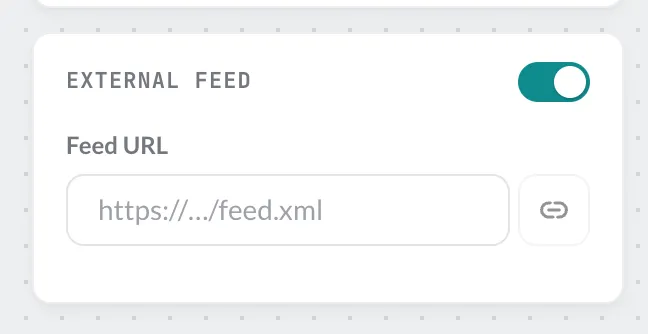
- Turn on Enable external feed, enter the Feed URL and click Connect feed.
- The Designer checks the feed and shows how many entries it found.
Show fields
Section titled “Show fields”Once a feed is connected, the + menu has the entry External feed with Text and Image. Alternatively, set the Type of a text element to External feed.
- Field – which field of the feed appears, e.g. the title.
- Entry – from which entry: a specific one (the list shows the titles) or Random (new on every playback). You choose the title and logo of the feed itself via Feed itself (no entry).
- For images, you set the Image source – the field that contains the image URL.
In Simple mode you choose fields from a list. In Expert mode you bind fields via their path, e.g. items.0.title for the title of the newest entry or items.*.title for a random one. JSON and XML sources are always bound via the path.
Feeds in the Live Ticker
Section titled “Feeds in the Live Ticker”The Live Ticker with the source RSS Feed shows a feed as a scrolling text above all content.
When the feed stops responding
Section titled “When the feed stops responding”viewneo checks every feed address at night. If it does not respond, the Template or Slide shows a notice – see Unreachable addresses.