Reset
Reset (Soft Reset)
Section titled “Reset (Soft Reset)”A soft reset restores the SignageStick to factory settings via the Android settings.
- Open the player menu and switch to the System tab
- Click Settings
- Select Backup & Reset
- Select Factory Data Reset
- Confirm with Reset Tablet
- Confirm with Erase Everything
Factory Reset (Hard Reset with a Paperclip)
Section titled “Factory Reset (Hard Reset with a Paperclip)”If the SignageStick no longer starts correctly, only shows the boot logo or does not respond at all, you can perform a hard reset using the physical reset button.
- Disconnect the SignageStick from the power supply (the HDMI connection to the screen can remain)
- Connect a USB keyboard via the USB port
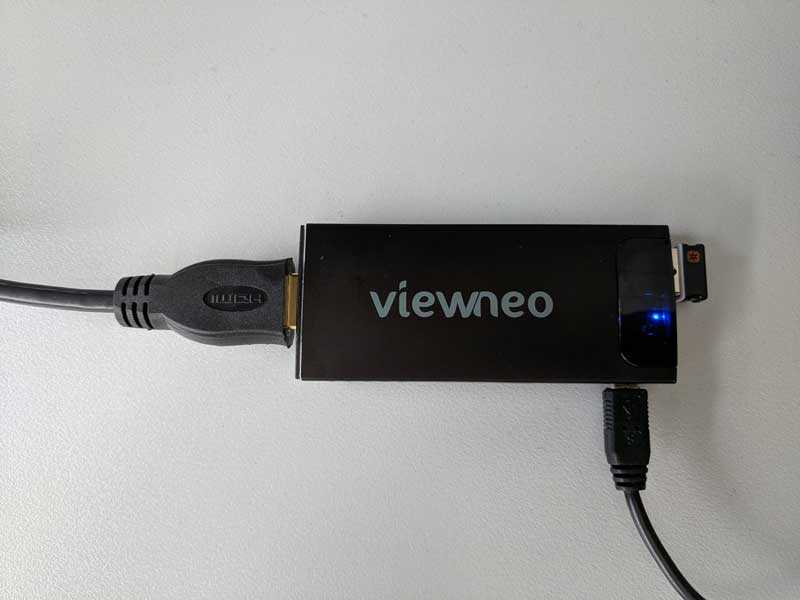
- The setup should look like this: SignageStick connected to the screen via HDMI, keyboard connected via USB
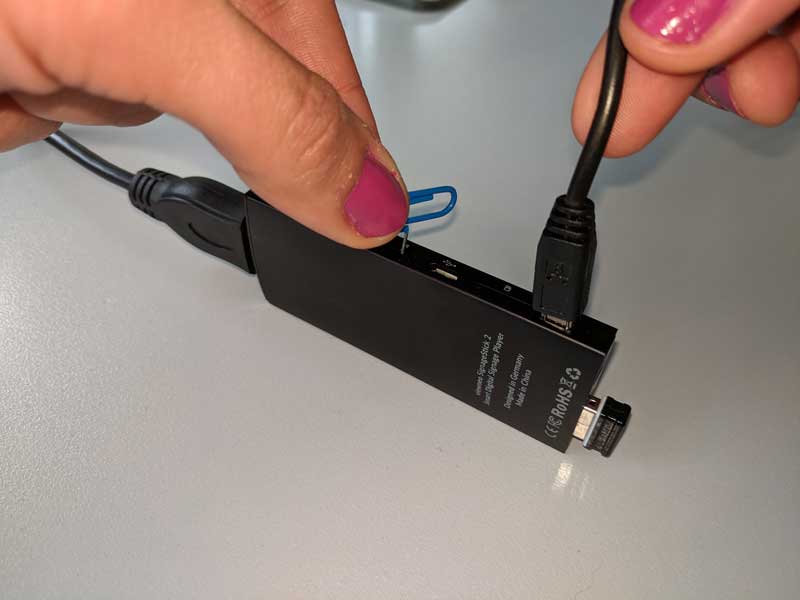
- On the side of the stick there is a small reset hole. Press the button inside the hole with the paperclip and hold it down. At the same time, connect the power supply and keep holding the button for another 3 seconds
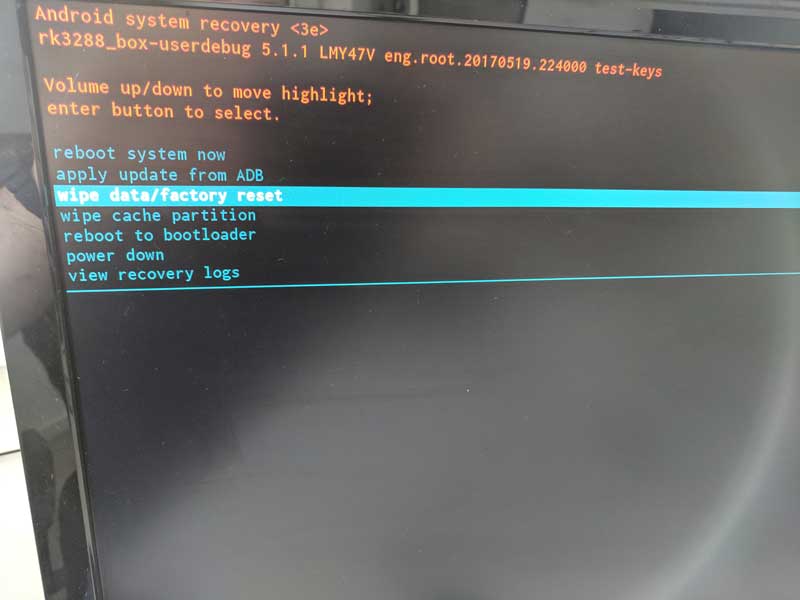
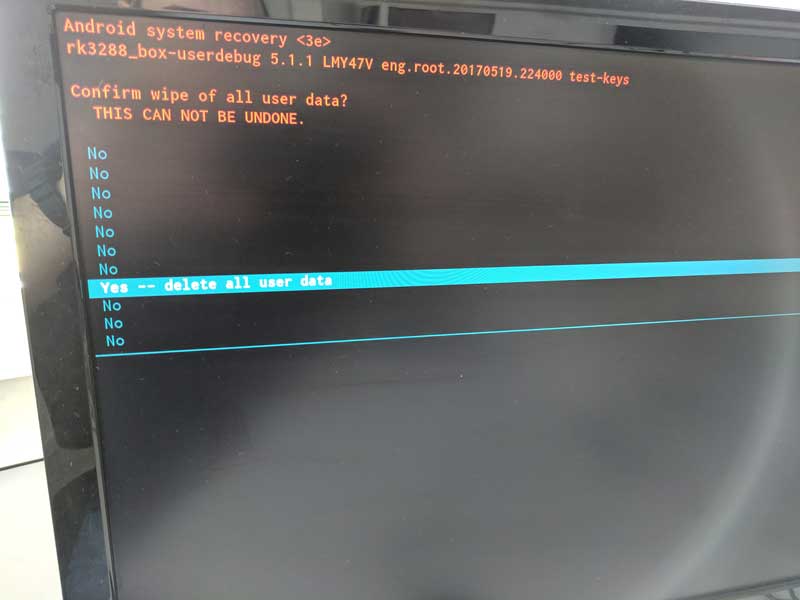
- The recovery menu appears on the screen. Use the arrow keys on the keyboard to navigate to wipe data/factory reset and press Enter
- Confirm with Yes – delete all user data
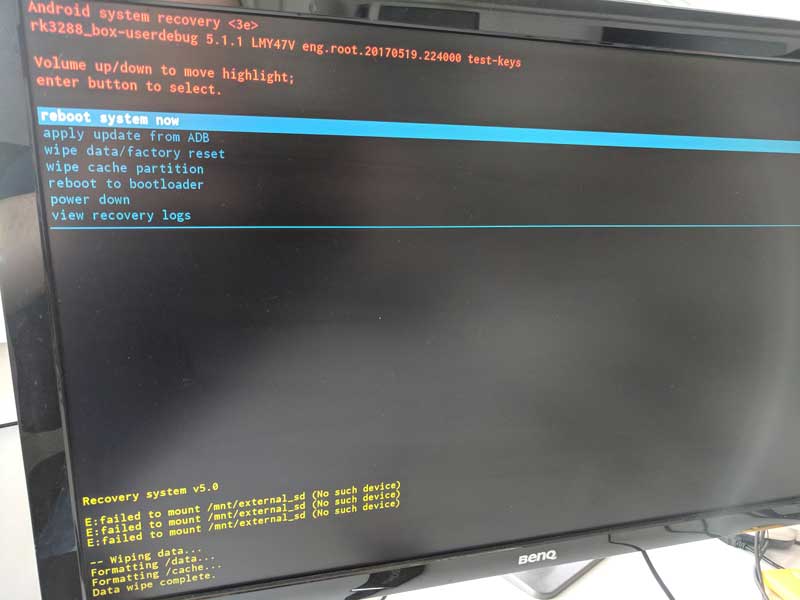
- When finished, select Reboot system now