Fill a playlist
Select a playlist on the left. Its content is shown in the center, the media browser on the right.
Add content
Section titled “Add content”- Drag: Drag files or folders from the media browser into the center.
- Select: Select several files and click Add (N).
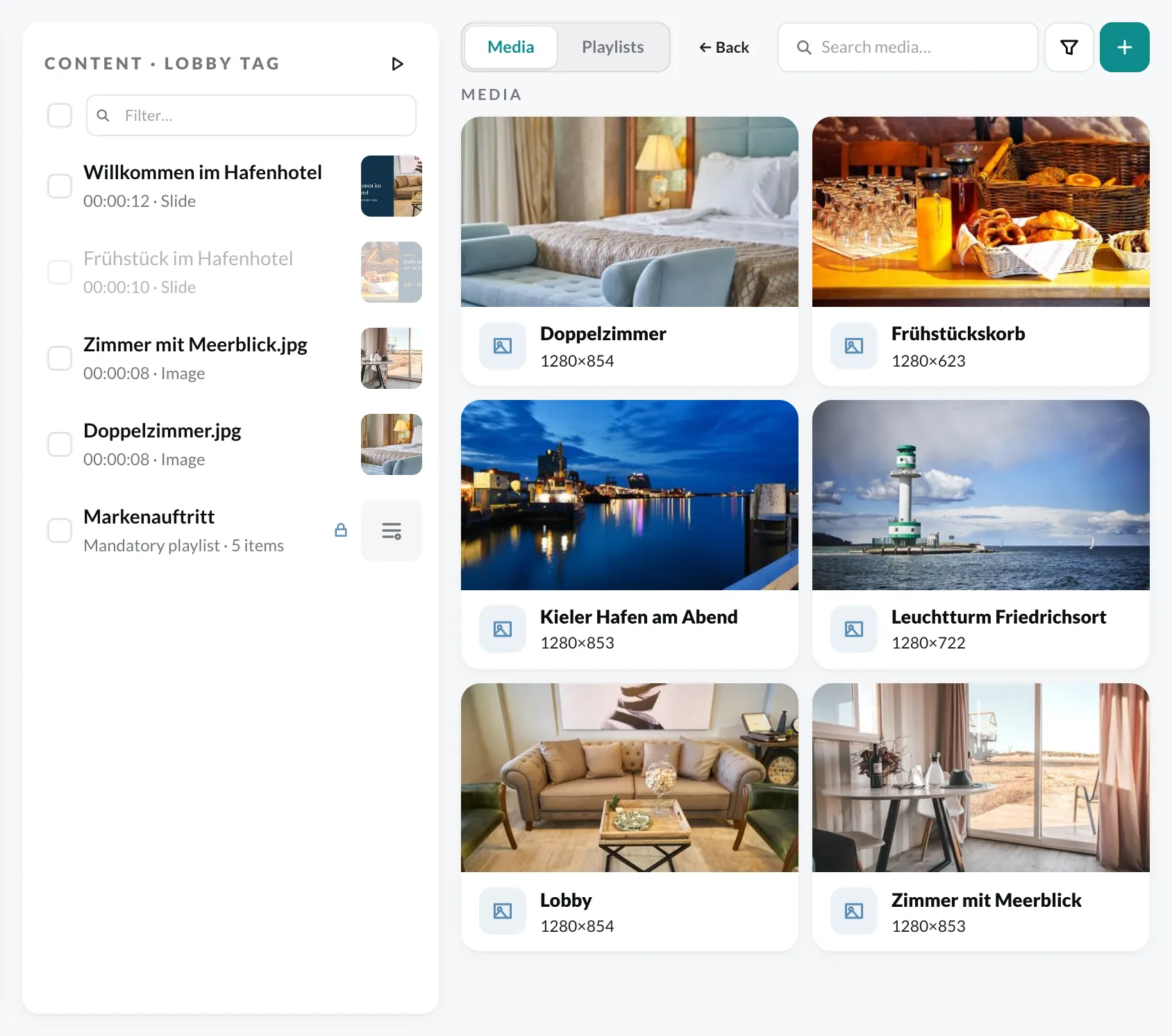
If you drag a folder in, all playable files from it are added to the playlist.
You change the order via drag and drop in the center.
Configure content
Section titled “Configure content”Double-click a piece of content or choose Settings in the context menu. The dialog has two tabs:
Configuration
| Setting | Meaning |
|---|---|
| Duration (seconds) | How long the content is shown, 1 to 86,400 seconds. |
| Audio | The content outputs sound. The volume is set on the device. |
| Show live ticker | Shows the Live Ticker configured on the device over this content. |
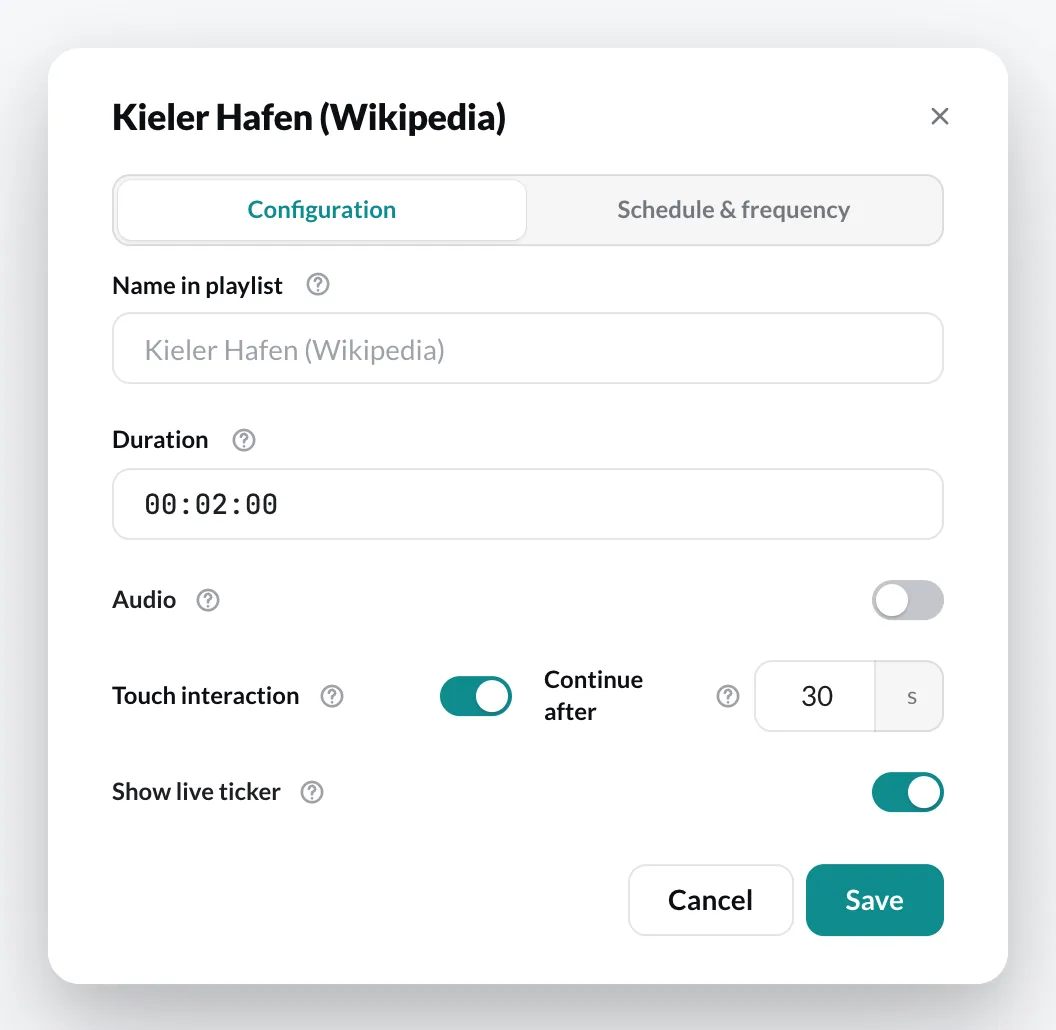
| Touch interaction | Websites and apps: visitors can use the content on a touchscreen. See Touch interaction on websites. |
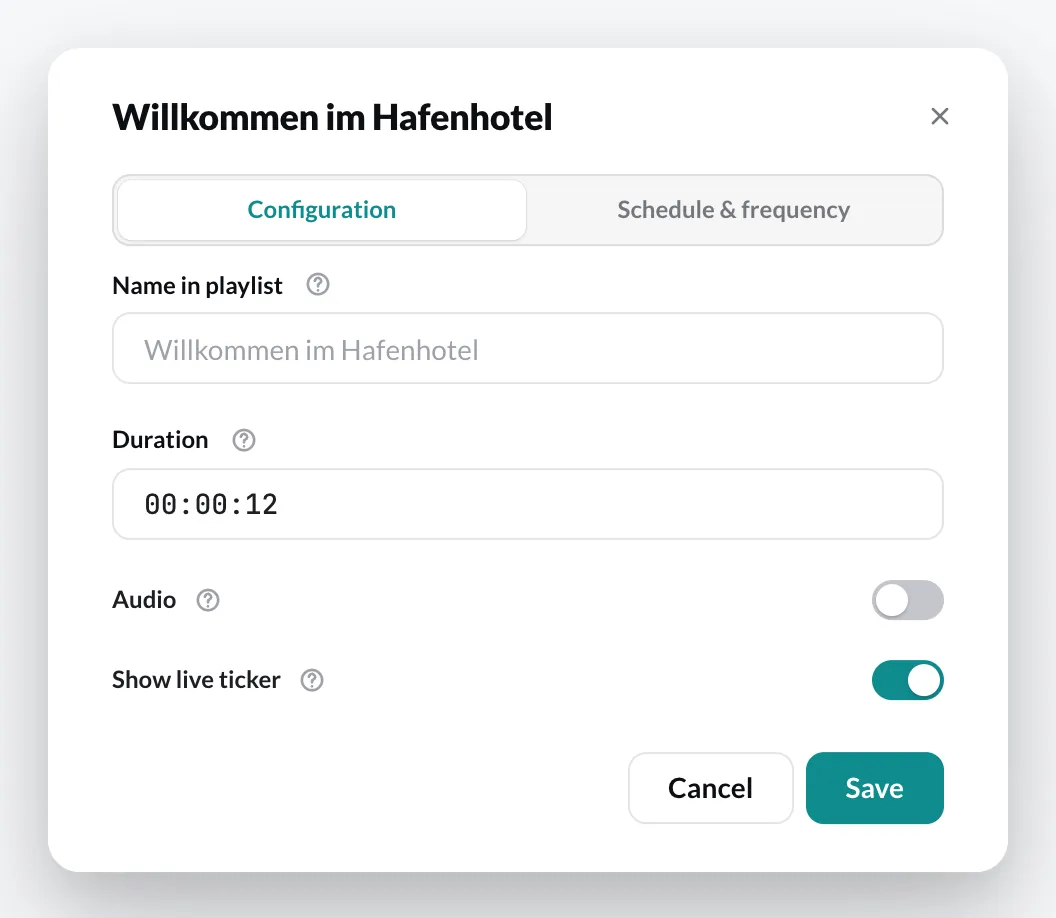
Schedule & frequency – when the content runs, also in several time windows, and how often it should play at least. See Scheduling content and Minimum frequency.
In the context menu of a piece of content you will also find Edit in Designer (for Slides), Jump to folder and Delete.
Touch interaction on websites
Section titled “Touch interaction on websites”When a website runs on a touch screen, visitors can use it directly: tap, scroll, follow links. While someone is tapping, the page stays on screen – the playlist waits.
- Open the playlist and double-click the website.
- In the Configuration tab, switch on Touch interaction.
- Next to it, under Continue after, enter after how many seconds without touch the playlist continues (5 to 600, default 30).
- Click Save and then save the playlist.
The switch is available for websites and for content from apps, not for images, videos or Slides. For apps it is mainly meant for the games from contboxx, which are made for touch screens. Everything here applies to an app just as it does to a website.
How the time runs
Section titled “How the time runs”- The first touch stops the content’s clock. Time spent interacting doesn’t count towards the duration.
- Every touch restarts the waiting time set under Continue after.
- Once the waiting time is over, the rest of the duration plays on. The page stays exactly where the visitor left it – it is not reloaded.
- When the content comes up again later, it starts on its start address again.
Example: A website runs for 10 minutes, Continue after is set to 20 seconds. After 2 minutes someone taps – the clock stops with 8 minutes left. The last touch is at 3:30. From 3:50 the remaining 8 minutes run, so the next content follows at 11:50.
Interaction extends a piece of content by the time spent interacting, but never shortens it.
In the playlist
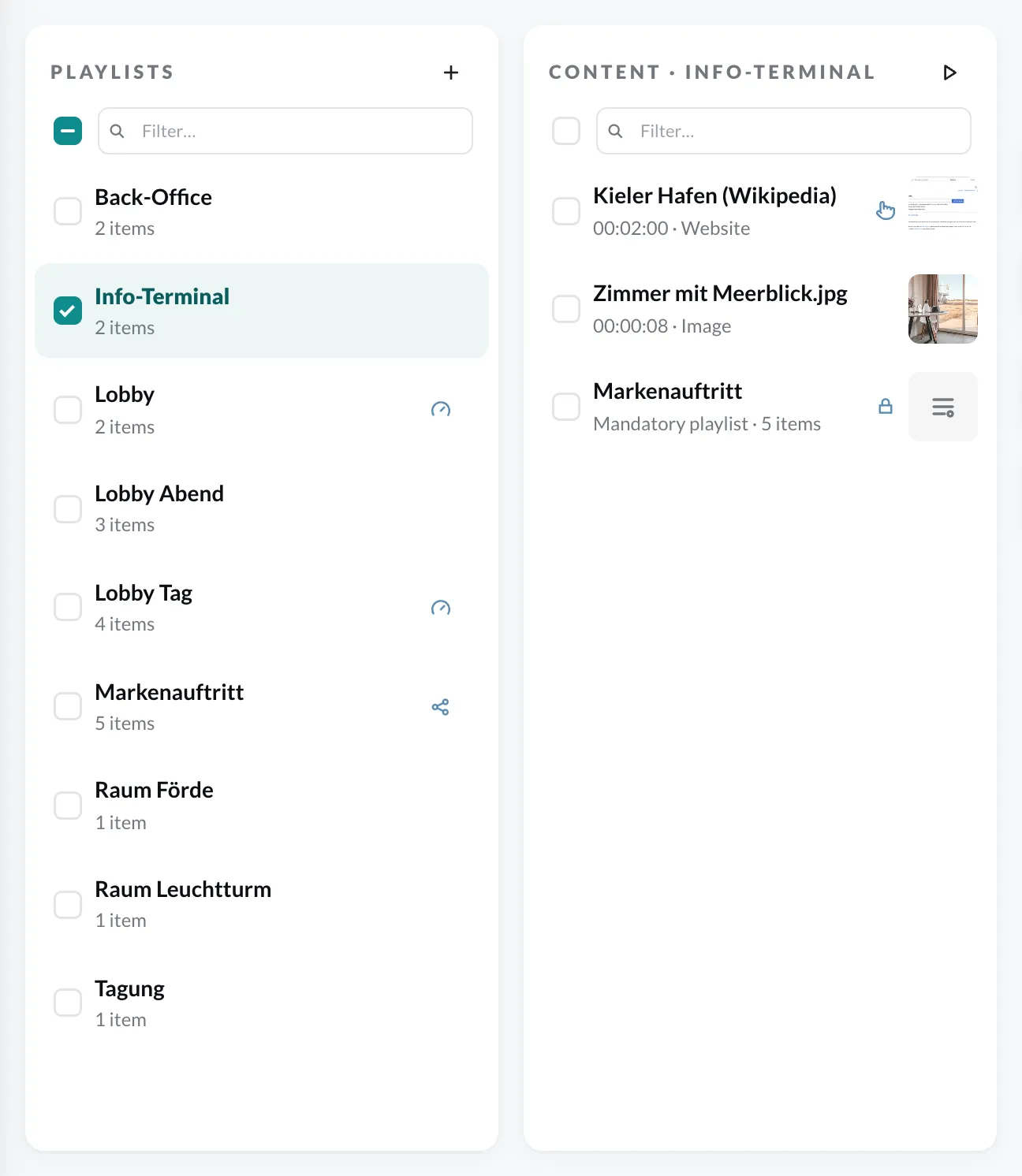
Section titled “In the playlist”In the list of contents, a touch-enabled website carries a small hand icon. Hover over it to see e.g. “Touch-enabled · continues after 20 s without touch”.
Opening the device menu on a touch player
Section titled “Opening the device menu on a touch player”So that visitors don’t open the device menu by accident, the icon at the top right is hidden while such content is running. Instead, open the menu with a swipe: start at the very top edge of the screen and swipe down at least a third of the screen height.
If Kiosk Mode with a PIN is set up on the device, the PIN prompt appears first. The PIN only protects the menu – nobody needs a PIN to tap on the page.
Good to know
Section titled “Good to know”- Website Interaction: The device plugin Website Interaction opens a separate website over the playlist when the screen is touched. It stays as it is. While a touch-enabled website is running, a touch belongs to that page – Website Interaction does not open. With all other content it opens as usual.
- Multiframe: If the website runs in a frame of Multiframe, only that frame pauses. The other frames keep running.
- Player app: Touch interaction needs an up-to-date player app. An older player shows the website as before, just not touch-enabled and with its normal duration. If a player of the playlist can’t do this yet, the CMS shows the notice Not every player supports this yet in the dialog and names the players.
- Free plan: Touch interaction is not included in the free Free plan – the switch carries the Pro label, and a click shows you how to upgrade. Every paid subscription includes it without an extra plugin. Values you set stay saved and take effect again as soon as you have a subscription.
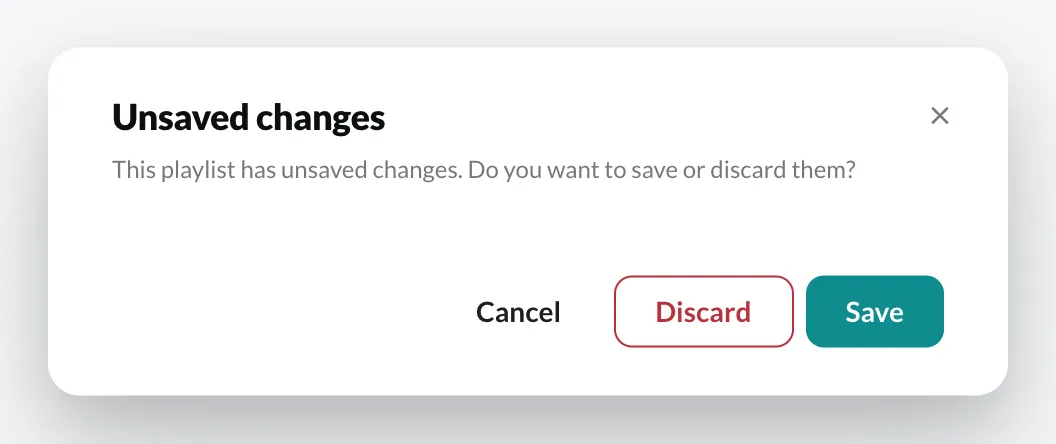
Changes to a playlist only take effect after Save. If you switch to another playlist or page before that, the CMS asks whether you want to save or discard.