Share playlists
Your sub-accounts can embed a shared playlist in their own playlists – e.g. a playlist with seasonal offers that you maintain centrally.
Share a playlist
Section titled “Share a playlist”- Open Playlists and, on the playlist, the context menu › Share.
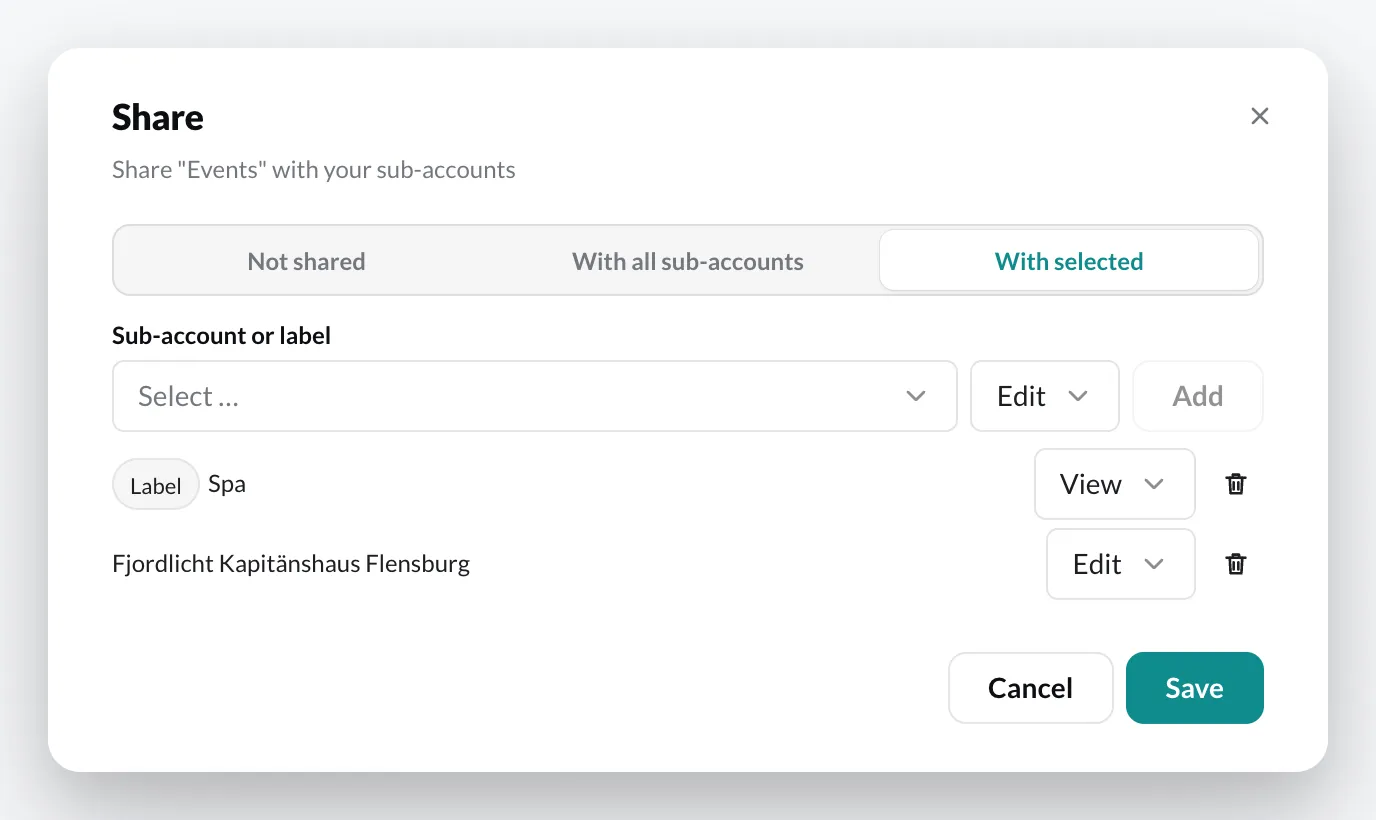
- Choose With all sub-accounts or With selected and add sub-accounts or labels.
- Set the permission for each entry:
- View – the sub-account can use the playlist but not change it.
- Edit – the sub-account can also change its entries. Only you can still change the name and color or delete the playlist.
- Click Save.
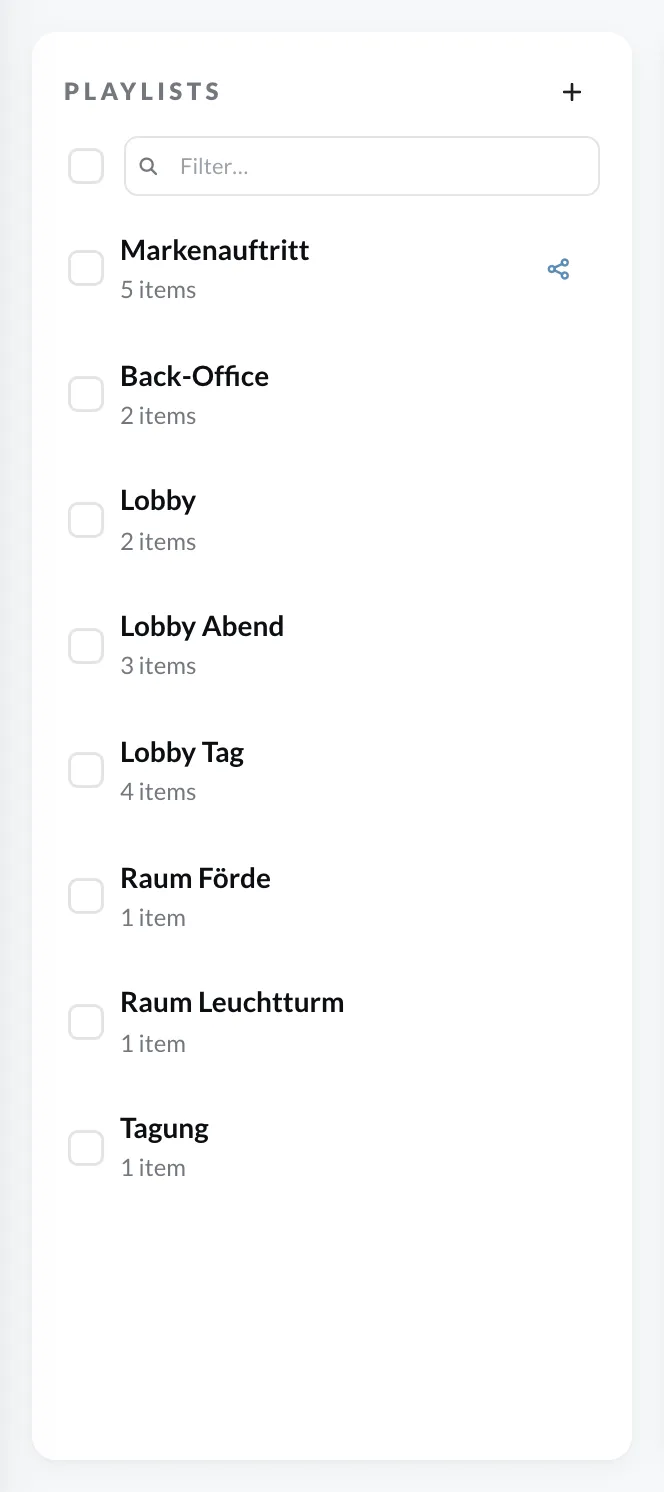
To change a share later, click the playlist’s share icon in the playlist list. Via the context menu › Stop sharing you withdraw it completely.
If more than one share applies to a sub-account – for example via a label and individually – the more extensive permission applies.
What the sub-account sees
Section titled “What the sub-account sees”In the sub-account’s playlist list, a shared playlist carries the share icon (notice “Shared by enterprise”). The sub-account can embed it in its own playlists, as described under Nested playlists.