
Invite users
Under Settings › Users & team you manage who works in your account. You invite new team members by email – they set their password themselves.
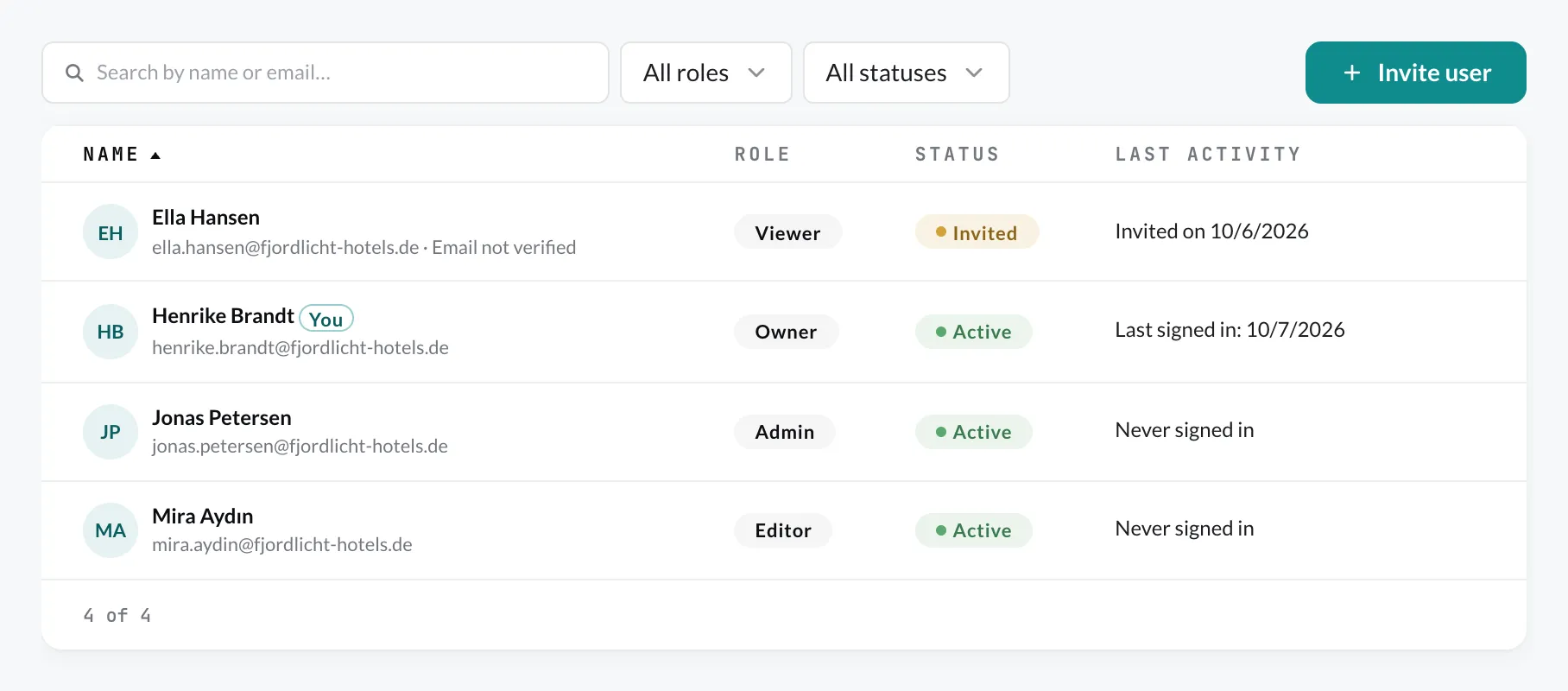
For each member, the list shows Role, Status and Last activity. With the search and the filters for role and status, you quickly find members again.
Invite someone
Section titled “Invite someone”- Open Settings › Users & team and click Invite user.
- Enter the Email, First name and Last name.
- Choose a Role: Admin, Editor or Viewer. The default is Viewer. What the roles may do is described under Roles.
- Optional: with Adjust permissions you set the permissions individually (see Manage permissions).
- Click Send invite.
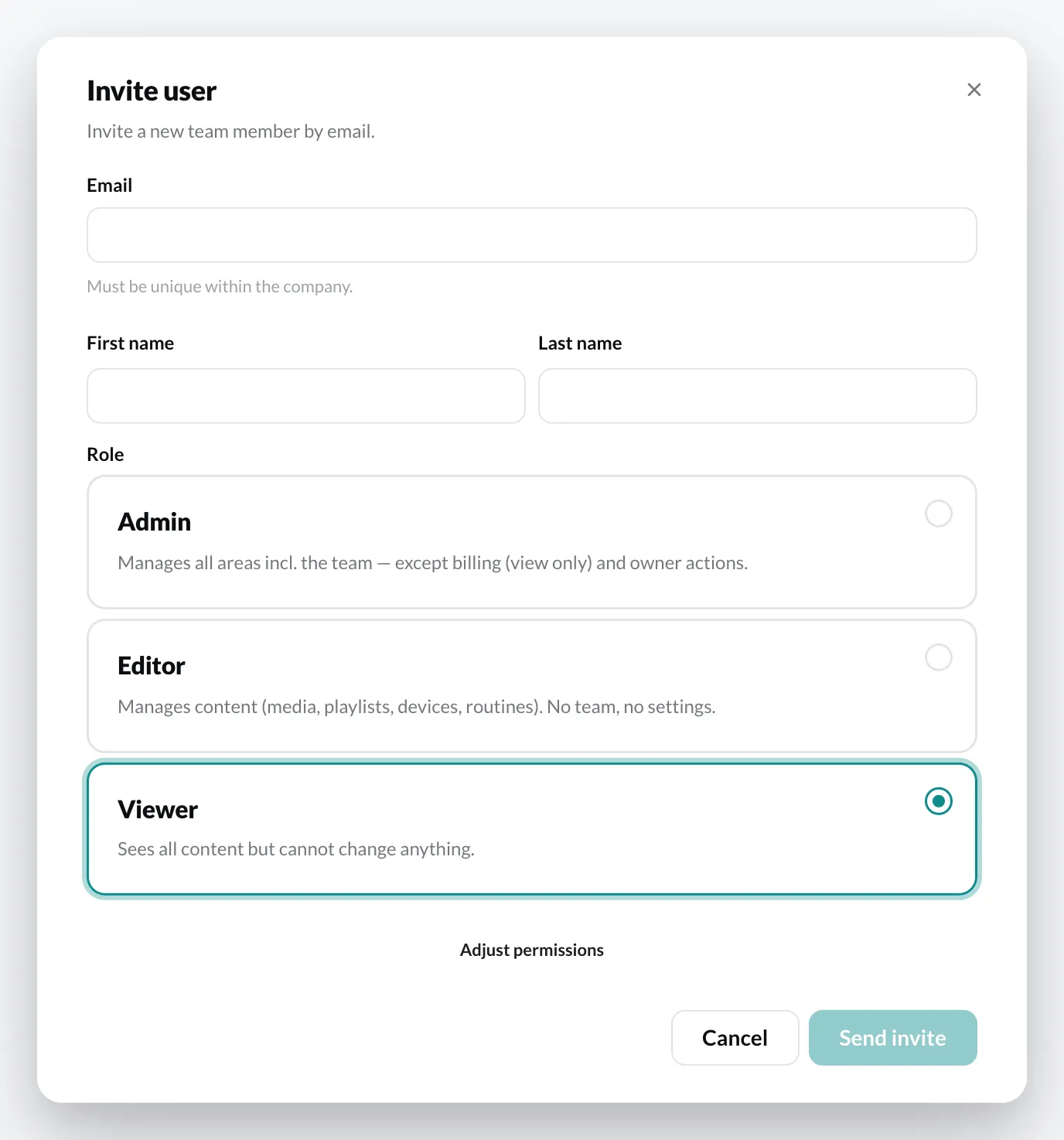
The invited person receives an email with a link. Through it, they set their password and are then signed in. Until then, they appear in the list with the status Invited, afterwards Active.
Manage members
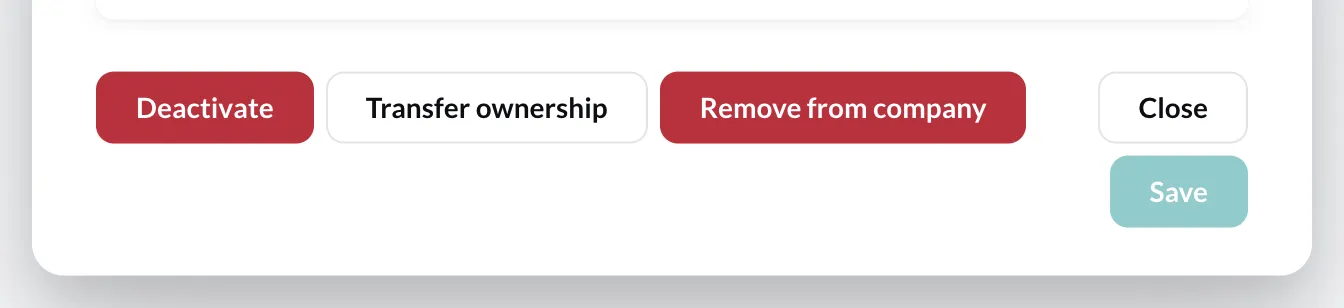
Section titled “Manage members”Click a name in the list. In the details you see who invited the person and when, their role and their permissions. At the bottom you will find the actions:
| Action | What happens |
|---|---|
| Resend invite | Sends the invitation email again (only with status “Invited”). |
| Revoke invite | The invitation link becomes invalid. If needed, you invite the person again. |
| Deactivate | The person can no longer sign in; running sessions end immediately. The data is kept, Reactivate restores access. |
| Remove from company | The person loses access to your company. This cannot be undone – if needed, you invite them again. |
| Transfer ownership | The person becomes the new owner, you become an admin. There is always exactly one owner. Only the owner sees this action. |
Each of these actions asks for confirmation first.