Designer basics
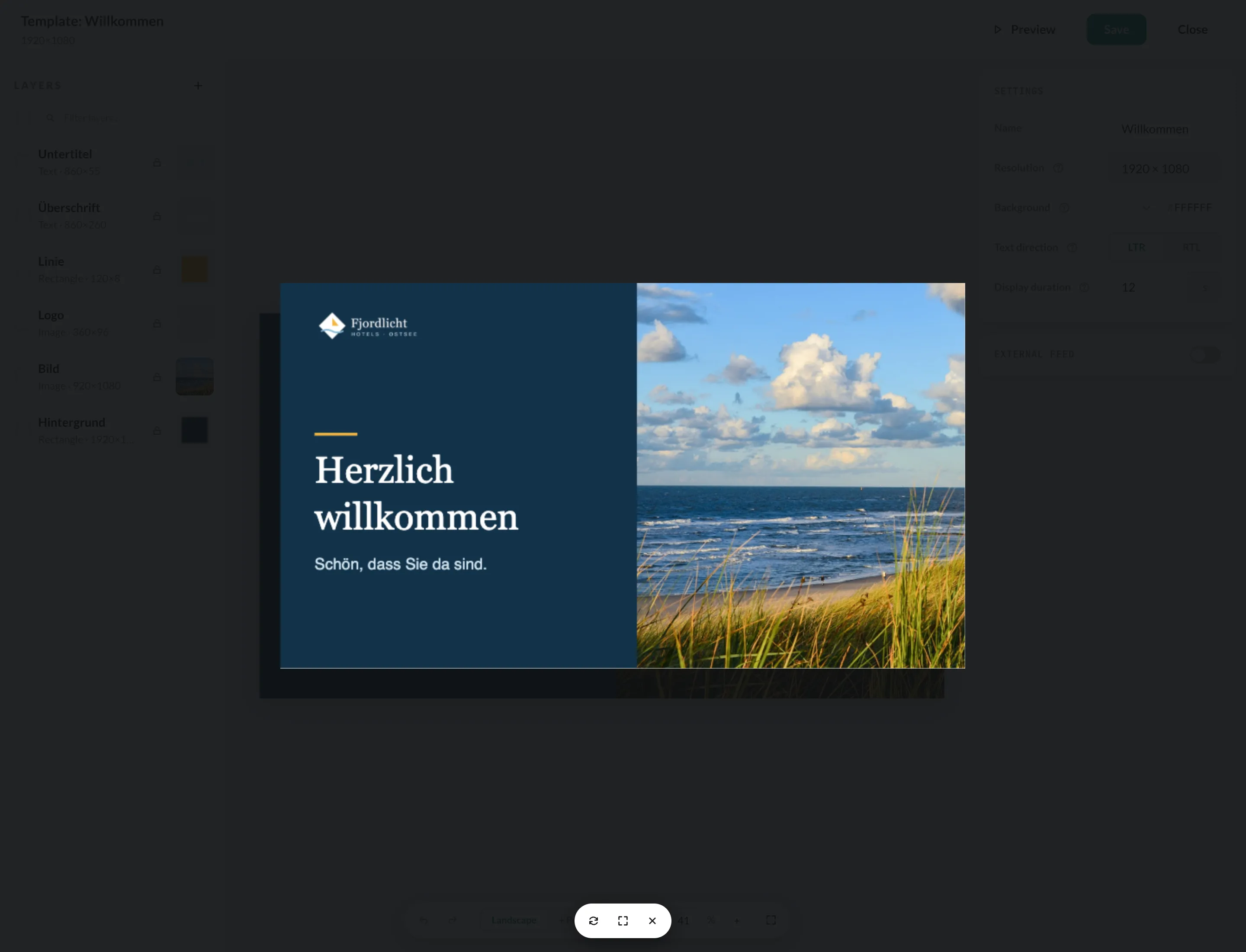
The Designer opens when you create or edit a Slide or a Template.
Layers
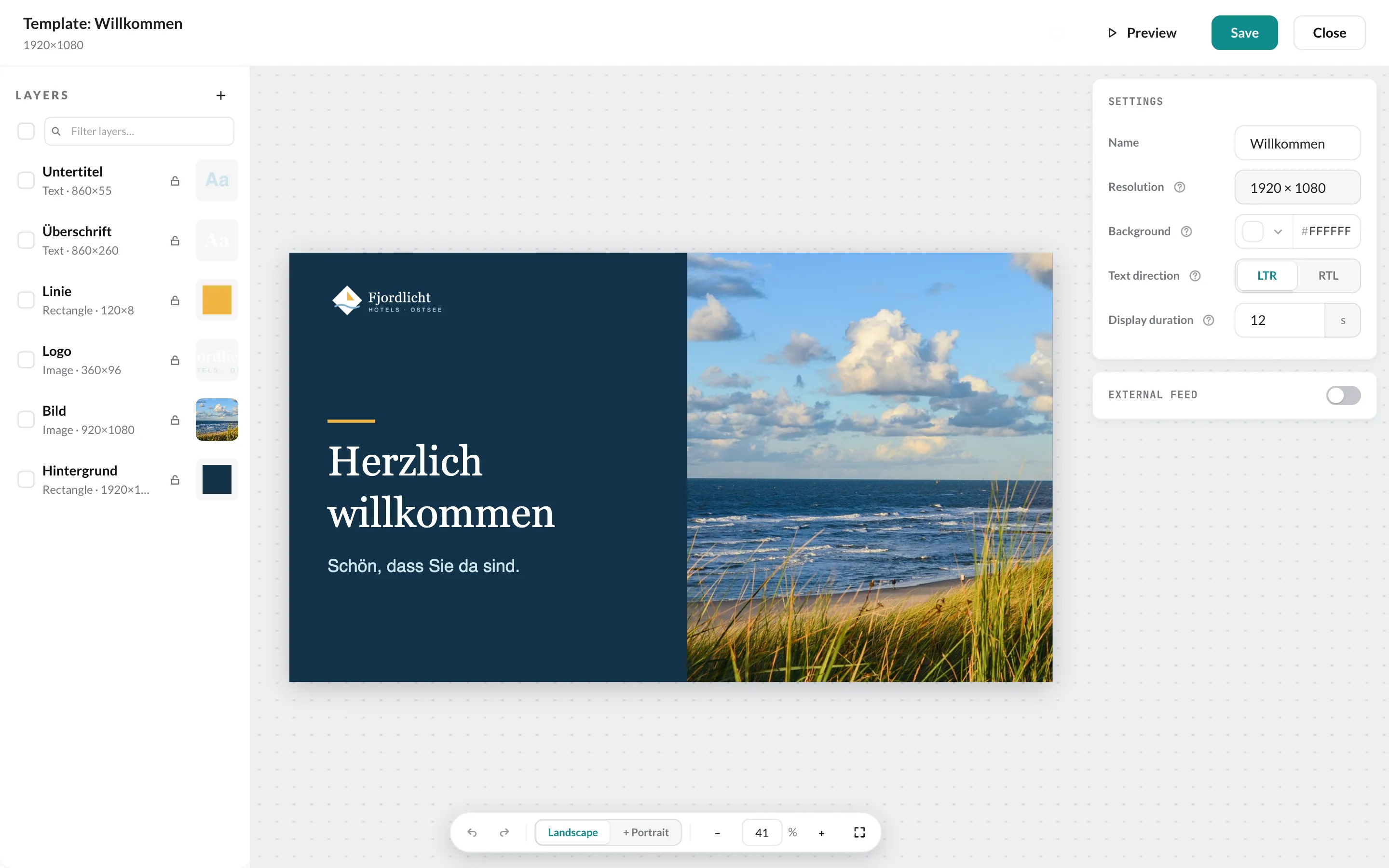
Section titled “Layers”On the left, all elements are listed as Layers – the frontmost at the top. For each layer you can:
- lock it so it isn’t moved accidentally,
- show and hide it,
- rename, duplicate and delete it (context menu),
- move it forward or backward (Bring forward one layer, Bring to front …).
With the search field Filter layers… you quickly find a layer again in large Slides. Use the checkboxes to select several layers at once.
Canvas
Section titled “Canvas”In the center you see the Slide. You move and scale elements directly with the mouse. The bar at the bottom offers Undo and Redo, the orientation Landscape / Portrait, zoom and Fit.
Properties
Section titled “Properties”On the right are the settings of the selected element, grouped into expandable sections – e.g. Align, Position & size, Appearance, Shadow, Entrance animation and Exit animation.
If nothing is selected, the panel shows the settings of the document:
| Setting | Meaning |
|---|---|
| Name | Name of the Slide or Template |
| Resolution | set when it was created |
| Background | Colour behind all elements |
| Text direction | LTR (left to right) or RTL, e.g. for Arabic or Hebrew |
| Display duration | Default duration that is applied when adding to a playlist |
| External feed | an RSS or data feed from which text and images are filled – see RSS feeds |
Animations
Section titled “Animations”For each element you set an Entrance animation (when it appears) and an Exit animation (towards the end) – with effect, duration and delay. Play preview shows the animation directly on the canvas.
Preview and save
Section titled “Preview and save”Preview at the top right plays the Slide as it runs on the screen – with animations. Save applies your changes, Close takes you back to the CMS. If you haven’t saved yet, the Designer asks.