
Calendar
The Calendar plugin shows appointments from Google Calendar or Outlook – e.g. the occupancy of the meeting rooms, the daily schedule, or a room sign next to the door.
Book the plugin under Plugins and assign it to the devices on which it should run. Then create the content in the Media library via Add › Apps › Calendar. The window has two tabs: Content and Design.
Connect an account
Section titled “Connect an account”Under Source, choose Google Calendar or Outlook and connect your account. You can then choose from the calendars shared with this account; with Reload calendars you refresh the list. If you disconnect, saved content is kept and shows a notice until you connect again.
The Content tab
Section titled “The Content tab”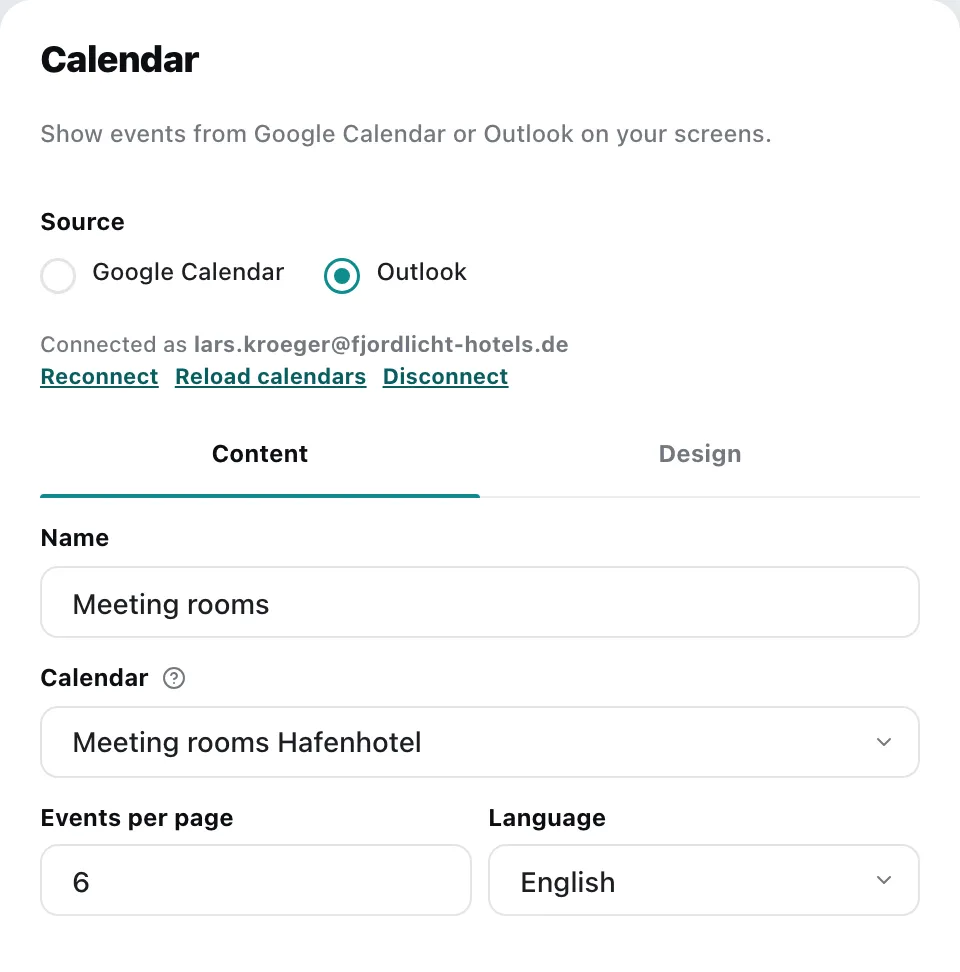
| Field | Meaning |
|---|---|
| Name | Title of the content |
| Calendar | which calendar is shown |
| Events per page | how many events fit on one page; with more events, the screen pages through them automatically |
| Language | language for date, time and texts on the screen |
The time zone comes from the calendar – the screen shows times exactly as they appear in the calendar, no matter where the player is located.
The Design tab
Section titled “The Design tab”Template
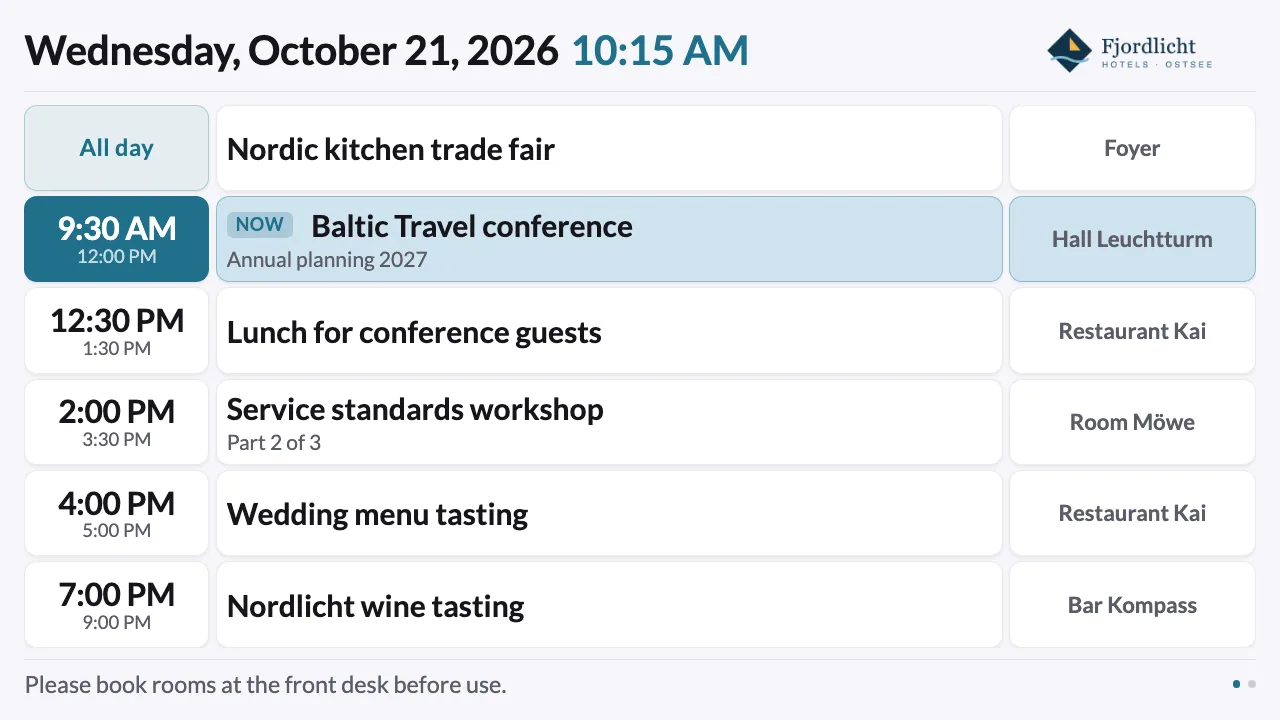
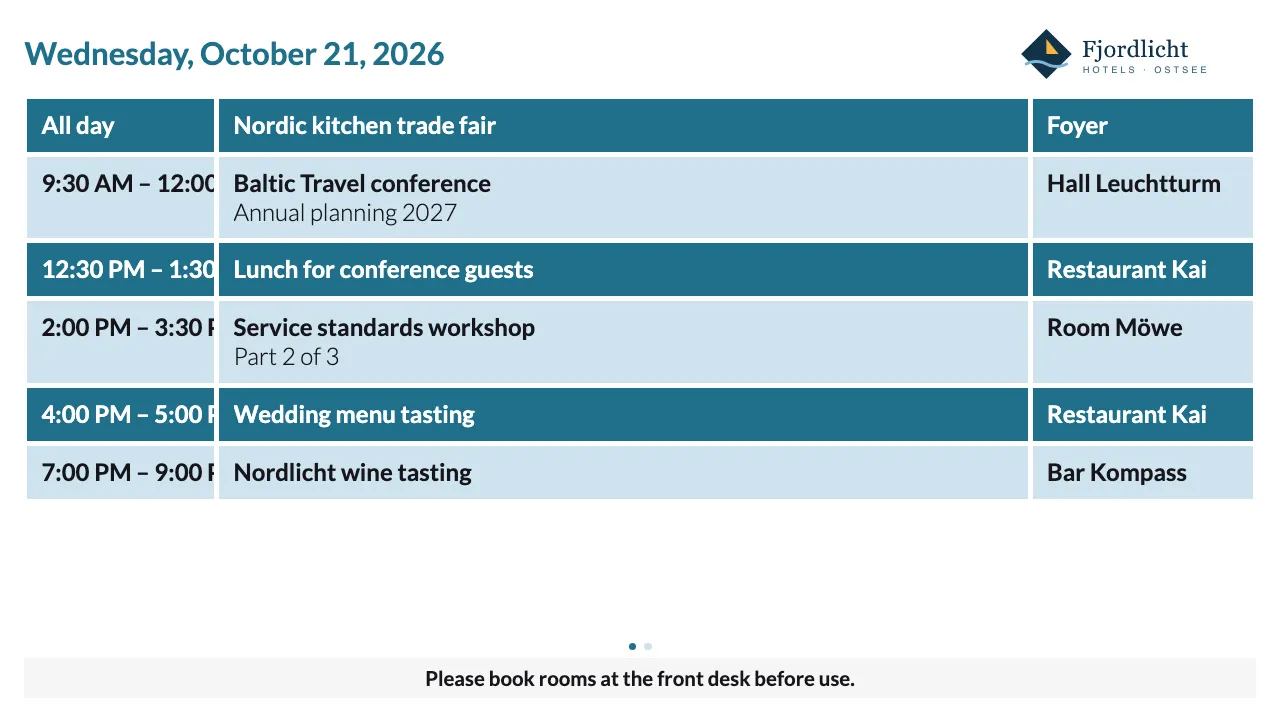
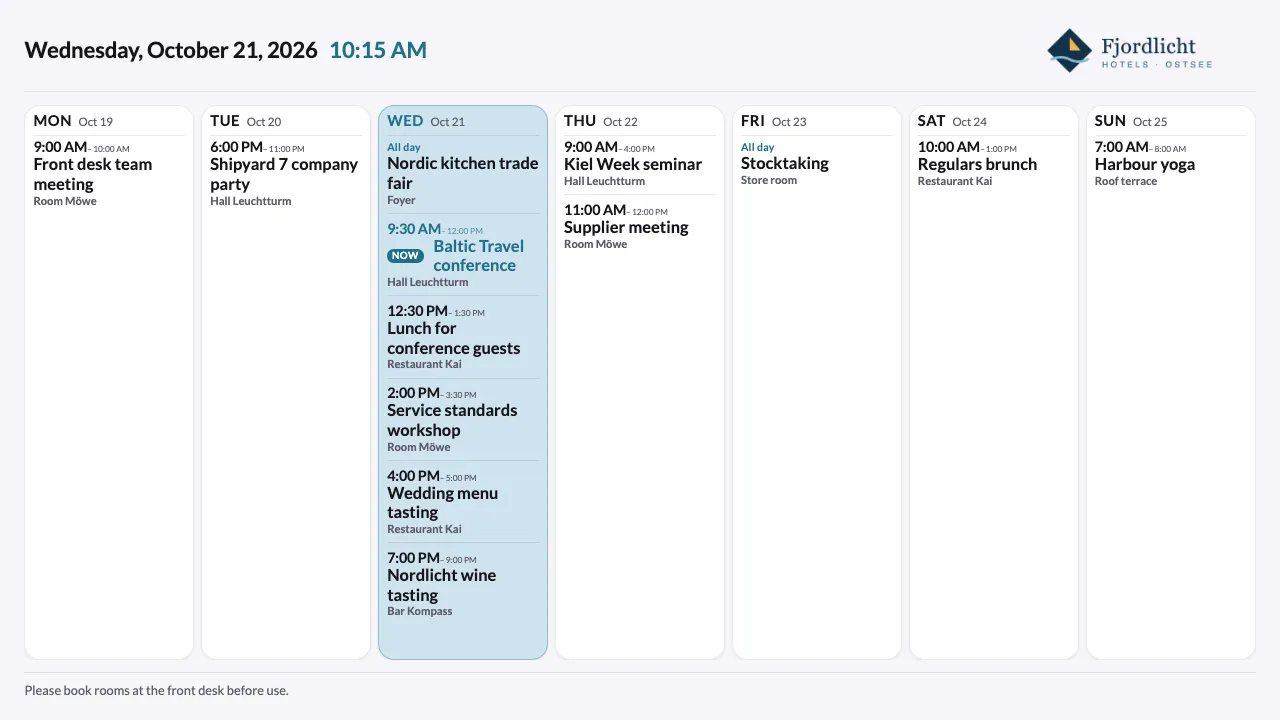
Section titled “Template”| Template | Shows |
|---|---|
| List | today’s events one below the other |
| Classic | the events in coloured bands, with the date in the header |
| Week | the week from Monday to Sunday, one field per day |
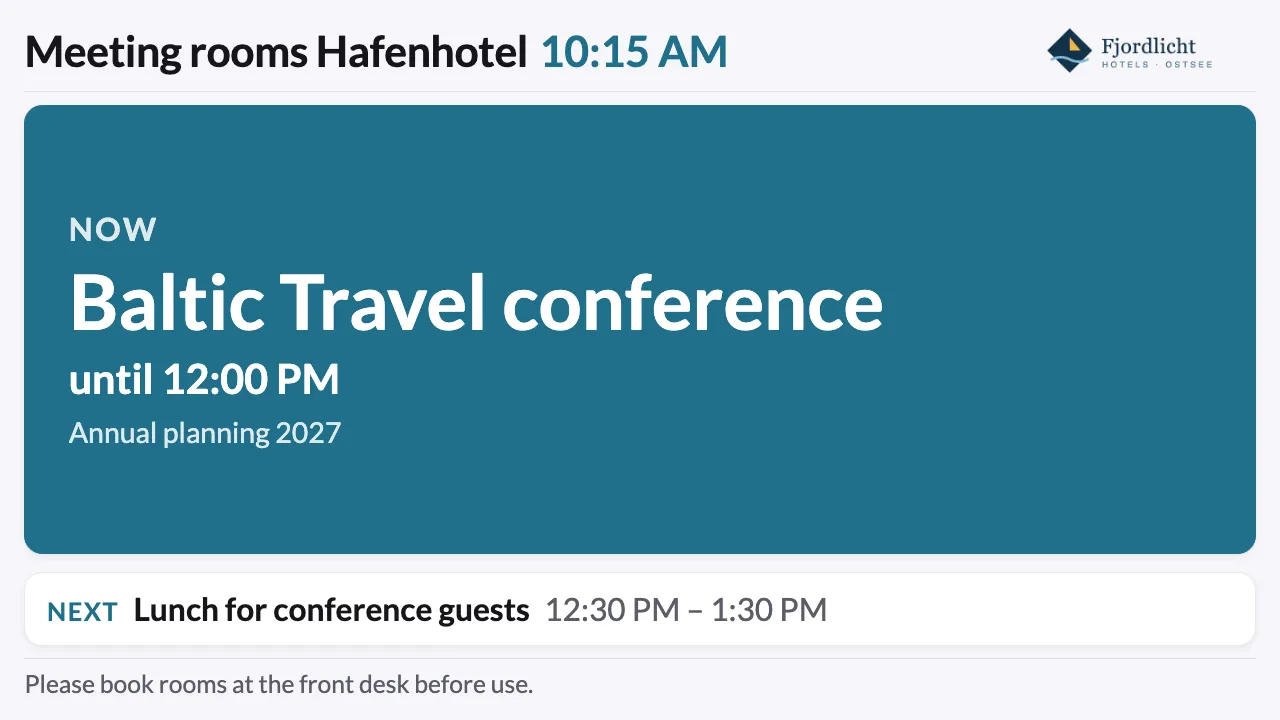
| Room sign | the current event and the next one – made for a screen at the room |
All templates adapt to the screen, whether landscape, portrait or any other aspect ratio.
Customise
Section titled “Customise”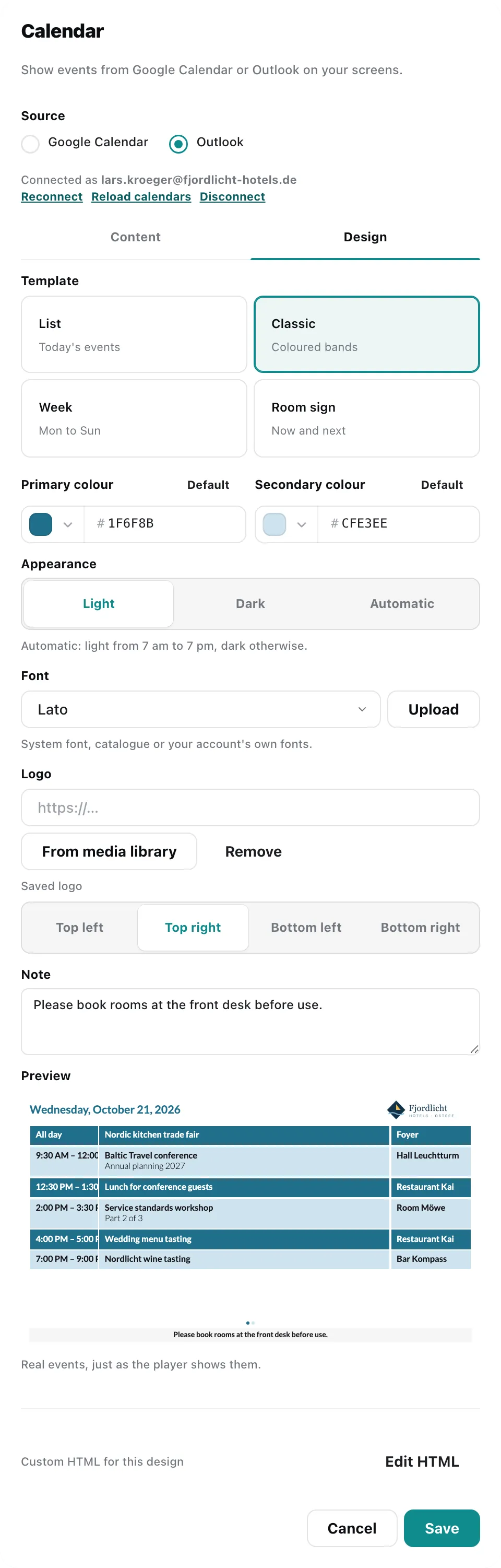
| Field | Meaning |
|---|---|
| Primary colour, Secondary colour | the colours of the template; Default restores the template’s colours |
| Appearance | Light, Dark or Automatic – with automatic, the screen is light from 7 am to 7 pm and dark otherwise (in the calendar’s time zone) |
| Font | the System font, a font from our catalogue (Lato, Inter, Roboto, Open Sans, Montserrat, Merriweather) or an own font from your account |
| Logo | an image From media library (PNG, JPEG, GIF, WebP or SVG, 2 MB at most) or an https address; plus the position: Top left, Top right, Bottom left or Bottom right |
| Note | a text at the bottom edge, e.g. “Rooms may only be used with a reservation” |
Upload your own font: With Upload next to the font selection, you store a house font directly in your account – as WOFF2, WOFF, TTF or OTF, 2 MB at most. It is then also available in other calendar content and in the Content Designer. To upload, you need the permission to upload files to the media library.
Font and logo are embedded in the content when you save; the screen does not load them from the network. If you replace the file later, select it in the content again and save – viewneo does not pick up a changed image under the same https address on its own.
Preview
Section titled “Preview”The Preview shows the content just as the player shows it – with real events as soon as a calendar is chosen, otherwise with sample events. A newly chosen own font and a new logo appear in the preview after saving.
Your own HTML
Section titled “Your own HTML”Under Edit HTML you design the layout yourself. The editor starts with the HTML of the selected template; Reset to template brings it back, Apply adopts your version for this content.
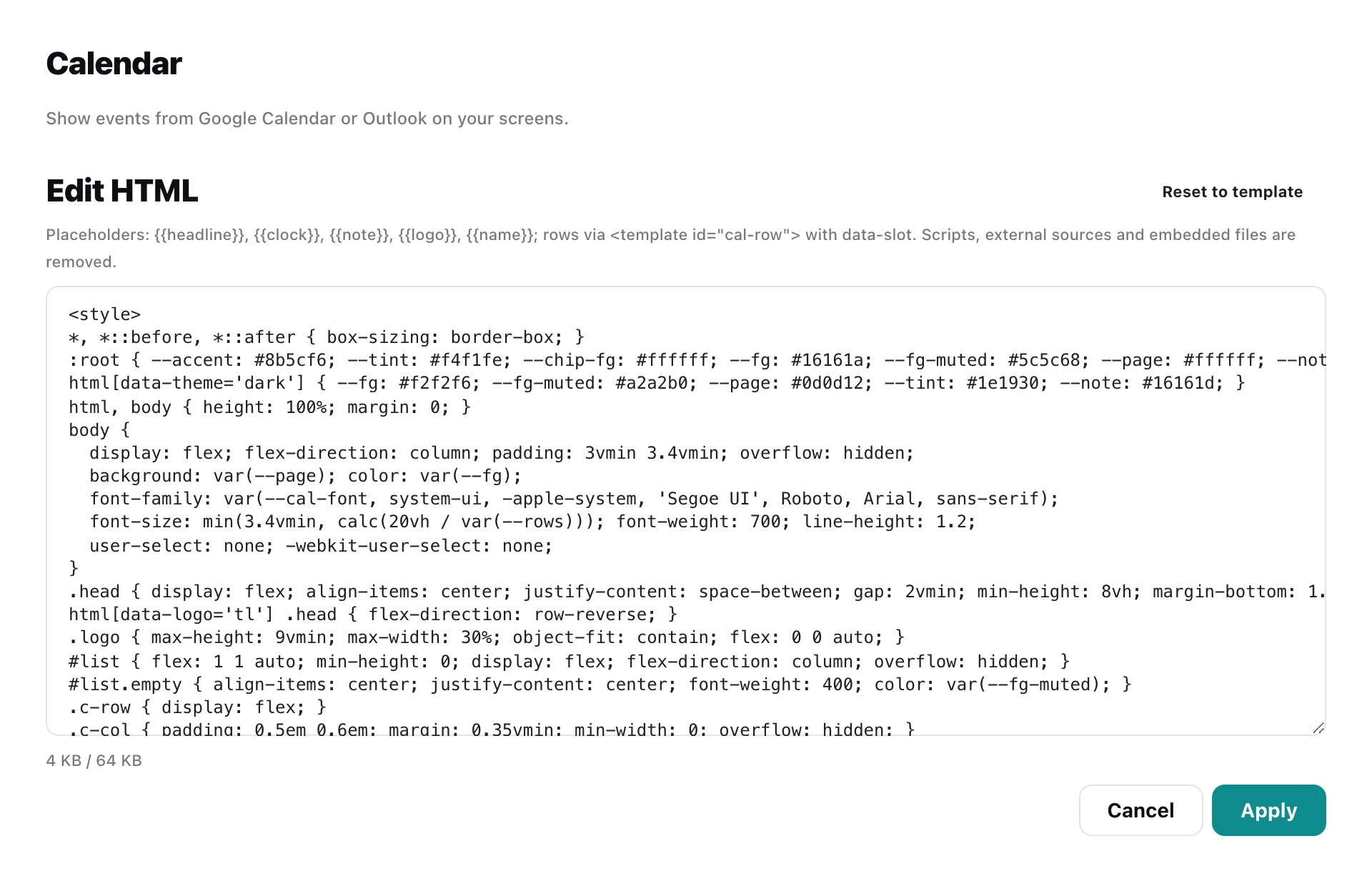
These placeholders are available in the HTML:
| Placeholder | Is replaced by |
|---|---|
{{headline}} | the date as a heading |
{{clock}} | the time |
{{note}} | the note text |
{{logo}} | the logo |
{{name}} | the name of the content |
The screen fills the events themselves into a row template <template id="cal-row">. Elements inside it get their text via data-slot, e.g. data-slot="title", data-slot="description", data-slot="location" or data-slot="range" for the time. With data-if="location", an element only appears if the event has a location. The easiest way is to start with the HTML of a template and change it step by step – the preview shows every change immediately.
Even with your own HTML, Primary colour, Secondary colour, Appearance, Font and Logo keep working – provided your HTML uses, like the templates, the CSS variables (e.g. var(--accent), var(--fg), var(--cal-font)) and the {{logo}} placeholder.
Use the content
Section titled “Use the content”The content appears in the media library; add it to a playlist like any other content. You can change it via the context menu › Edit. General information under Content plugins.
The screen receives the events fully prepared and needs no connection to Google or Microsoft. If the network drops briefly, it keeps showing the most recently loaded events.