
AI image generator
In the Designer, the AI Image Generator creates an image from a description – in exactly the size you draw on the canvas.
- Open the Slide in the Designer and click + › AI Image Generator above the layers.
- Confirm the notice with Got it and draw the rectangle on the canvas in which the image should appear. The area determines the dimensions and quality of the image. Press Esc to cancel.
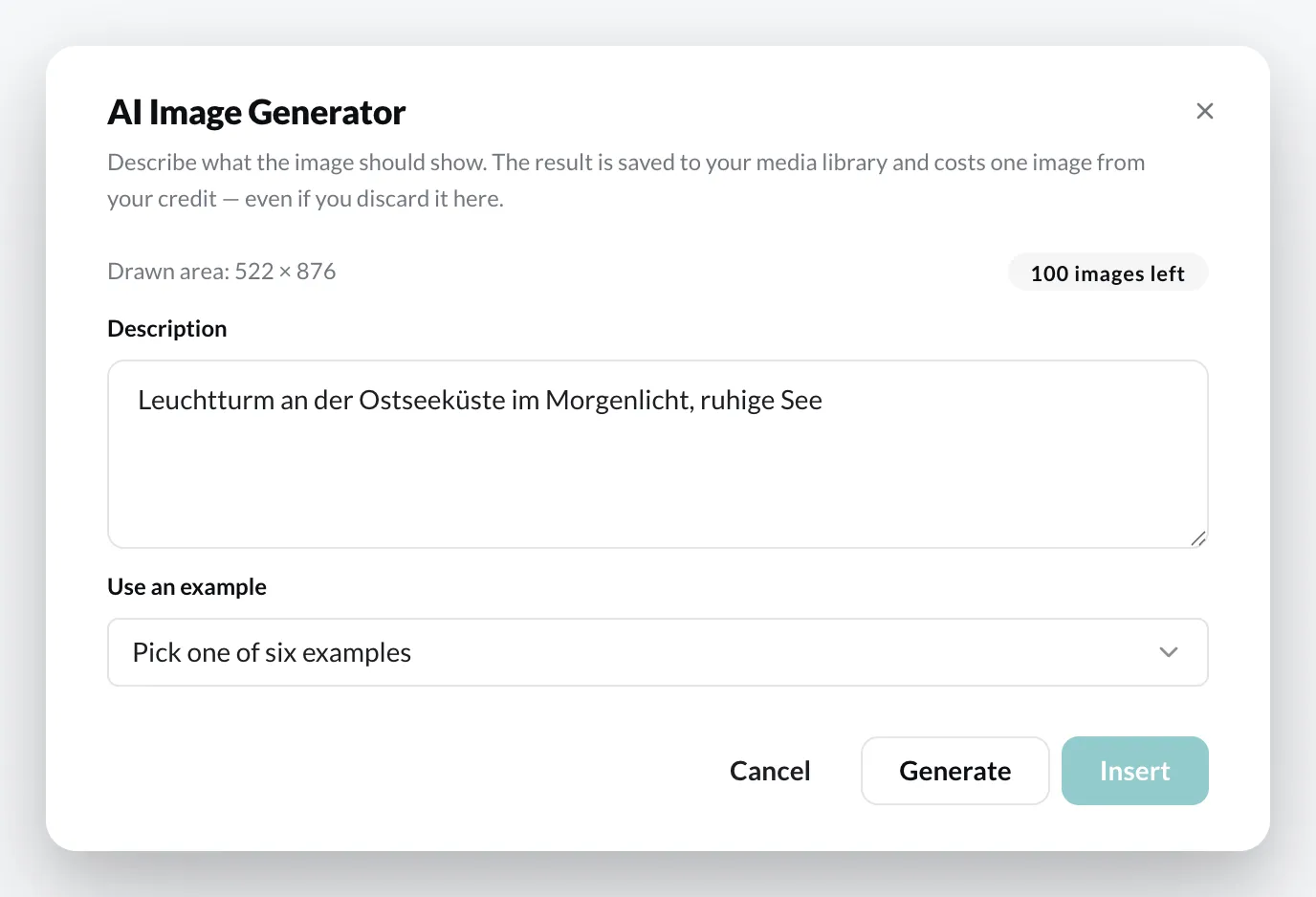
- In the dialog, describe what should be shown. Under Use an example you will find six examples for inspiration.
- Click Generate. If you don’t like the result, try Regenerate.
- Click Insert. The image is placed on the canvas and in your media library.
Credit
Section titled “Credit”Each generated image costs one image from your credit – even if you don’t insert it. The dialog shows how many images are left at the top right. Once your credit is used up, no more images can be generated.