
Connect an RFID hub
A new RFID hub is connected in two steps: you create it in the CMS and receive an activation code. You enter this code in the hub’s setup portal. After that, the hub registers with viewneo by itself.
The RFID hubs page
Section titled “The RFID hubs page”Open IoT devices › RFID hubs. The page has three columns:
- Hubs – all hubs of your account with their status.
- Readers – the readers of the selected hub and which tag is currently placed on them.
- Details – properties of the selected hub: number of readers, MAC address, Activated on and Last sign of life.
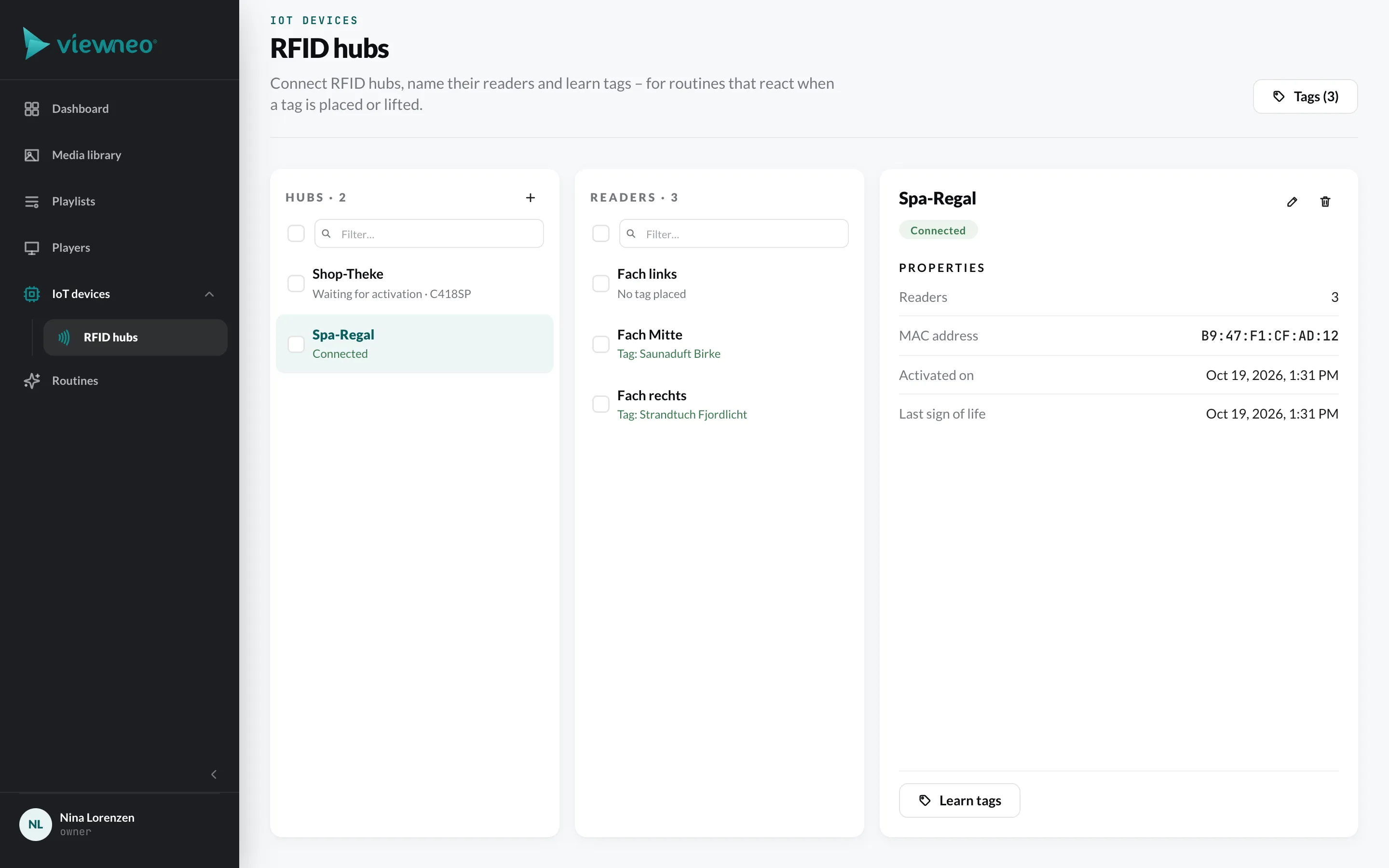
At the top right, Tags opens the list of your learned tags, see Learn tags.
Step 1: Create the hub in the CMS
Section titled “Step 1: Create the hub in the CMS”- In the Hubs column, click + (or Add hub as long as no hub exists yet).
- Enter a Name by which you recognise the hub, e.g. “Spa-Regal” or “Entrance station”.
- Click Create hub.
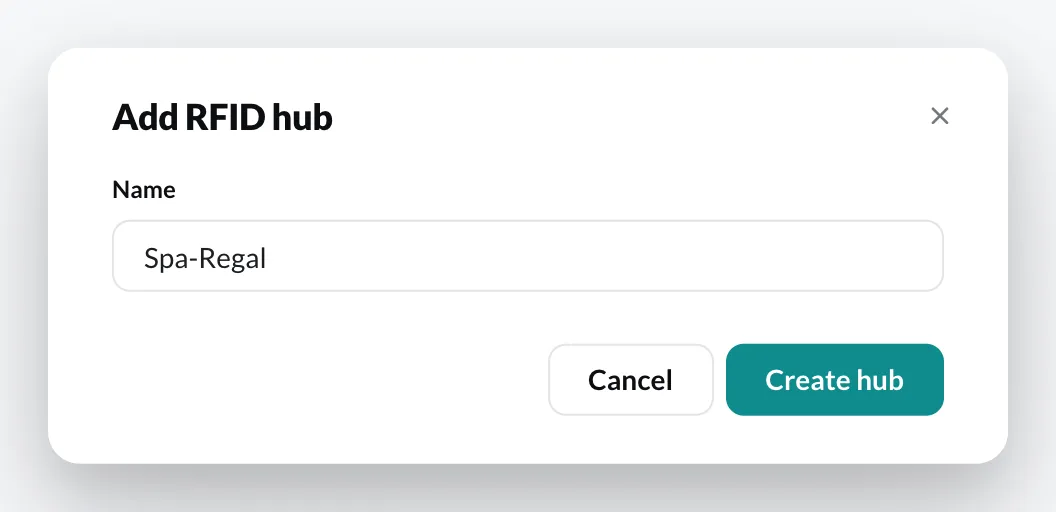
The hub appears in the list with the status Waiting for activation and its code. At the same time, the activation dialog opens.
Step 2: Activate the hub
Section titled “Step 2: Activate the hub”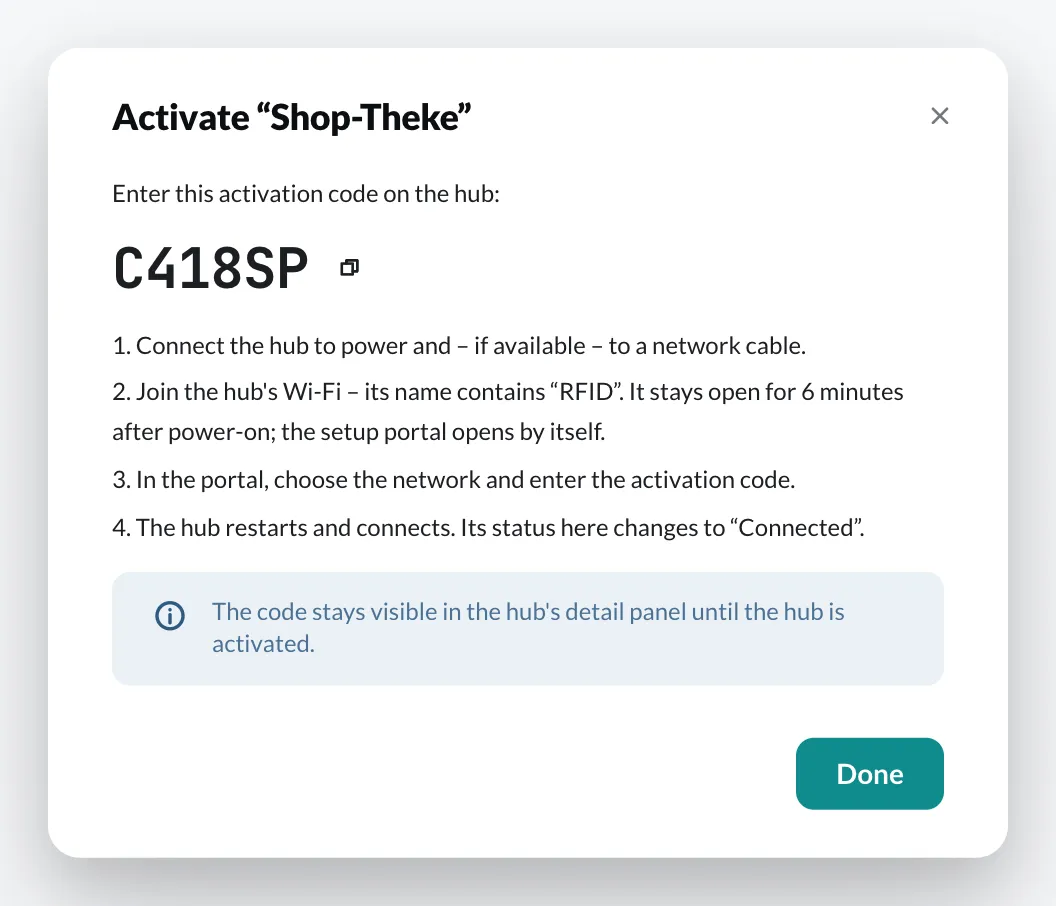
- Connect the readers to the hub and connect the hub to power – and, if available, to a network cable.
- With a smartphone or laptop, join the hub’s Wi-Fi. Its name contains “RFID”. The Wi-Fi stays open for 6 minutes after power-on; the setup portal opens by itself.
- In the portal, choose the network through which the hub should reach the internet, and enter the activation code.
- The hub restarts and connects. Its status in the CMS changes to Connected, and its readers appear in the middle column.
Status of a hub
Section titled “Status of a hub”| Status | Meaning |
|---|---|
| Waiting for activation | The hub has been created but not yet set up with the code. |
| Connected | The hub is online and reports tag changes. |
| Disconnected | The hub is activated but currently not reachable – for example without power or without internet. Routines using this hub do not fire then. |
Last sign of life shows when the hub last reported its readers. It does so on start-up and when the number of its readers changes – so an older date is not an error as long as the status is Connected.
Rename a hub
Section titled “Rename a hub”In the detail panel, click the pencil, or right-click the hub and choose Rename. The name also appears in the routine editor.
Delete a hub
Section titled “Delete a hub”Right-click the hub › Delete, or select one or more hubs and click the trash can.
If viewneo cannot reach the hub when it is deleted, it is still removed from viewneo but not reset on the device. You will then see a notice. Support can help you set up such a hub again.
So only delete a hub if you really no longer use it.