
Developer Menu (Expert Settings)
This page explains the settings options of the viewneo Player App on Android-based viewneo devices. A distinction is made between device settings and player settings.
Device Settings vs. Player Settings
Section titled “Device Settings vs. Player Settings”| Type | Description | Access |
|---|---|---|
| Device settings | System settings of the Android device (Wi-Fi, Ethernet, resolution, language, reset) | USB mouse |
| Player settings | Settings of the viewneo Player App (synchronization, cache, display, developer options) | Long press on the viewneo logo |
The device settings are documented on the respective device pages:
- viewneo 4K SignageBox III
- viewneo 4K SignageBox II
- viewneo 4K SignageBox
- viewneo SignageStick 2
- Qbic FHD-100
Accessing the Device Settings
Section titled “Accessing the Device Settings”- Connect a USB mouse to the player
- Double-click the screen
- Click the lock icon (top right)
- Select System
- Select Settings
Accessing the Player Settings
Section titled “Accessing the Player Settings”- Connect a USB mouse to the player
- Double-click the screen
- Click the lock icon
- Move the cursor to the viewneo logo (top left)
- Hold down the left mouse button for about 2 seconds
Developer Menu
Section titled “Developer Menu”The developer menu contains advanced settings for the viewneo Player App. It is divided into five tabs: Main, Player, Device, Apps and Info.
There are three icons in the title bar at the top right (from left to right):
| Icon | Function |
|---|---|
| Gear | Opens the Android system settings |
| Power | Opens the power menu (see below) |
| Restart | Restarts the Player App |
The power menu offers the following options:
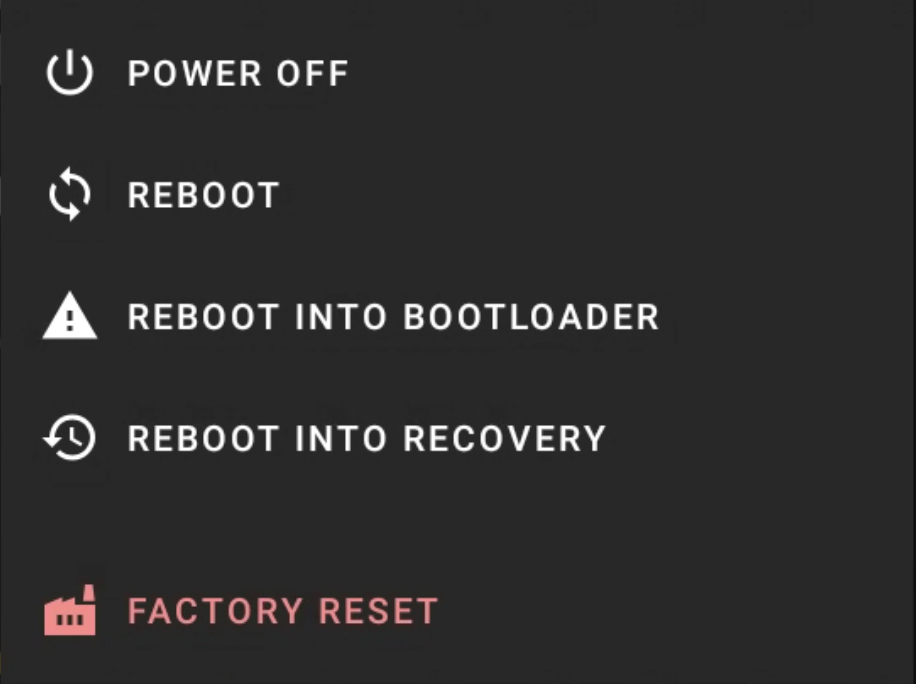
| Option | Description |
|---|---|
| Power off | Turns off the device |
| Reboot | Restarts the device |
| Reboot into bootloader | Boots into the bootloader (developers only) |
| Reboot into recovery | Boots into recovery mode (developers only) |
| Factory reset | Restores the device to factory settings |
The Main tab contains connection settings, app settings, logging and developer options.

Connection
Section titled “Connection”| Setting | Description |
|---|---|
| Custom server | Enables a custom CMS server |
| Reports server | Enables a custom reports server |
| Realtime server | Enables a custom realtime server |
| Update server | Enables a custom update server |
The <·> icon next to each server setting opens a dialog with the following network options:

| Option | Description |
|---|---|
| Do nothing | No action on connection problems |
| Counted reboot | Restart after a certain number of failed connection attempts |
| Disable reconnection | Disables automatic reconnection |
App Settings
Section titled “App Settings”In the app settings section, there are several icons on the right (from left to right):
| Icon | Function |
|---|---|
| Warning icon | Shows the Android permissions of the Player App |
| Update device (forced) | Forces the current settings from the CMS |
| App update | Sets the update settings. Only change when asked to by support. |
| Delete settings | Deletes saved data (see below) |
Delete settings opens a dialog with the following options:
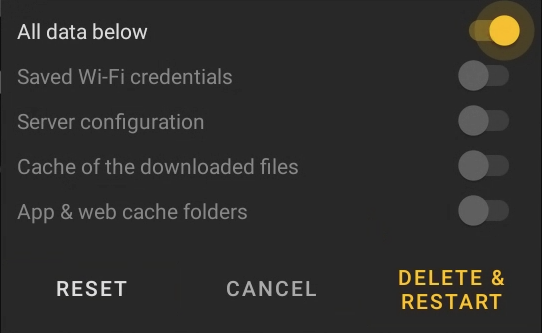
| Option | Description |
|---|---|
| All data below | Selects all of the following options at once |
| Saved Wi-Fi credentials | Deletes saved Wi-Fi credentials |
| Server configuration | Resets the server configuration |
| Cache of the downloaded files | Deletes the cache of the downloaded content |
| App & web cache folders | Deletes the app and web cache |
After making your selection, you can confirm the action with Delete & Restart or reset the selection with Reset.
The warning icon opens a dialog with an overview of the Android permissions required by the Player App:
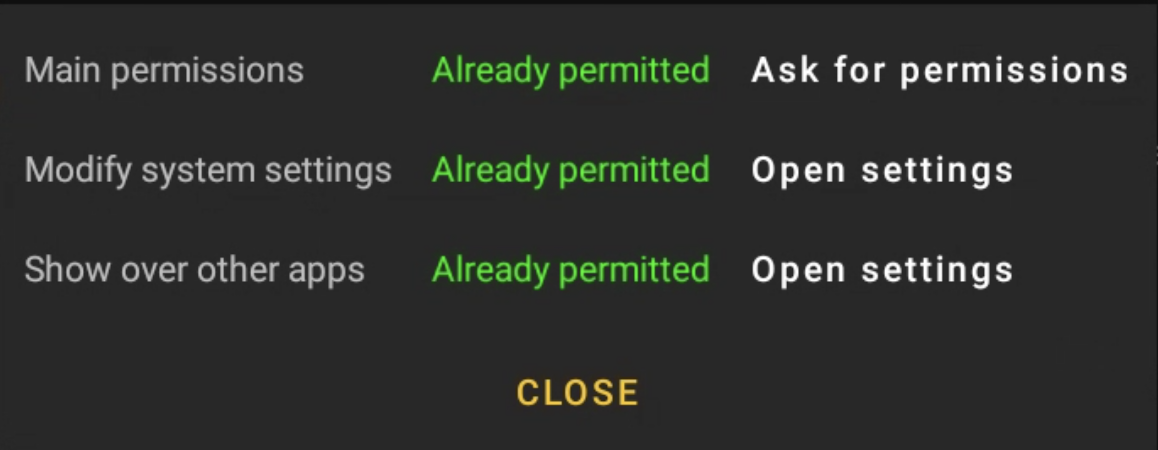
Each permission is color-coded: green (granted) or red (missing). For missing permissions, you can use the button on the right (Ask for permissions or Open settings) to trigger a manual confirmation.
| Setting | Description |
|---|---|
| Run on boot | Starts the viewneo Player App automatically when the device starts (Enabled, Force start or Disabled) |
| App restarts on going to background | Prevents the Player App from being closed or sent to the background (e.g. by user action) |
Logging
Section titled “Logging”The logging section is used exclusively for troubleshooting and should only be used when viewneo support asks you to.
There are three icons next to the heading (from left to right):
| Icon | Function |
|---|---|
| System log (LogCat) | Shows the Android system log |
| Player logs | Shows the player logs |
| Send logs | Sends the player logs to viewneo support |
| Setting | Description |
|---|---|
| Save LogCat | When enabled, the Android system logs (LogCat) are saved in the player logs. Used by support for advanced troubleshooting. |
Developer Options
Section titled “Developer Options”Restart App
Section titled “Restart App”Restarts the viewneo Player App manually.
Player
Section titled “Player”The Player tab controls playback behavior and is divided into four sections: Playback, Web, Interaction and Miscellaneous.
There are three icons at the top right (from left to right):
| Icon | Function |
|---|---|
| RSS test | Downloads the RSS feed configured in the CMS |
| Download media | Downloads the media files |
| Remove media | Removes all downloaded media files |
Playback
Section titled “Playback”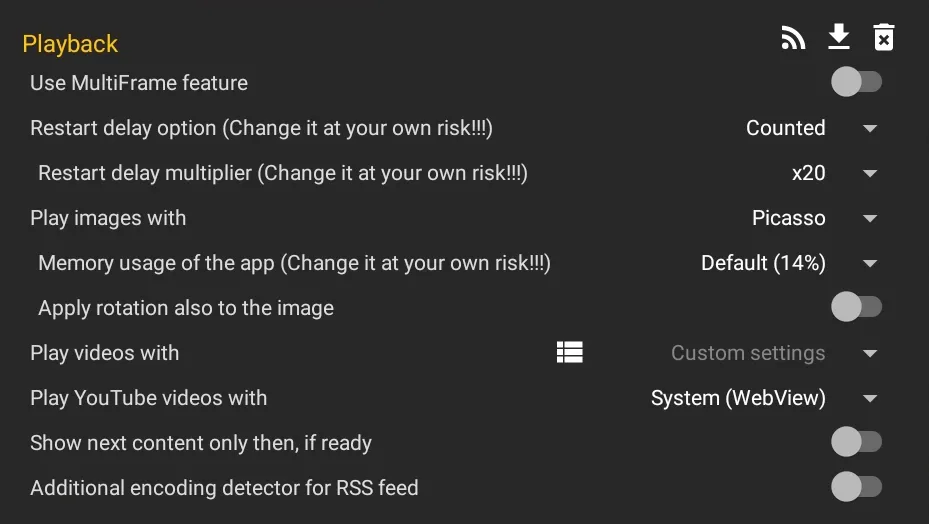
| Setting | Description |
|---|---|
| Use MultiFrame feature | Enables MultiFrame playback for multiple simultaneous content items |
| Restart delay option | The app is restarted periodically to prevent memory leaks with web content. Modes: Disabled (recommended only for pure image/video playlists), Scheduled (restart at a set time) or Counted (memory-intensive content is counted by weight — when the limit is reached, the app restarts and the playlist resumes at the same position). Change at your own risk. |
| Restart delay multiplier | Increases the restart delay by up to 100x. The higher the value, the less frequently the app restarts (change at your own risk). |
| Play images with | Rendering method for images: Picasso (default, sharp rendering, no smooth transition), WebView (rendering in the web browser) or Default (standard Android rendering, can cause memory leaks) |
| Memory usage of the app | Increases the cache for faster image loading. Can cause memory leaks (change at your own risk). |
| Apply rotation also to the image | Also rotates images according to the rotation settings. Useful for portrait display on devices that do not support portrait mode. |
| Play videos with | Choice of rendering method for videos: Texture (CPU) or Default (GPU). Via the list icon, the method can be configured separately for portrait and landscape. |
| Play YouTube videos with | Rendering method for YouTube videos: In-app (Crosswalk) (only for Android 5) or System (WebView) (for all other Android versions) |
| Show next content only then, if ready | Waits until the next content item (e.g. an external website) has fully loaded. The current content may therefore be displayed longer. When enabled, the animation time between images and videos can be set in milliseconds. |
| Additional encoding detector for RSS feed | Enables additional character encoding detection for RSS feeds |
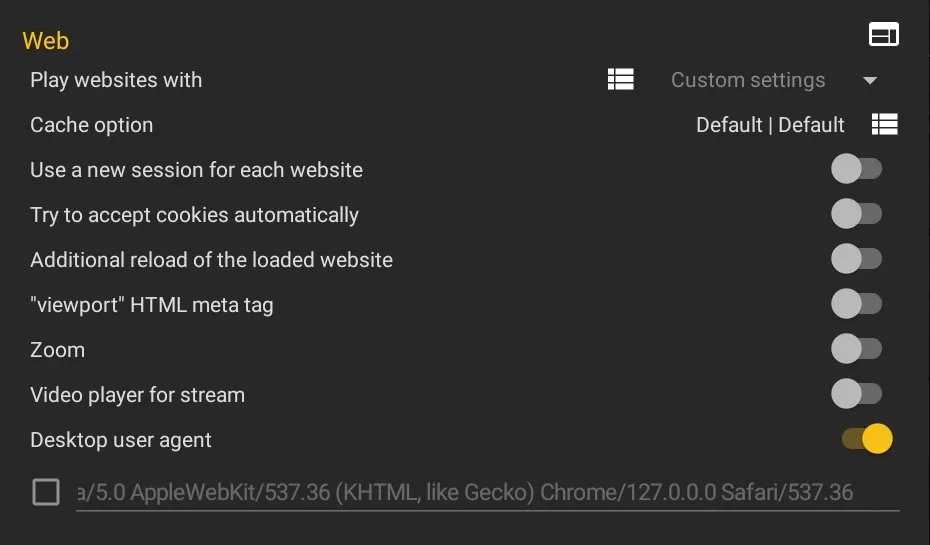
With the browser icon next to the heading, you can load a custom website for preview. If additional engine settings are available, you can also adjust them there.
| Setting | Description |
|---|---|
| Play websites with | Rendering method for websites: In-app (Crosswalk), System (WebView) or In-app (Gecko). The list icon opens a menu in which the engine can be configured individually per content type (see below). |
| Cache option | Cache settings for internal and external websites. Can reduce loading time. For frequently changing content, select “no cache”. |
| Use a new session for each website | Each website call runs in its own session (the previous one is closed). Gecko only. |
| Try to accept cookies automatically | Tries to accept cookie consent banners on websites automatically. Gecko only. |
| Additional reload of the loaded website | Reloads the website after the initial load. Can help to make content visible. |
| ”viewport” HTML meta tag | Enables support for the viewport meta tag. Can improve rendering, but can also make it worse. When disabled, the layout width always equals the browser width in CSS pixels. |
| Zoom | Enables zoom controls and gestures in the web browser. Some websites use zoom for correct positioning — this option can help with such pages. |
| Video player for stream | Uses a video player instead of the web browser for streaming content. Filters URLs by extension (e.g. .m3u8, .mp4). |
| Desktop user agent | By default, web servers recognize the Player App as a mobile application and deliver a mobile website. This option forces the desktop version to load. The user agent can be overridden if needed. |
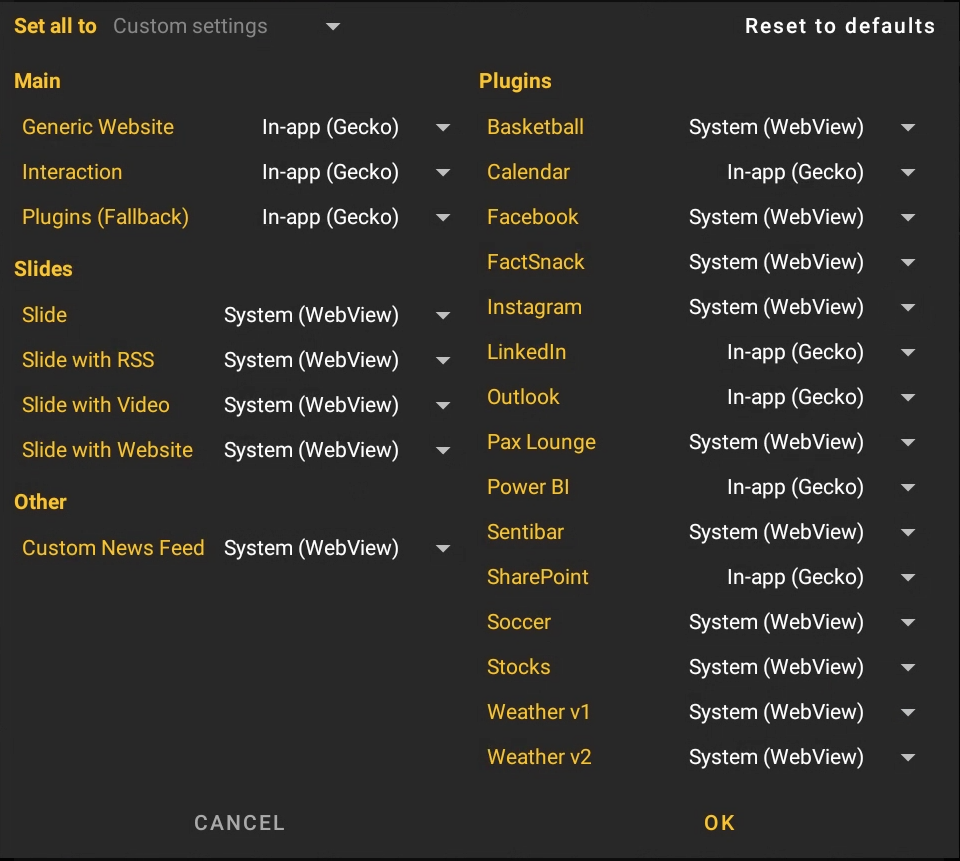
The menu lists all content types (e.g. Generic Website, Interaction, Slide, Plugins) and lets you assign the browser engine individually. With Set all to, you can change the selection for all types at once, and with Reset to defaults you can restore the default values.
Interaction
Section titled “Interaction”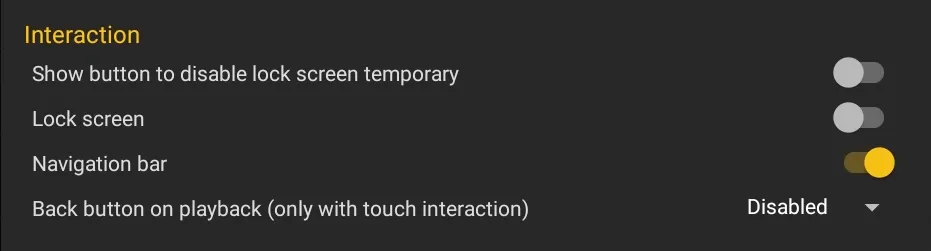
| Setting | Description |
|---|---|
| Show button to disable lock screen temporary | When enabled, a monitor icon appears in the top left corner during playback. Clicking it temporarily disables the screen lock so that the displayed website can be used like a browser (e.g. for logging in or cookie consent). The lock is automatically re-enabled when the entry has finished playing. |
| Lock screen | Enables the screen lock for the interactive website. Must be enabled if the system navigation bar cannot be hidden. |
| Navigation bar | Shows Home, Back and Forward buttons for navigation in interaction mode |
| Back button on playback | Shows a back button for navigating to the previous playback entry. Only works with playlists that use routines and touch interaction. |
Miscellaneous
Section titled “Miscellaneous”
| Setting | Description |
|---|---|
| Show event logs during the playback | Shows event logs during playback: Disabled, Local logs (player logs) or LogCat (Android system log) |
| Show debug information about the playback | Shows debug information during playback: entry index, playlist name, entry name and countdown. Once enabled, the text color can be changed (Red, Blue, Green, Yellow, Black, White). |
Device
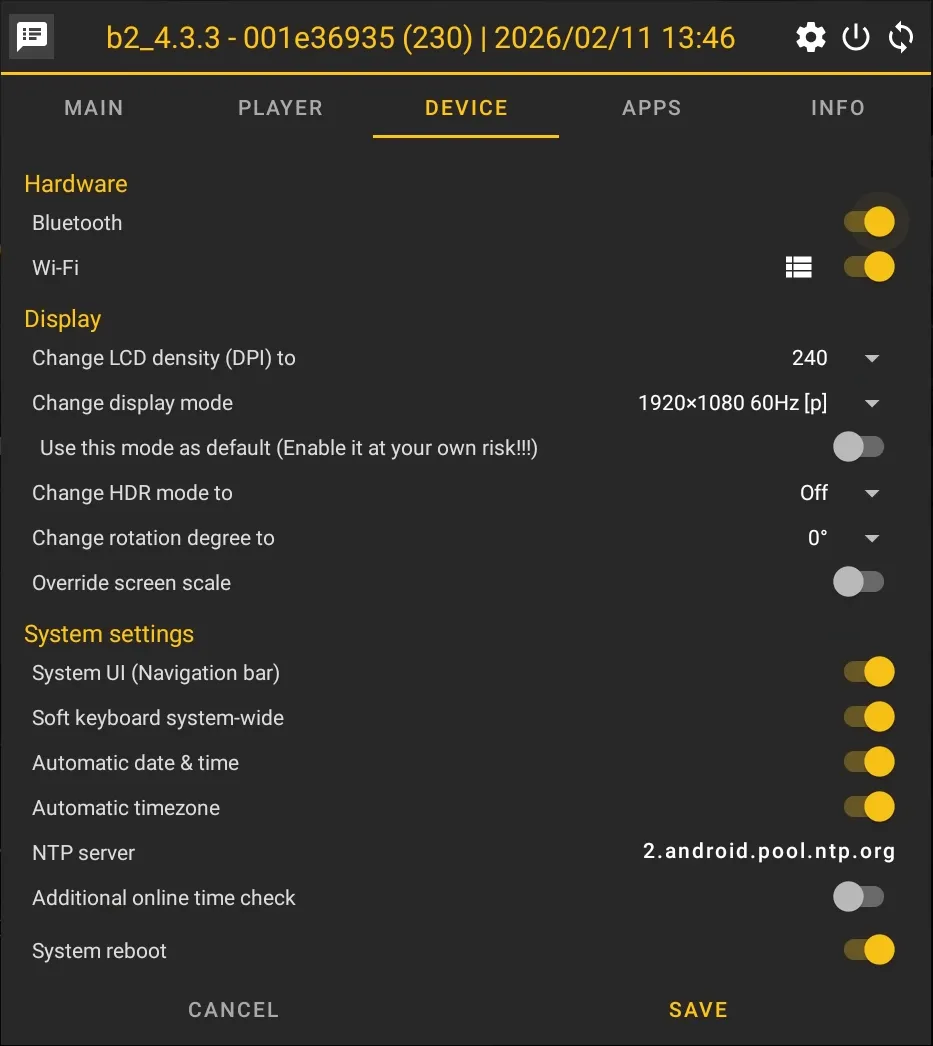
Section titled “Device”The Device tab contains hardware, display and system settings.
Hardware
Section titled “Hardware”
| Setting | Description |
|---|---|
| Bluetooth | Enables or disables Bluetooth |
| Wi-Fi | Enables or disables Wi-Fi. Via the list icon, you can select and connect to a different Wi-Fi network (as during initial setup). This lets the app save the Wi-Fi credentials for automatic reconnection. |
Display
Section titled “Display”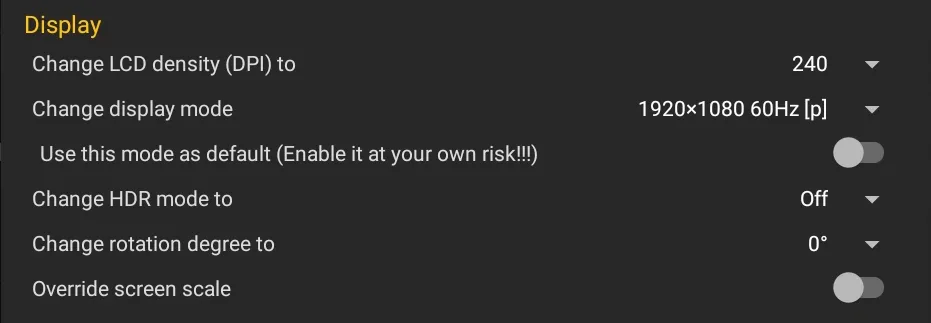
| Setting | Description |
|---|---|
| Change LCD density (DPI) to | Changes the system DPI setting (160–480 dpi). Also affects the web browser resolution (e.g. 160 dpi = 1920x1080, 240 dpi = 1280x720). |
| Change display mode | Shows all available display modes and switches the mode immediately |
| Use this mode as default | Sets the selected display mode as the default, which is applied at every system start (change at your own risk) |
| Change HDR mode to | Forces a specific HDR mode (Off, On, Auto) |
| Change rotation degree to | Rotates the display by 0°, 90°, 180° or 270°. Settings in the CMS account (under devices/device groups) are not overridden. |
| Override screen scale | Overrides the screen scaling. Settings in the CMS account are not overridden. |
System Settings
Section titled “System Settings”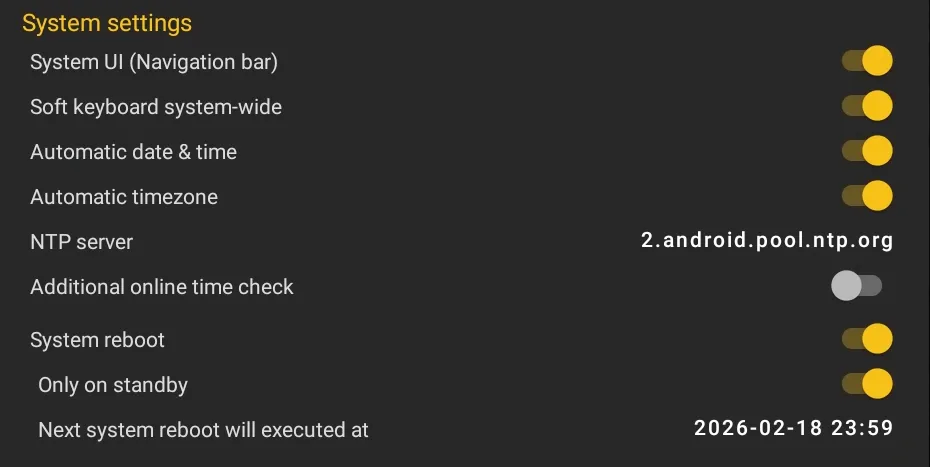
| Setting | Description |
|---|---|
| System UI (Navigation bar) | Shows or hides the system navigation bar. Only takes effect in setup or menu mode. |
| Soft keyboard system-wide | Enables the on-screen keyboard system-wide. Only disable this option if a hardware keyboard is used exclusively. |
| Automatic date & time | Enables automatic date and time setting. Disabling it prevents the app from automatically enabling this setting in the system settings. |
| Automatic timezone | Enables automatic time zone detection. Disabling it prevents the app from automatically enabling this setting in the system settings. |
| NTP server | Configures the NTP server for time synchronization. Useful if your network blocks the default NTP server. You can change the NTP server by clicking it. |
| Additional online time check | Enables an additional time check via timeapi.io for comparison |
| System reboot | Enables an automatic system reboot at a set time. Enable this option if you have problems with the player hardware or HDMI-CEC. |
| Only on standby | Automatically restarts the device if it has been in standby mode for more than 24 hours. Prevents system failures during longer periods of inactivity. |
Serial Port
Section titled “Serial Port”
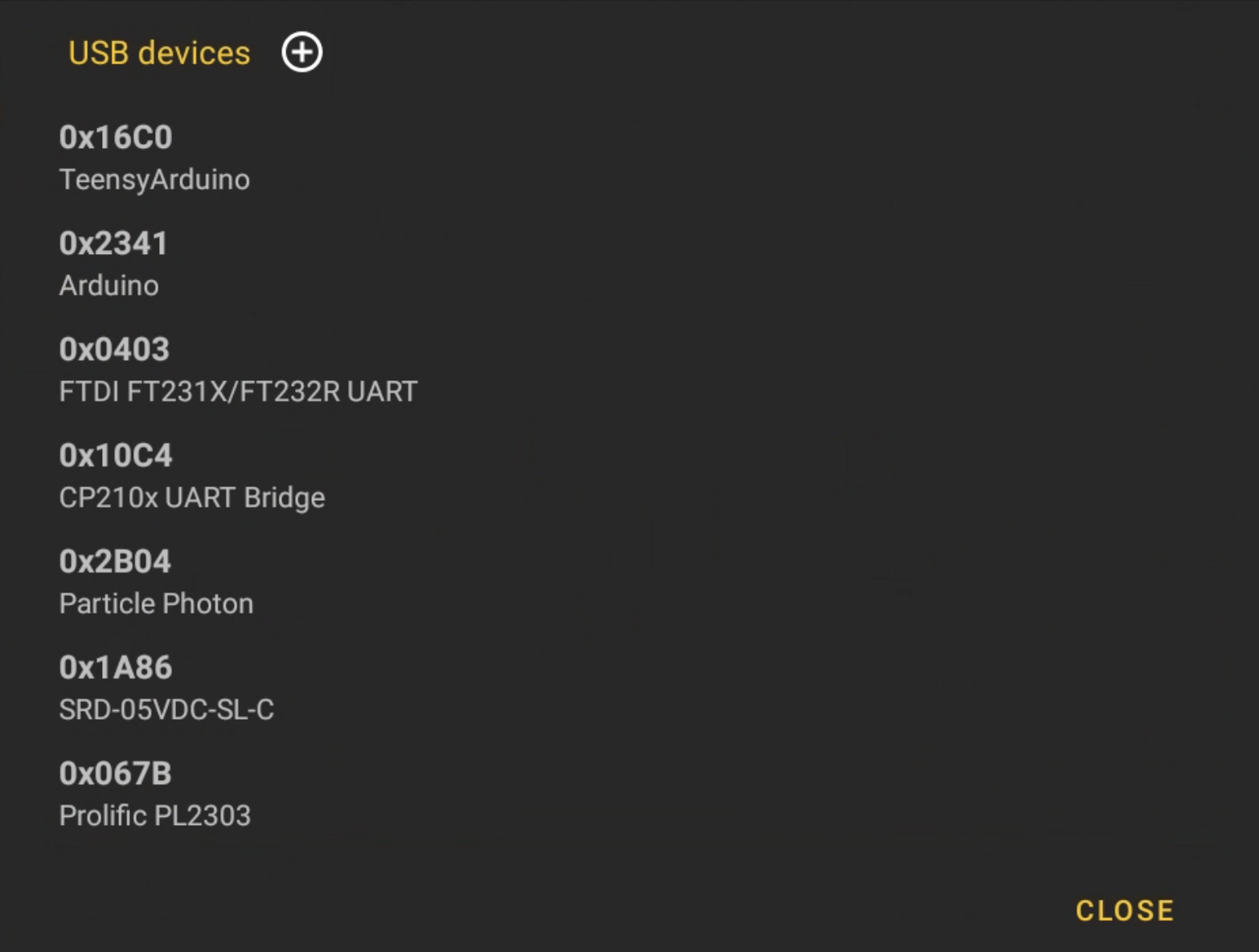
The list icon next to the heading shows the list of supported USB devices. With the + icon, you can add custom devices.
| Setting | Description |
|---|---|
| Use default settings | Uses the default settings for the serial port. When disabled, baud rate, data bits, stop bits, parity and format can be configured manually. |
| Connect | Connects to the serial port. Once connected, you can send commands via the text field and receive responses. Used for testing serial devices connected via USB. |
The Apps tab shows all applications installed on the device.
The Info tab shows comprehensive system information. All entries are read-only.
Display
Section titled “Display”| Information | Description |
|---|---|
| DPI | Current screen density in DPI |
| Resolution | Current screen resolution (width x height) |
| Orientation | Current screen orientation |
Hardware
Section titled “Hardware”| Information | Description |
|---|---|
| CPU freq | Current CPU clock frequency |
| CPU usage | Current CPU load in percent |
| CPU temperature | Current CPU temperature |
| RAM total | Total memory |
| RAM usage | Used memory |
| RAM temperature | Current RAM temperature |
| Storage (Internal) | Free and total internal storage |
| Storage (External) | Free and total external storage |
Network
Section titled “Network”| Information | Description |
|---|---|
| Bluetooth MAC | Bluetooth MAC address |
| Ethernet MAC | Ethernet MAC address |
| Wi-Fi MAC | Wi-Fi MAC address |
Connection
Section titled “Connection”| Information | Description |
|---|---|
| NTP | Current NTP server |
| MAC | MAC address of the active connection |
| Last connection | Time of the last server connection |
| Network type | Type of the current network connection |
| Signal strength | Signal strength of the current connection (only visible on Wi-Fi) |
| IP address | Current IP address of the device |
| Subnet mask | Subnet mask |
| Gateway | Default gateway |
| DNS | DNS server |
| Information | Description |
|---|---|
| Date | Current date and time |
| Timezone | Current time zone |
Software
Section titled “Software”| Information | Description |
|---|---|
| Build flavor | Build variant of the Player App |
| Config | Current configuration |
| ABI | CPU architecture (e.g. arm64-v8a) |
| Brand | Device brand |
| Display ID | Android display build ID |
| Fingerprint | Android build fingerprint |
| Manufacturer | Device manufacturer |
| Model | Device model |
| OS version | Android version |
| Product | Android product name |
| Serial | Serial number of the device |
| Uptime | Uptime since the last restart |
| UUID | Unique identifier of the player (for support requests) |
| Rooted | Indicates whether the device is rooted |
| Is launcher | Indicates whether the Player App is set as the launcher |
| viewneo Service | Version of the viewneo Service app |
| viewneo Updater | Version of the viewneo Updater app |
| WebView | Version of the WebView component |
| Google Services | Version of Google Play Services |
Library
Section titled “Library”| Information | Description |
|---|---|
| Open Source | Shows the open-source libraries used |
Compatibility
Section titled “Compatibility”The expert settings are available on all Android devices:
- viewneo 4K SignageBox III
- viewneo 4K SignageBox II (Standard and White Label)
- viewneo 4K SignageBox
- viewneo SignageStick 2
- Qbic FHD-100
- Philips D-Line
- Third-party Android devices