
Websites as content
The player shows a website live – no file is uploaded. This keeps content such as a menu, a dashboard or a weather page always up to date.
- In the Media library, open the target folder.
- Click Add › Add website.
- Enter a Name and the URL.
- Click Add website.
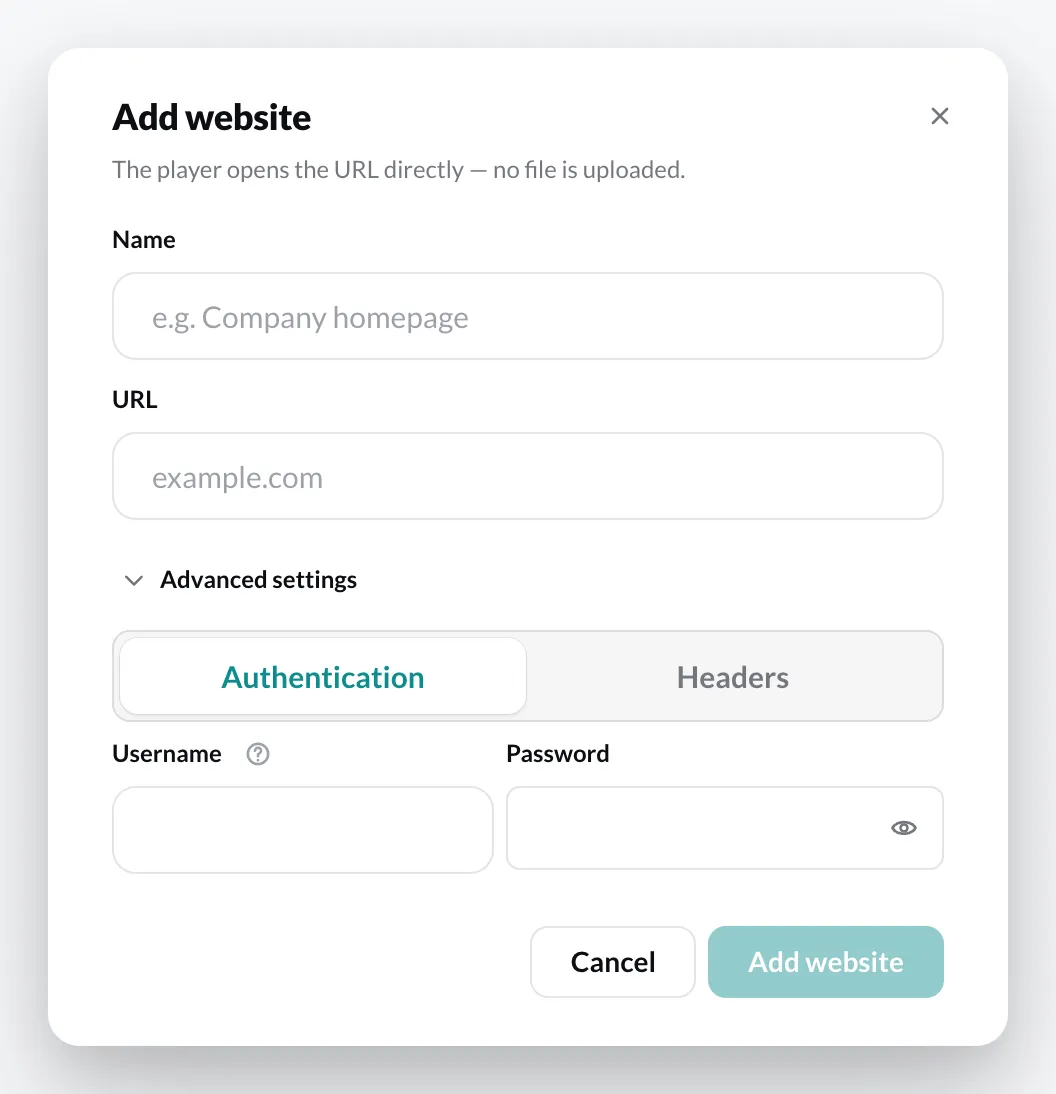
Advanced settings
Section titled “Advanced settings”If the page requires a login, you will find two tabs under Advanced settings:
- Authentication – user name and password for an HTTP login (Basic Auth).
- Headers – custom HTTP headers, e.g. an API key.
- The page must be reachable from the player. Internal addresses only work if the player is on the same network.
- Check the page with Preview in the context menu before you add it to a playlist.
- If guests should use the page on a touch screen, switch on Touch interaction in the playlist. If a touch should instead open a different website over the playlist, use Website Interaction.