
Manage sub-accounts
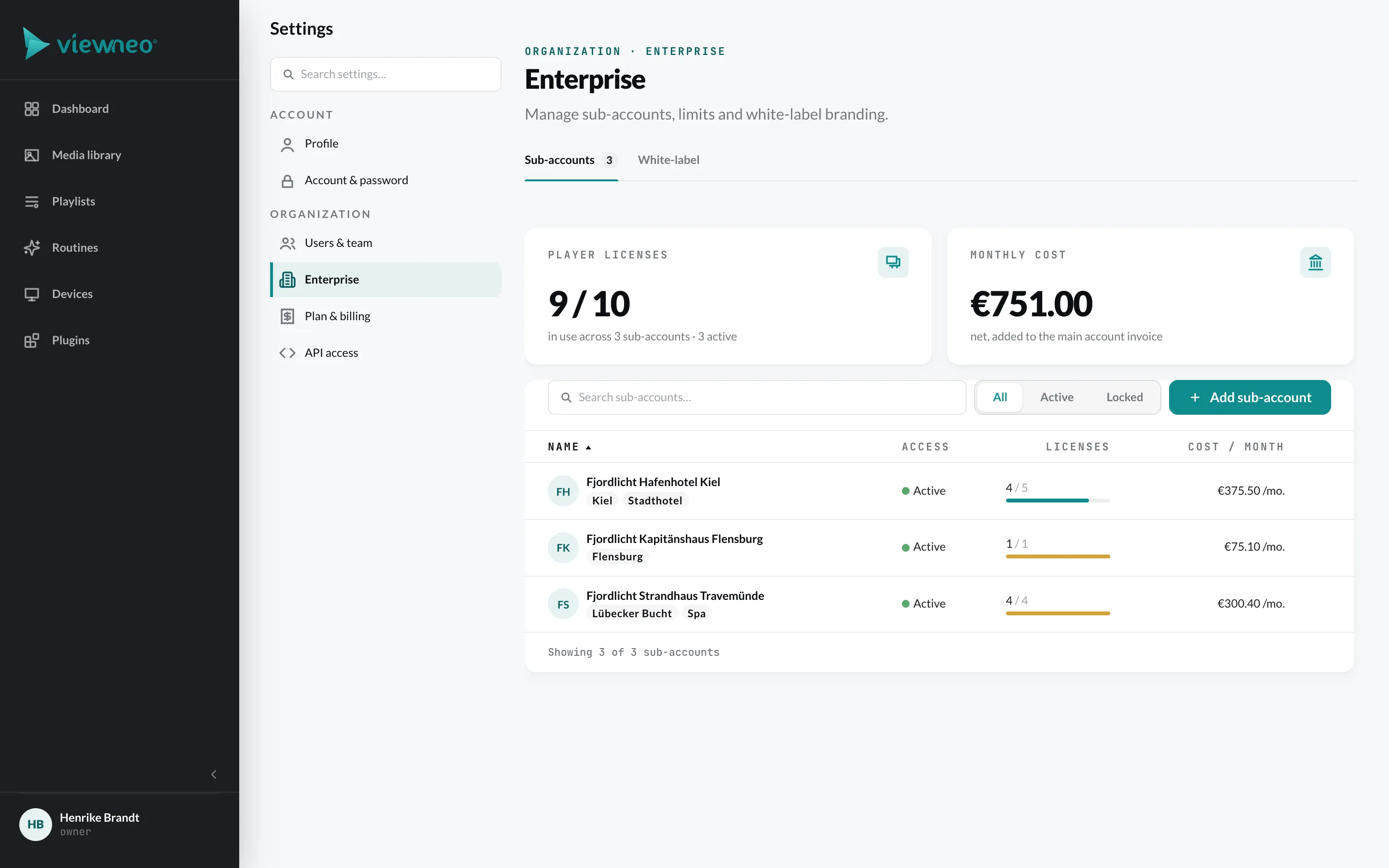
You manage your sub-accounts under Settings › Enterprise, tab Sub-accounts. At the top you see how many player licenses are allocated and in use and what all sub-accounts cost together per month. The list can be searched and filtered by Active and Locked.
Create a sub-account
Section titled “Create a sub-account”Click Add sub-account. A wizard guides you through three steps.
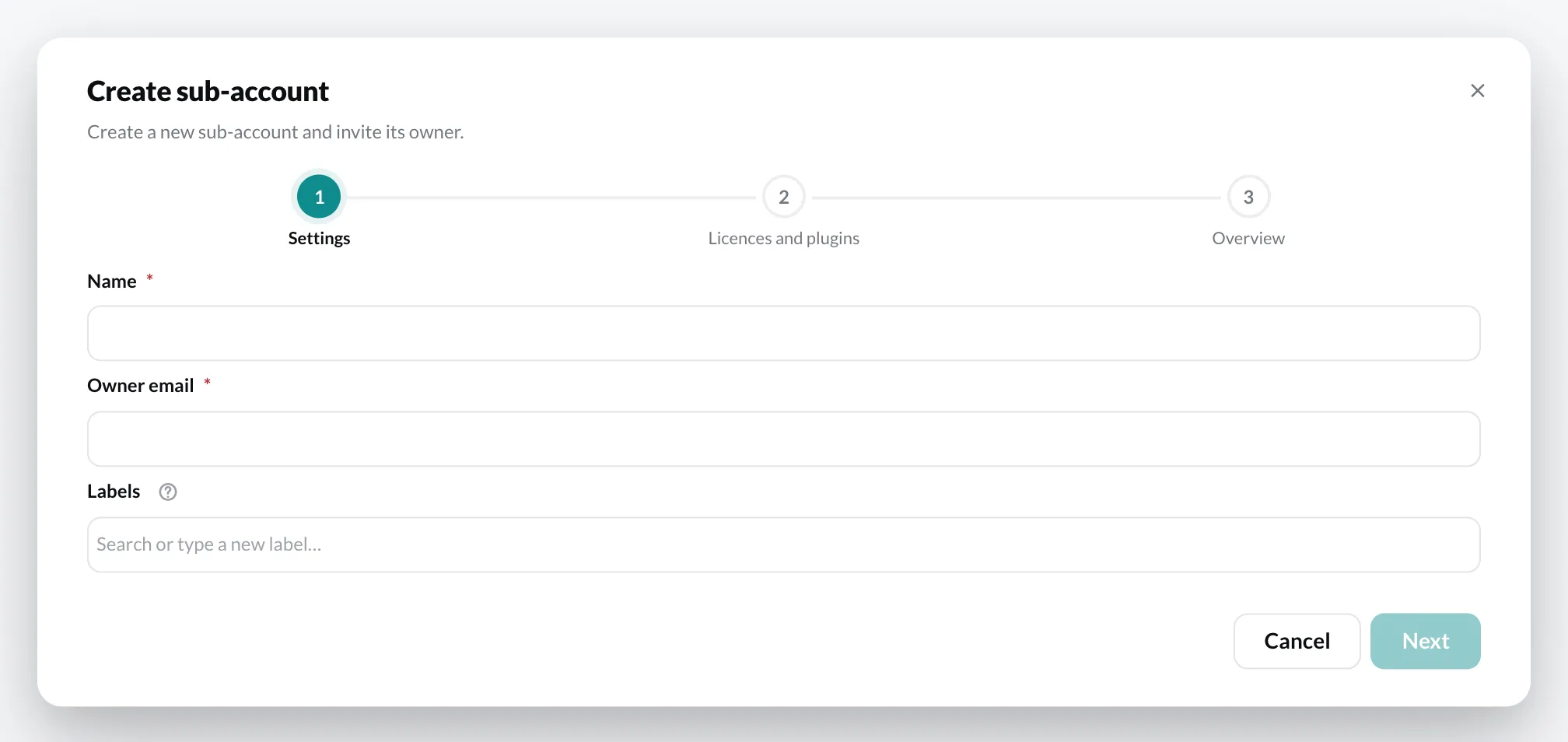
1. Settings
Section titled “1. Settings”- Name – e.g. the name of the location.
- Owner email – this person receives an invitation and becomes the owner of the sub-account. An address can only belong to one viewneo account.
- Labels – optional. Type to find existing labels, or create a new one with Enter.
2. Licences and plugins
Section titled “2. Licences and plugins”Set how many player licenses the sub-account gets, and add the plugins it should use on the left. The quantity of a plugin follows the player licenses. On the right you see the monthly costs.
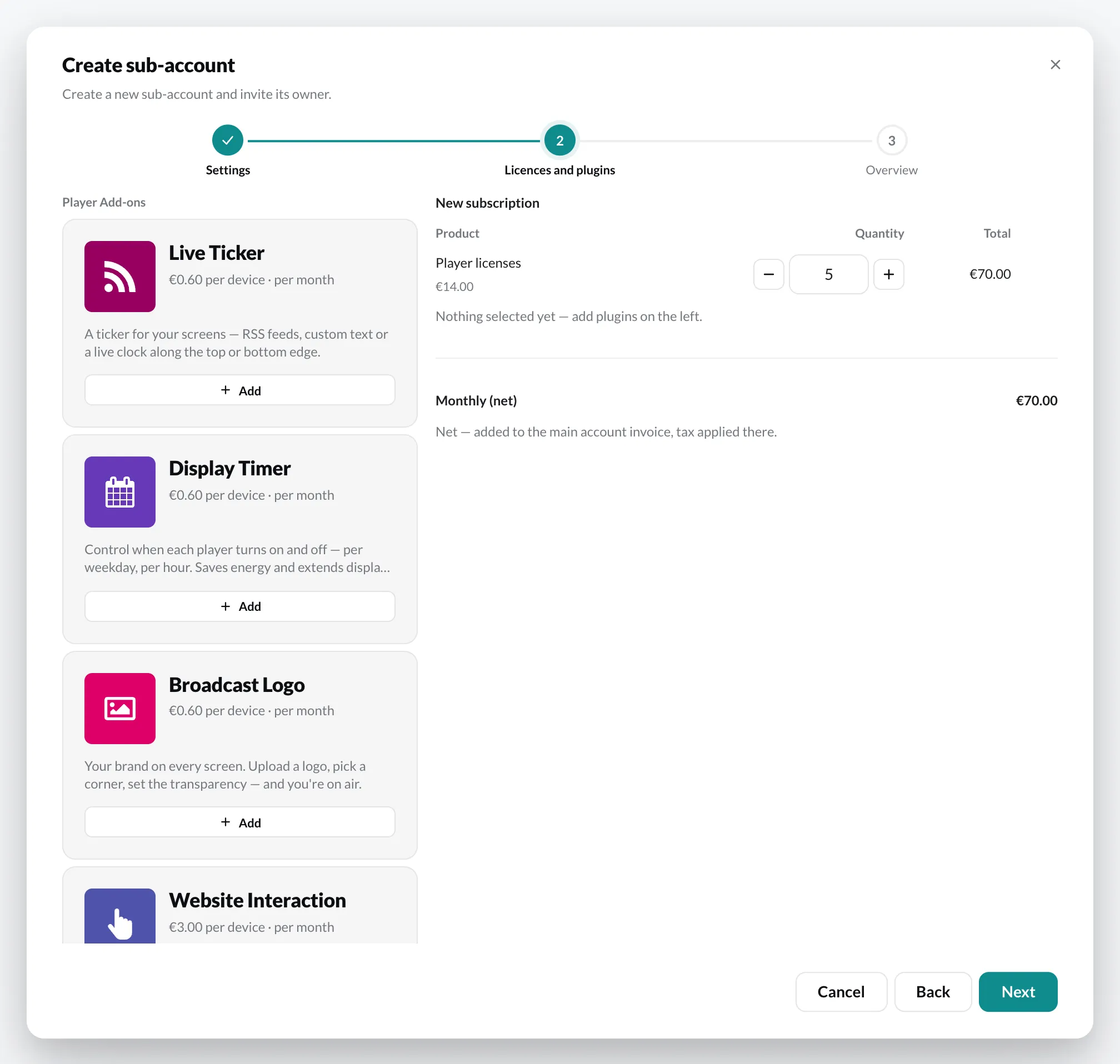
In the sub-account, the content plugins are then available in the media library under Add › Plugins, and the player add-ons in the configuration of its devices. A sub-account has no Plugins page of its own: booking is always done via your main account.
3. Overview
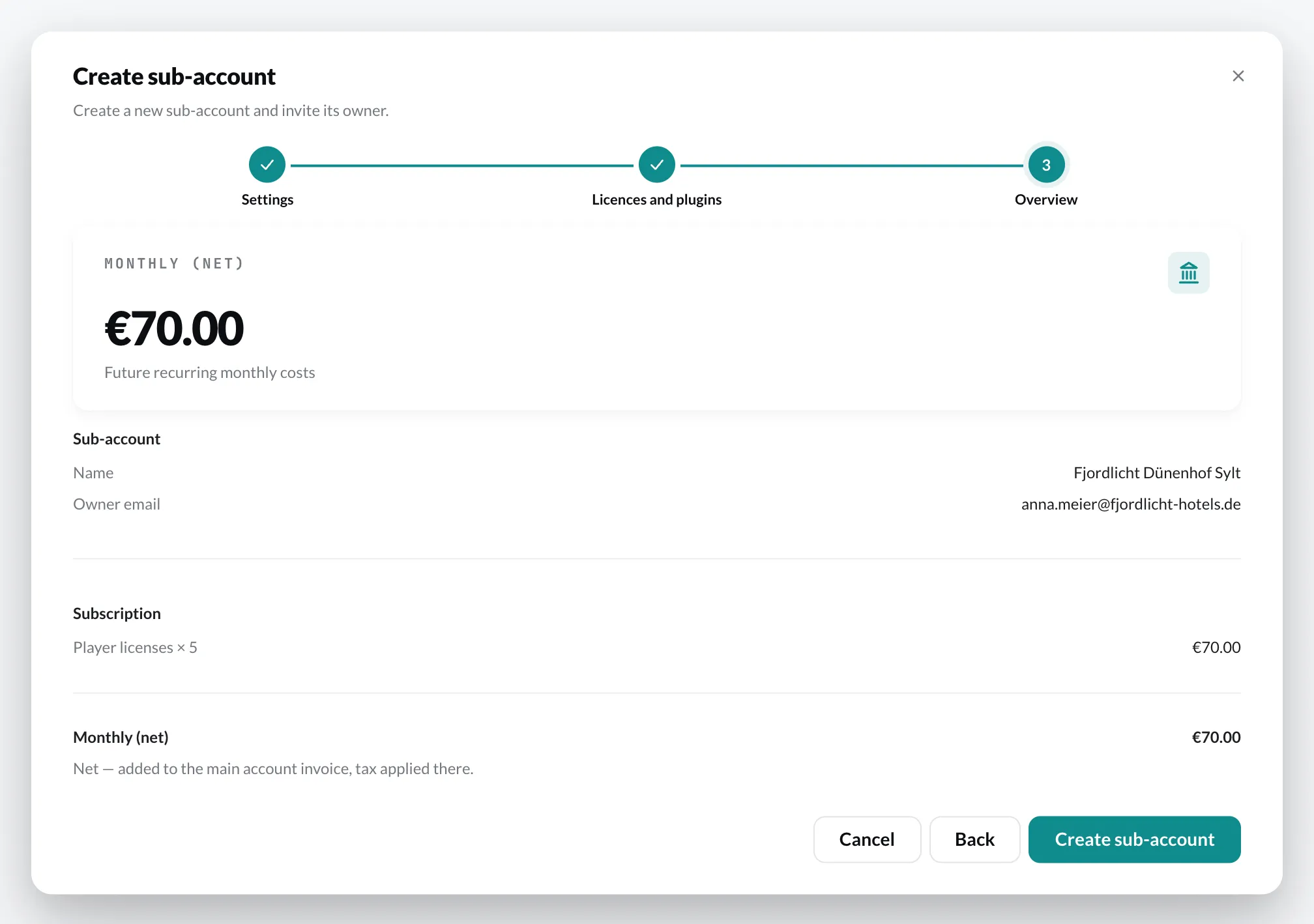
Section titled “3. Overview”Check the name, owner and subscription and click Create sub-account. A separate subscription is created for the sub-account; it is billed via your main account (net, the tax is added to your invoice).
The sub-account menu
Section titled “The sub-account menu”Via ⋯ in a sub-account’s row you can reach:
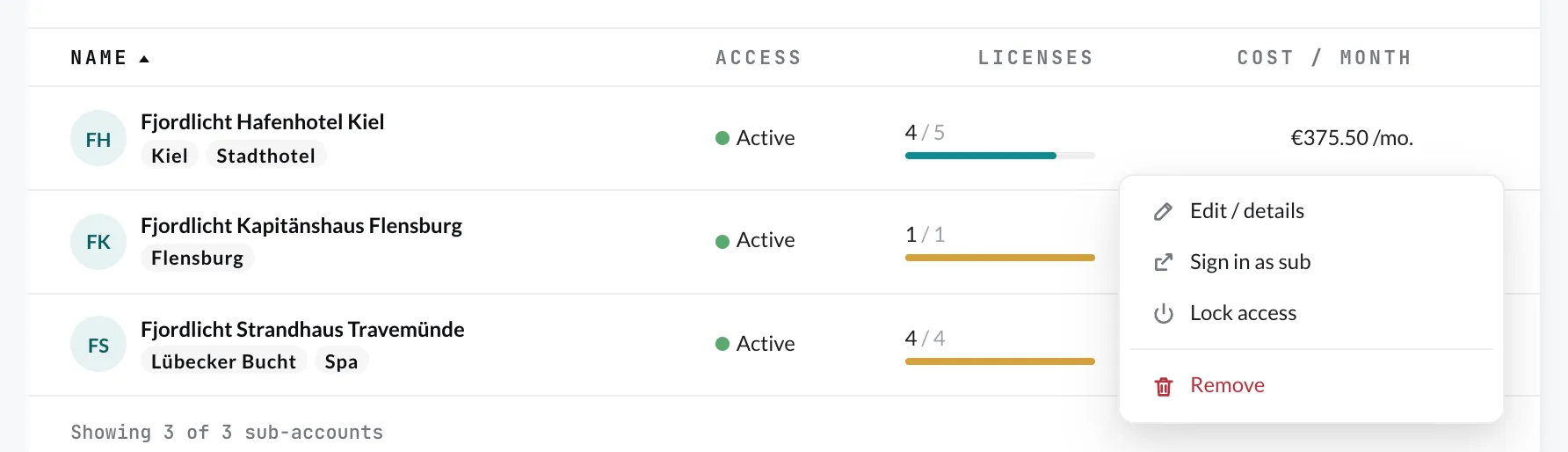
- Edit / details – opens the sub-account with the tabs Settings, Mandatory playlist, Users and Subscription. Under Subscription you change licenses and plugins; this affects your main account’s next invoice.
- Sign in as sub – see below.
- Lock access – stops the sub-account’s sign-in and playback on its players. The subscription remains. With Unlock access you lift the lock again.
- Remove – permanently deletes the sub-account with all data (users, media, players, playlists). The dialog shows beforehand how much your monthly invoice decreases.
Sign in as sub
Section titled “Sign in as sub”With Sign in as sub you work directly in a location’s account – with the permissions of its owner, without their password. At the bottom of the sidebar, Signed in as then appears with the name of the sub-account.
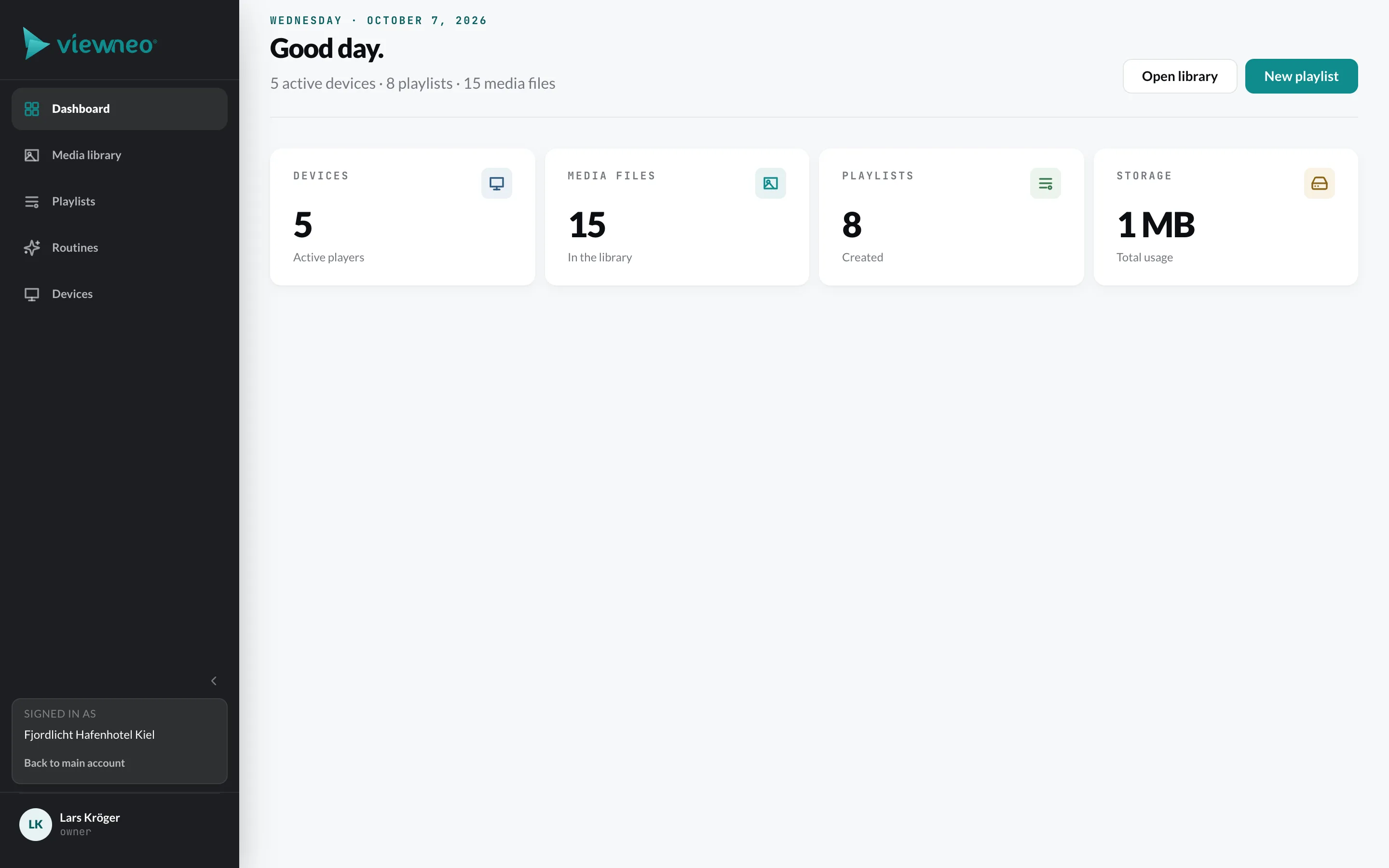
With Back to main account you return. After one hour, the session in the sub-account ends automatically.