
Reset
Reset (Soft Reset)
Section titled “Reset (Soft Reset)”A soft reset restores the SignageBox to factory settings via the Android settings.
- Open the player menu and switch to the System tab
- Click Settings
- Select Backup & Reset
- Select Factory Data Reset
- Enable Erase SD Card and confirm with Reset Tablet
- Confirm with Erase Everything
Factory Reset (Hard Reset with a Paperclip)
Section titled “Factory Reset (Hard Reset with a Paperclip)”If the SignageBox no longer starts correctly, only shows the boot logo or does not respond at all, you can perform a hard reset using the physical reset button.
- Disconnect the power cable from the device
- Connect a USB keyboard and the HDMI cable
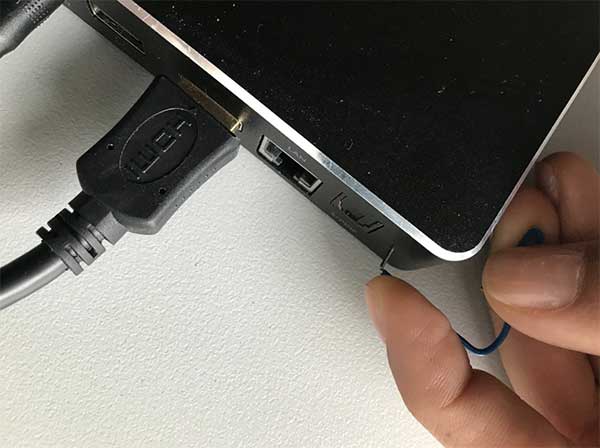
- On the back, to the right of the S/PDIF port, there is a small reset hole. Insert the paperclip into the hole and hold the button down
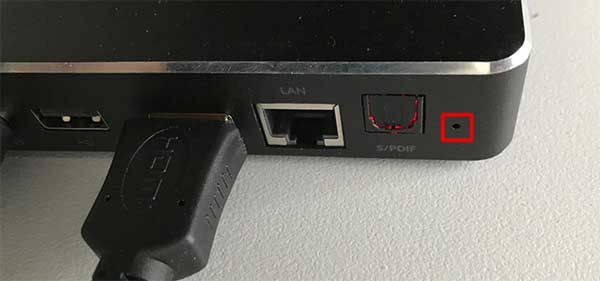
- Keep holding the button while you connect the power cable at the same time. Keep holding the button for a few seconds after connecting
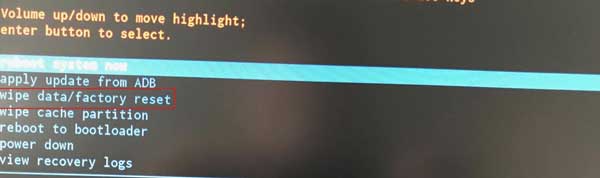
- The recovery menu appears on the screen. Select wipe data/factory reset
- Confirm with Yes – delete all user data
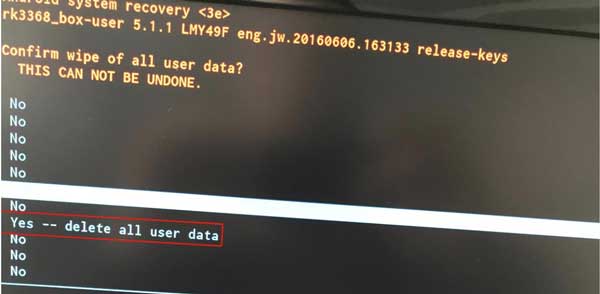
- When finished, the message Data wipe complete appears
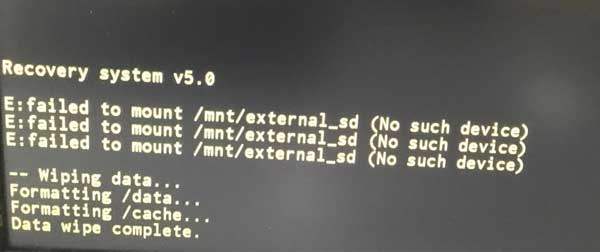
- Select Reboot system now — the device restarts and is reset