
RFID in routines
What a screen shows when a tag is placed or lifted is defined by a routine. An RFID routine consists of:
- the RFID tag trigger – it applies to one hub,
- filters that say which tag on which reader is meant and whether it was placed or lifted,
- the Switch content action on one or more players.
The RFID tag trigger appears in the routine editor as soon as your account has at least one RFID hub.
Example: pick up a product, the screen shows it
Section titled “Example: pick up a product, the screen shows it”In the spa of the Fjordlicht Strandhaus, there is a shelf with three care products next to the reception, each on its own reader. When a guest takes out the Sanddorn-Massageöl, the screen at the reception should show the oil with its price.
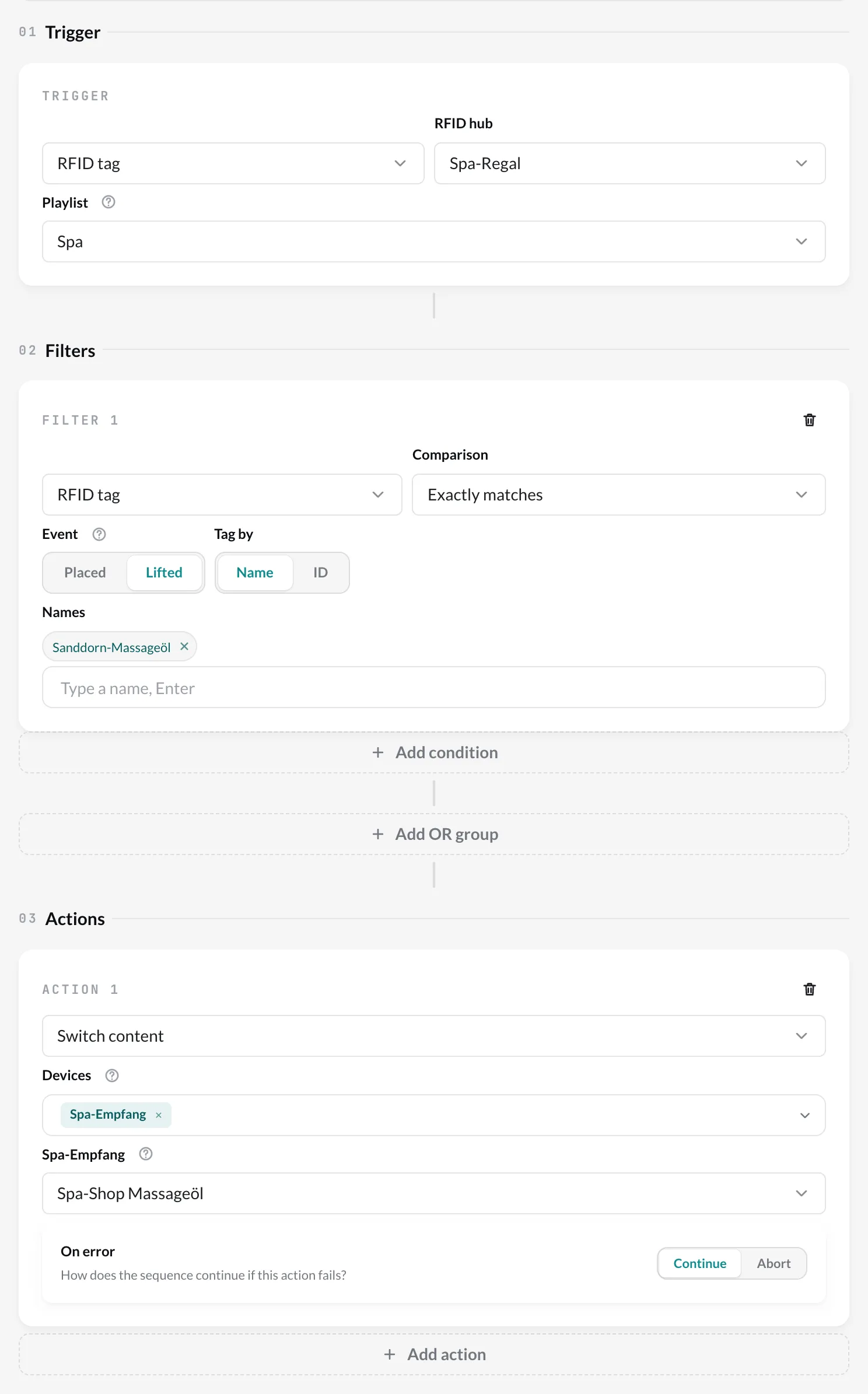
- Open Routines and click Create routine. Enter a name, e.g. “Spa-Regal: Sanddorn-Massageöl aufgenommen”.
- 01 Trigger: Choose RFID tag. Choose the RFID hub (“Spa-Regal”) and the Playlist the screen at the reception plays (“Spa”).
- 02 Filters: Add the RFID tag filter. Set Event to Lifted, Tag by to Name, Comparison to Exactly matches and enter the name “Sanddorn-Massageöl” (confirm with Enter).
- 03 Actions: Add Switch content, choose the device “Spa-Empfang” and, as the target, the product Slide in its playlist.
- Click Save.
For the other two products, create an identical routine each – the quickest way is Duplicate in the menu of the routines list.
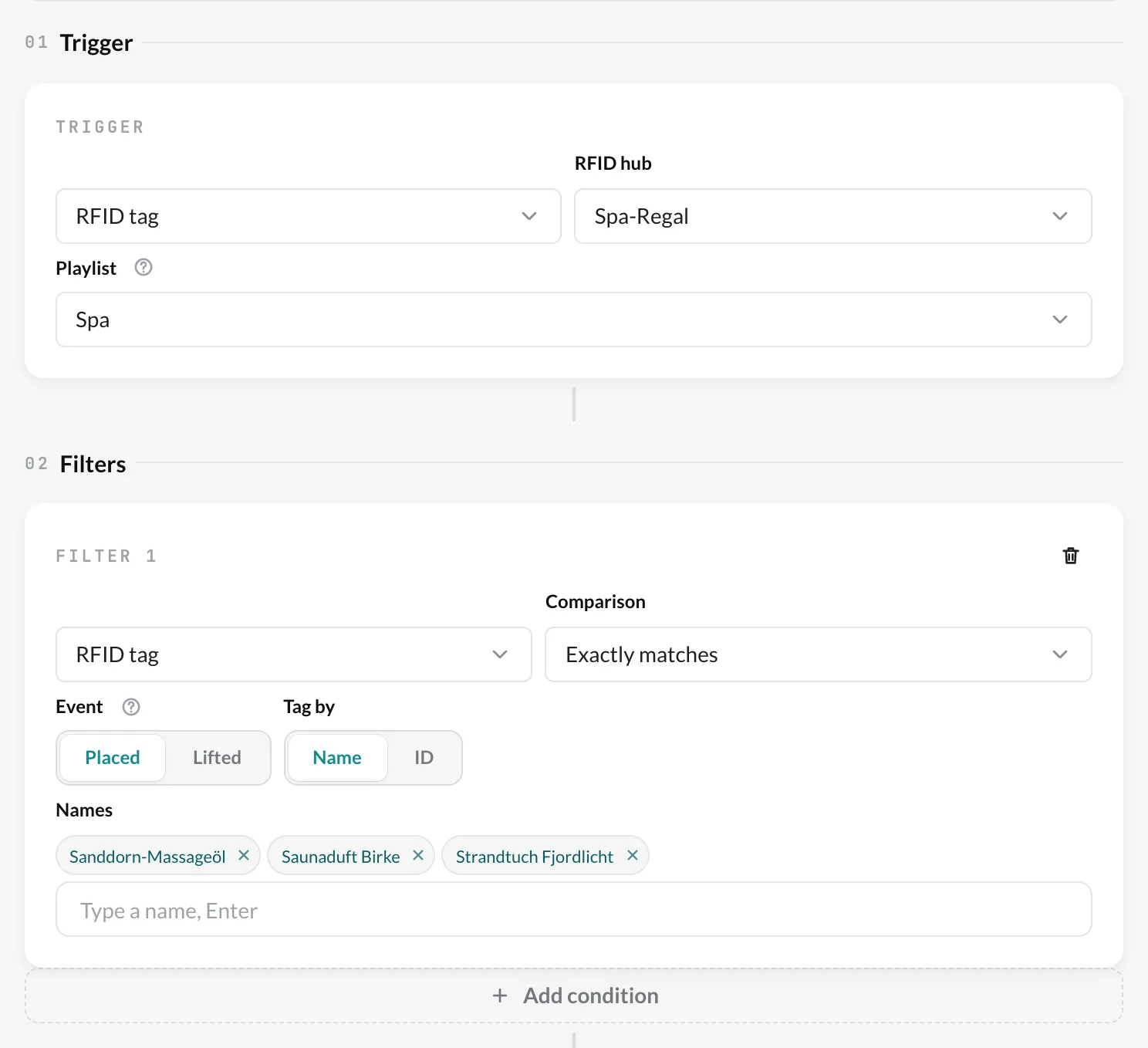
And back? Another routine brings the screen back as soon as a product is back on the shelf: filter RFID tag with Event Placed and all three product names, action Switch content to the start of the playlist.
The RFID tag trigger
Section titled “The RFID tag trigger”| Field | Meaning |
|---|---|
| RFID hub | Required. The routine only reacts to tag changes on the readers of this hub. You need separate routines for each hub. |
| Playlist | Optional. The editor offers the entries of this playlist – for jump targets and for the content condition. It does not filter anything: the routine fires regardless of what is currently playing. Choose the playlist that the target player plays. |
Without filters, the routine reacts to every tag change of the hub – to every placing and every lifting on every reader. That is hardly ever what you want; set at least one RFID tag filter.
The filters
Section titled “The filters”With the RFID tag trigger, these filters are available: RFID reader, RFID tag, Content, Time window and Date range. How to combine filters with AND and OR is described under Filters.
RFID tag
Section titled “RFID tag”| Setting | Options |
|---|---|
| Event | Placed – a tag was placed on a reader. Lifted – the tag that was previously on the reader is gone. |
| Tag by | Name – you type in names (confirm with Enter). ID – you choose learned tags from the list. |
| Comparison | Exactly matches, Does not match, Contains, Does not contain |
Good to know:
- Lifted compares the tag that was on the reader before – even if it is swapped directly for another one. A swap therefore triggers both: “A lifted” and “B placed”.
- Exactly matches is case-sensitive, Contains is not. With Contains “Wine”, a single filter covers “Wine Red Merlot”, “Wine White Riesling” and so on.
- Several names or tags in one filter mean any one of them.
- A tag that has not been learned has no name. Filters by name with Exactly matches or Contains never apply to it – learn all tags that should trigger a routine.
- With ID, there is also No tag (reader empty).
- Does not match and Does not contain also apply when no tag is involved at all: after lifting, the reader is empty, and an empty reader “does not match” any name. If such a routine should only react when something was actually placed, add the RFID tag filter with Placed, ID, Does not match and No tag (reader empty) in the same group.
RFID reader
Section titled “RFID reader”Limits the routine to specific readers of the hub, e.g. only “Fach links”. Choose Exactly matches (only these readers) or Does not match (all except these). The readers come from the hub in the trigger – so choose the hub first.
You need this when the same tag should do different things at different places, for example in a quiz (see Recipes).
Only while specific content is playing
Section titled “Only while specific content is playing”With the Content filter, the player only jumps if a specific entry is currently playing on it. The editor shows the hint “Jumps only if this entry is currently playing on the target player.” The entries come from the trigger’s Playlist – so always choose it.
An example: a station should only react while the introduction is playing, not in the middle of another exhibit’s film.
The actions
Section titled “The actions”| Action | With RFID |
|---|---|
| Switch content | The player jumps to an entry of its playlist. You choose the Devices explicitly – there is no “triggering device”, because the event comes from the hub, not from a player. Each device gets its own jump target. |
| External webhook | Calls an address – for example to switch a light or to count an interaction in another system. |
Switching several screens at the same time is a single action with several devices. More on this under Actions and Synchronize screens.
Recipes
Section titled “Recipes”Lift & learn on the shelf
Section titled “Lift & learn on the shelf”Goal: A product is picked up → the screen shows it. It is put back → the general programme continues.
- One routine per product: filter RFID tag, Lifted, name of the product → Switch content to the product Slide.
- One routine for all: filter RFID tag, Placed, all product names → Switch content to the start of the playlist.
- Tip: Name the tags with a common prefix (“Spa …”). Then a Contains “Spa” filter is enough for putting products back.
Museum station: place an object, the film starts
Section titled “Museum station: place an object, the film starts”Goal: Visitors place a card or an object on the station, the screen shows the matching film. When they take it away, the station returns to the start screen.
- One routine per object: Placed, name of the object → Switch content to the film.
- One routine: Lifted, all object names (or Contains with a common prefix) → Switch content to the start screen.
- With several stations on one hub, you separate each station with the RFID reader filter.
Quiz: the right card on the right field
Section titled “Quiz: the right card on the right field”Goal: Each field has a question. The right card shows “Correct!”, any other shows “Try again”.
- “Correct”: filter RFID reader = Field 1 and filter RFID tag, Placed, Exactly matches “Answer 1” → content “Correct!”.
- “Wrong”: filter RFID reader = Field 1 and filter RFID tag, Placed, Does not match “Answer 1” and filter RFID tag, Placed, ID, Does not match No tag (reader empty) → content “Try again”. The third condition prevents “Try again” from appearing as soon as the right card is removed.
- The same pair for every further field.
Guided tour: react only at the right time
Section titled “Guided tour: react only at the right time”Goal: An object should only start its film when the station is currently showing its introduction – not in the middle of another film.
- Filter RFID tag, Placed, name of the object and filter Content = entry “Introduction” → Switch content to the film.
- Prerequisite: the station’s playlist is selected in the trigger (see Only while specific content is playing).
Two screens, one shelf
Section titled “Two screens, one shelf”Goal: A product is picked up, and at the same time the large screen shows a video while the small one next to it shows the price.
- One routine with the Switch content action and both devices; each device gets its own target from its playlist.
Check the log
Section titled “Check the log”Every execution appears in the routine’s log. Under Trigger you see what the hub reported: which reader (readerName), which tag (tagName, tagId) and which tag was placed before (previousTagName).
For RFID routines you will often see Skipped there. That is normal: every routine of a hub checks every tag change of this hub. If a different product sits in Fach links, the routine for Fach rechts is not meant – it is skipped. Success means: the filters matched, and the jump command was sent to the player.
If a screen does not react as expected, see Troubleshooting.