
Manage permissions
What a team member may see and change in the CMS is defined per area. There are three levels for each area:
| Level | Meaning |
|---|---|
| None | The area is not visible to the person. |
| View | The person sees the area but cannot change anything. |
| Manage | The person can create, change and delete in the area. Manage includes View. |
The areas
Section titled “The areas”| Group | Areas |
|---|---|
| Overview | Dashboard (View only) |
| Content | Media, Playlists, Devices, Routines, Plugins |
| Administration | Users & team, Settings, Billing |
| Advanced | Sub-accounts (only with Enterprise), API (only with the API plugin) |
Set permissions when inviting
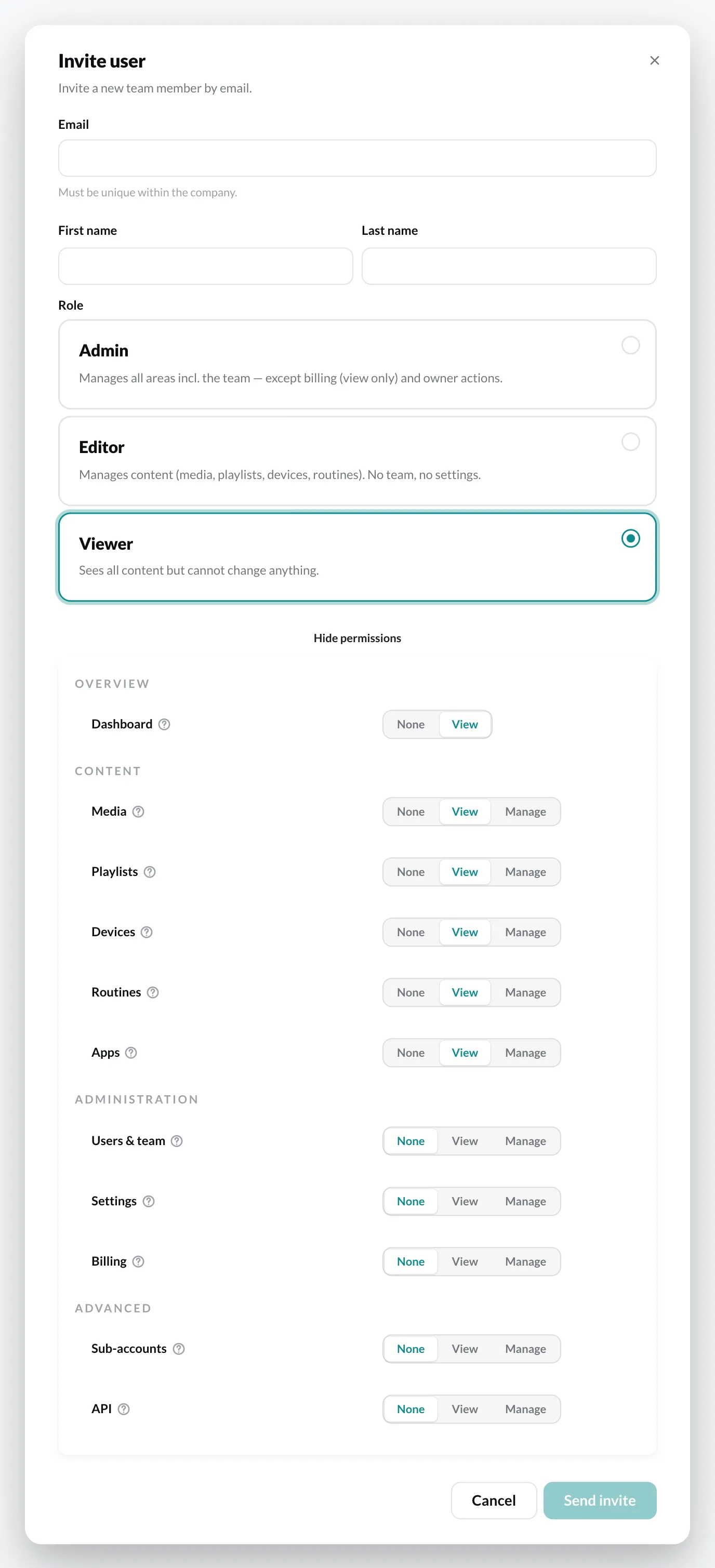
Section titled “Set permissions when inviting”In the Invite user dialog you first choose a role. With Adjust permissions you open the overview of all areas below it and change the levels individually.
Change a member’s permissions
Section titled “Change a member’s permissions”- Open Settings › Users & team and click the name.
- Change the levels in the overview – or choose a role with Apply template.
- Click Save.
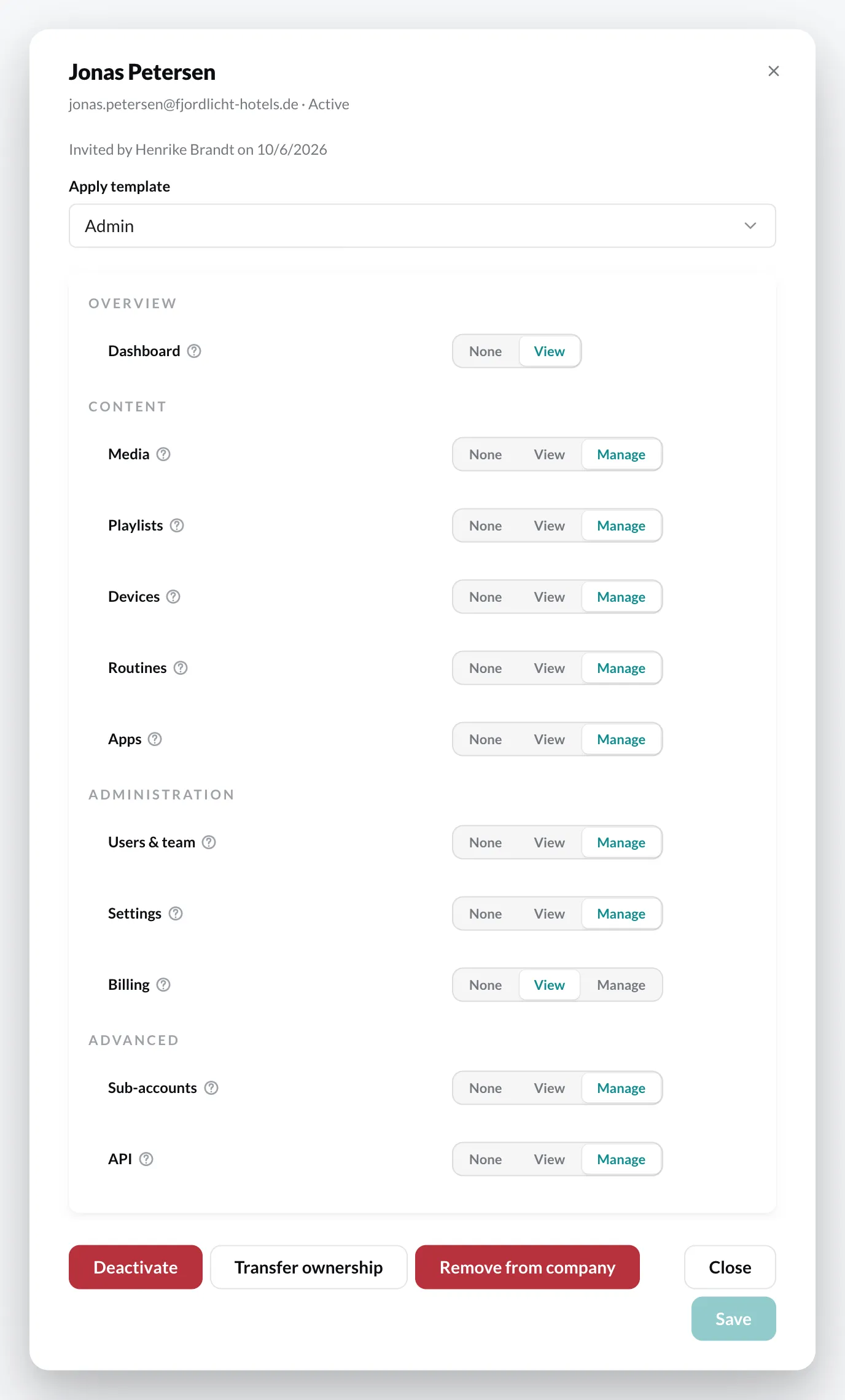
If the permissions differ from all templates, the list shows the role Custom.
The Owner always has all permissions. Their permissions cannot be changed.
Recommendations
Section titled “Recommendations”- Give each member only the permissions they need for their task.
- Anyone who only maintains content can manage with the Editor role.
- Only a few people should be allowed to manage Billing – even admins don’t have this permission by default.
- Review the permissions when tasks in the team change.