
Device settings
You open a device’s settings by right-clicking the device › Settings. The sections are listed on the left: Information, Configuration, Offline Notification, Plugins and the sections of your player add-ons.
Configuration
Section titled “Configuration”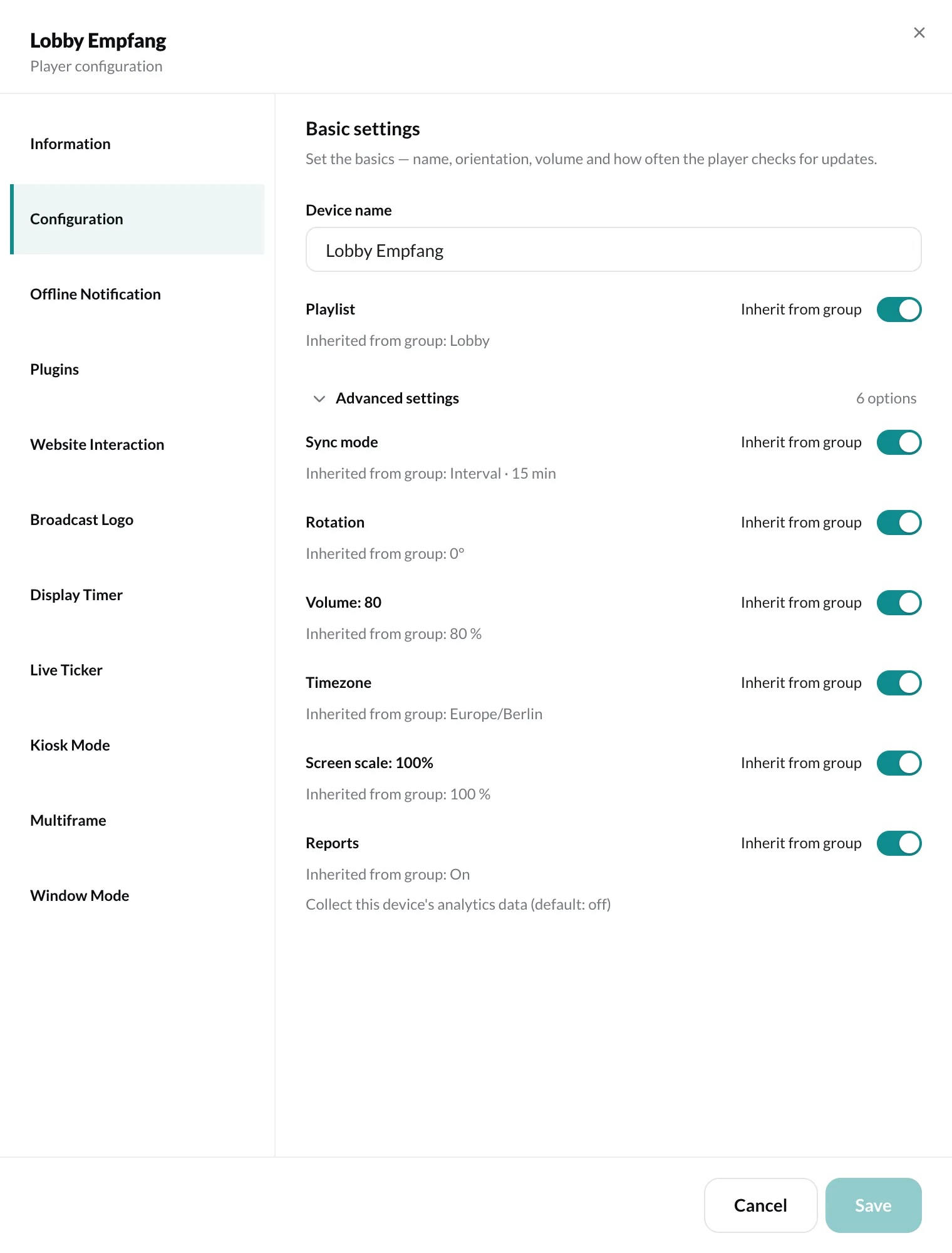
| Setting | Meaning |
|---|---|
| Device name | The name in the CMS. |
| Playlist | What the device plays. Inherit from group uses the group’s playlist. |
Under Advanced settings:
| Setting | Meaning |
|---|---|
| Sync mode | Interval: the device checks for changes at fixed intervals (default: every 15 minutes, adjustable under Sync interval). Real-Time: changes arrive immediately. |
| Rotation | Rotates the output, e.g. for screens in portrait orientation. |
| Volume | Volume of the player, with Mute and Max. |
| Timezone | Schedules and timers follow this time zone. Default: UTC. |
| Screen scale | Shrinks the output to 80–100% if the screen cuts off the edge. |
| Reports | Collects playback data for this device (default: off). See Reports. |
Every setting can be set to Inherit from group – then the group’s value applies (see Create a device group).
Information
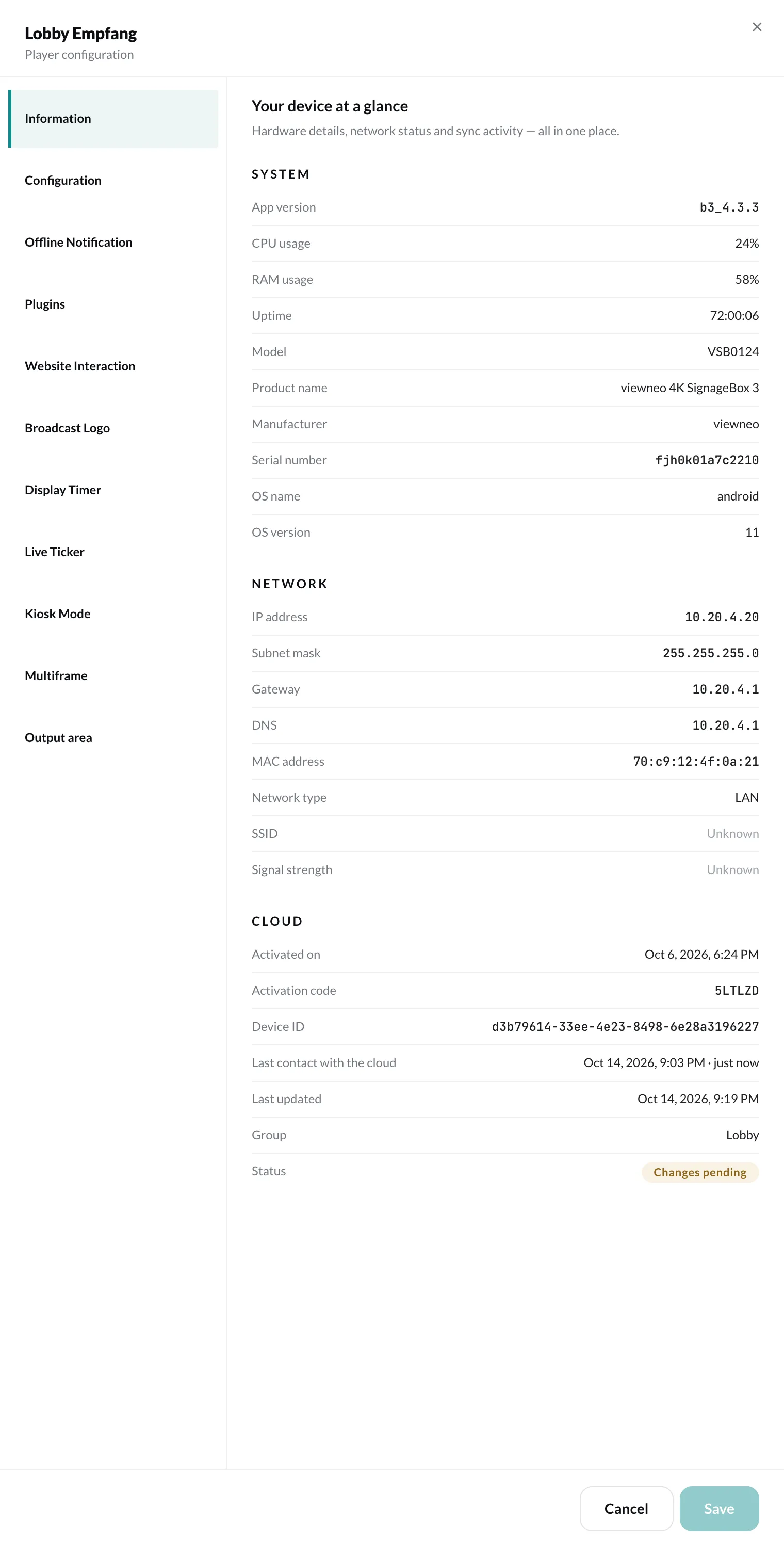
Section titled “Information”The Information section shows data reported by the player – for viewing only: system (e.g. app version, CPU and RAM usage, uptime), network (e.g. IP and MAC address) and cloud (e.g. device ID, activated on and Last contact with the cloud – when the player last reported, with date and time).
Offline Notification
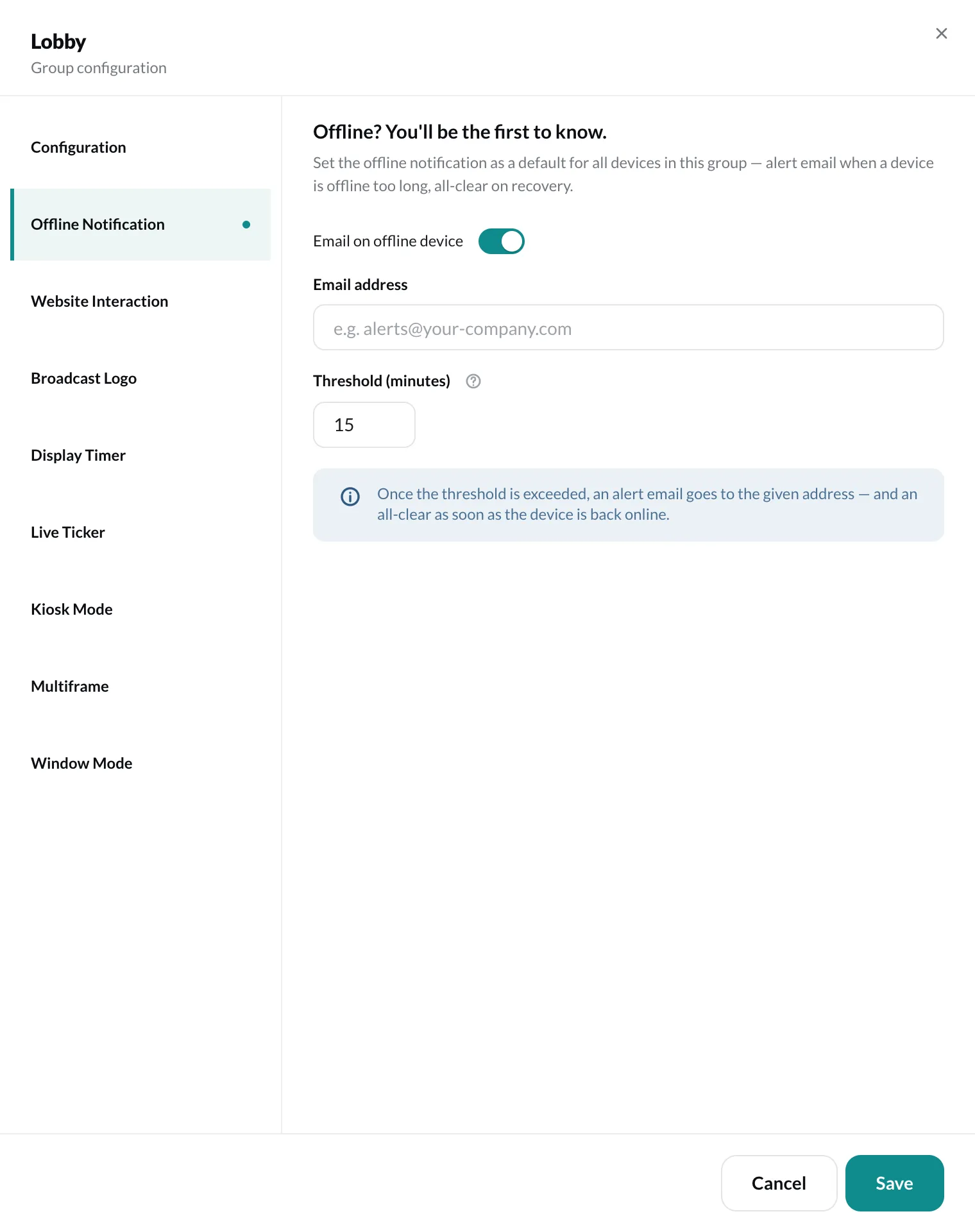
Section titled “Offline Notification”Here you define who receives an email when the device goes offline:
- Email address of the recipient
- Threshold in minutes after which the alert is sent (at least 5)
Once the threshold has passed, an alert email goes out – and an all-clear as soon as the device is back online. With Custom setting you override the group’s default; if you turn it off, the device inherits from the group again.
Output area
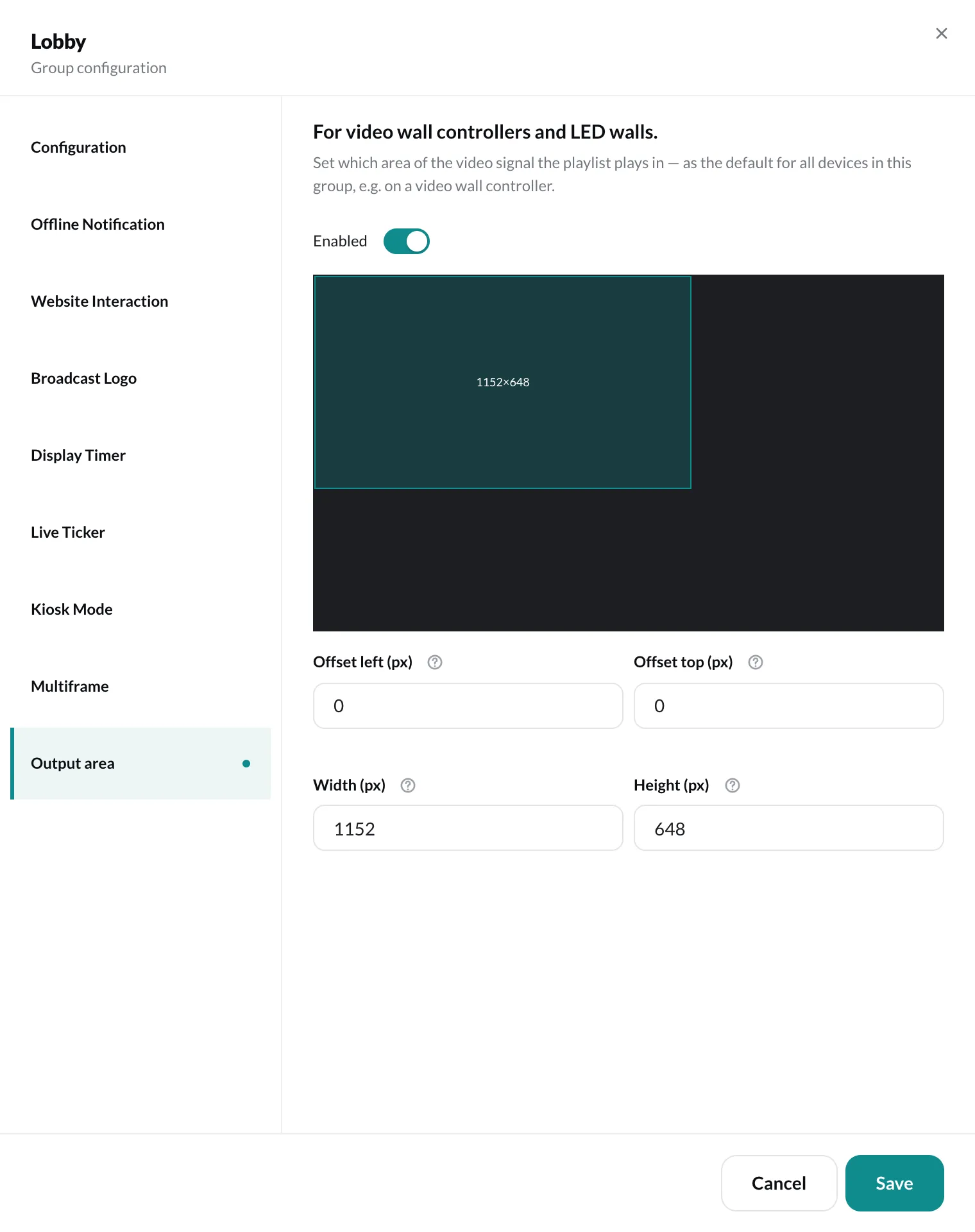
Section titled “Output area”With the output area, playback runs in a defined part of the video signal instead of full screen – everything outside stays black. It is meant for players connected to a video wall controller or an LED wall that only picks up a section of the signal. No plugin is required. (The feature used to be called Window Mode.)
- Enabled – switches the area on.
- Offset left and Offset top – the top-left corner of the area.
- Width and Height – the size of the area.
All values refer to a canvas of 1920 × 1080 pixels, whatever resolution the player outputs. The preview shows where the playback lands. Set in the group, the area is the default for all devices in the group.
The full guide with examples is in Run a video wall with a controller.