
The Facebook plugin automatically brings the latest posts from a Facebook page to your screens.
Book the plugin under Plugins and assign it to the devices on which it should run. Then create the content in the Media library via Add › Plugins › Facebook.
Connect an account
Section titled “Connect an account”The first time, click Connect Facebook and sign in to Facebook. Then choose the page whose posts should appear. The top of the dialog shows who you are connected as; with Disconnect you remove the connection again. Facebook content you have already created will no longer show anything afterwards.
Settings
Section titled “Settings”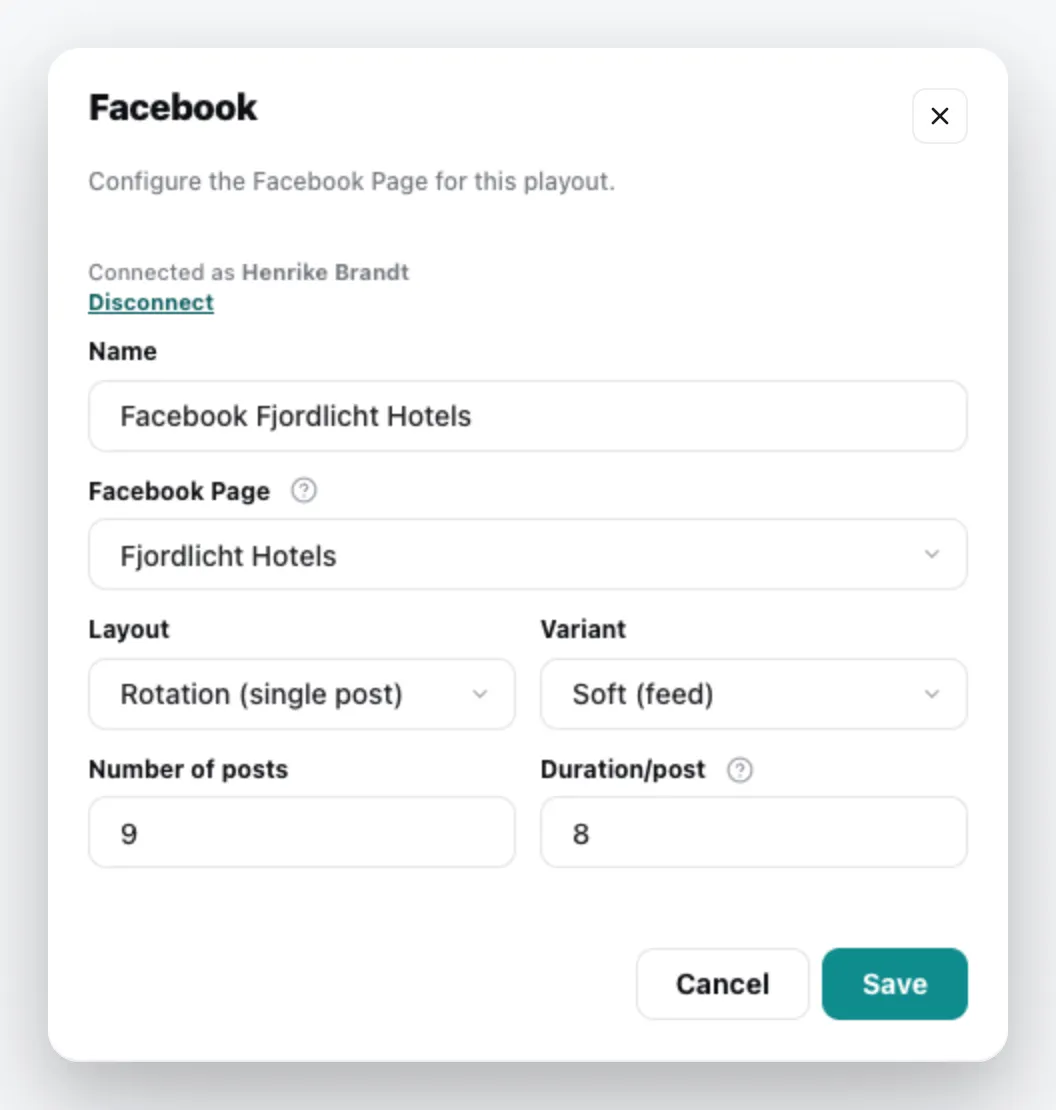
| Field | Meaning |
|---|---|
| Name | Title of the content |
| Facebook Page | the page whose posts appear |
| Layout | Rotation (single post) – the posts change one after the other – or Grid (photo wall) |
| Variant | Soft (feed) or Full (fullscreen) |
| Number of posts | how many of the latest posts are loaded |
| Duration/post | seconds per post, only with Rotation (3–120) |
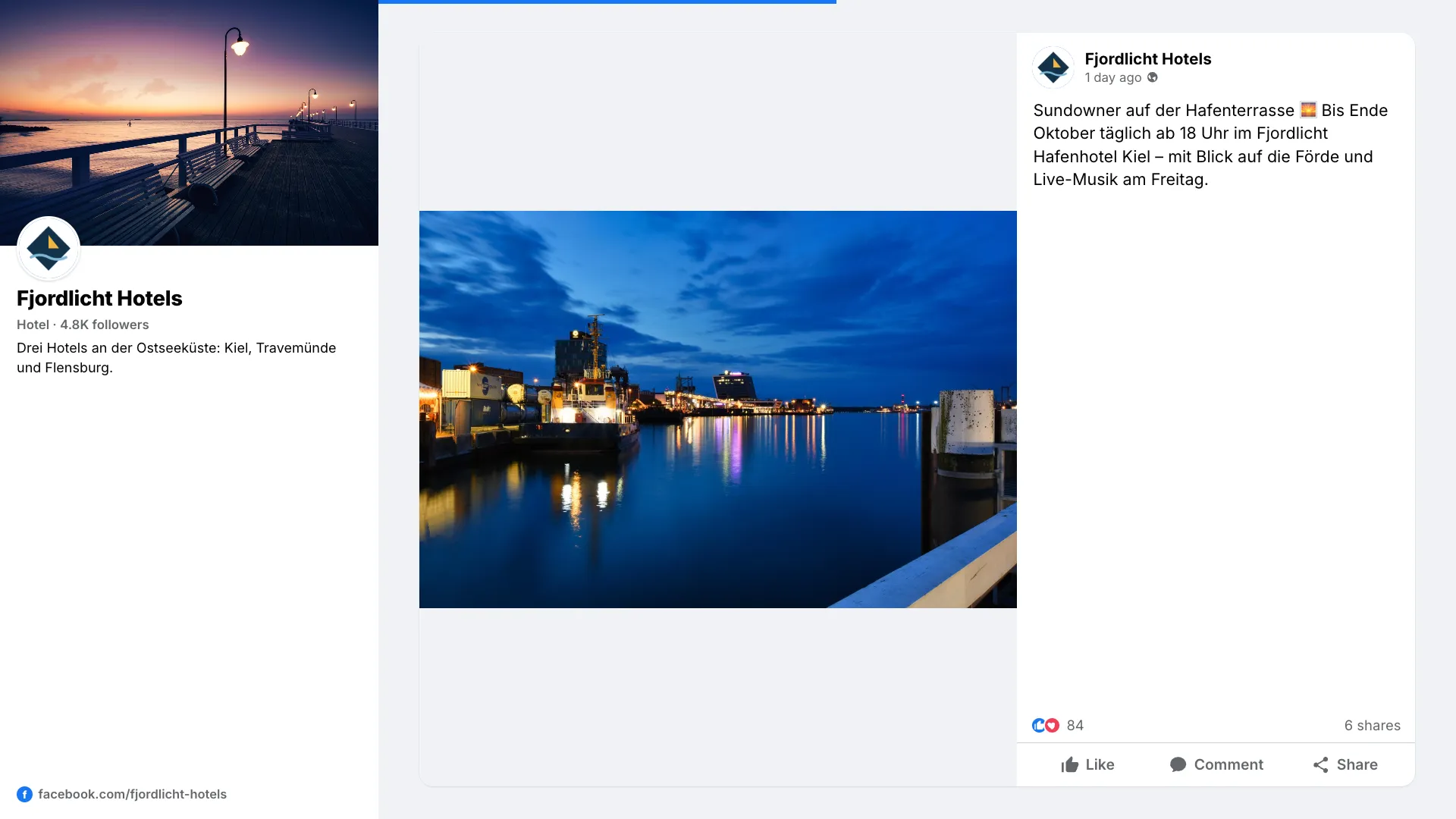
The content appears in the media library; add it to a playlist like any other content. You can change it via the context menu › Edit. General information under Content plugins.