
Create a device group
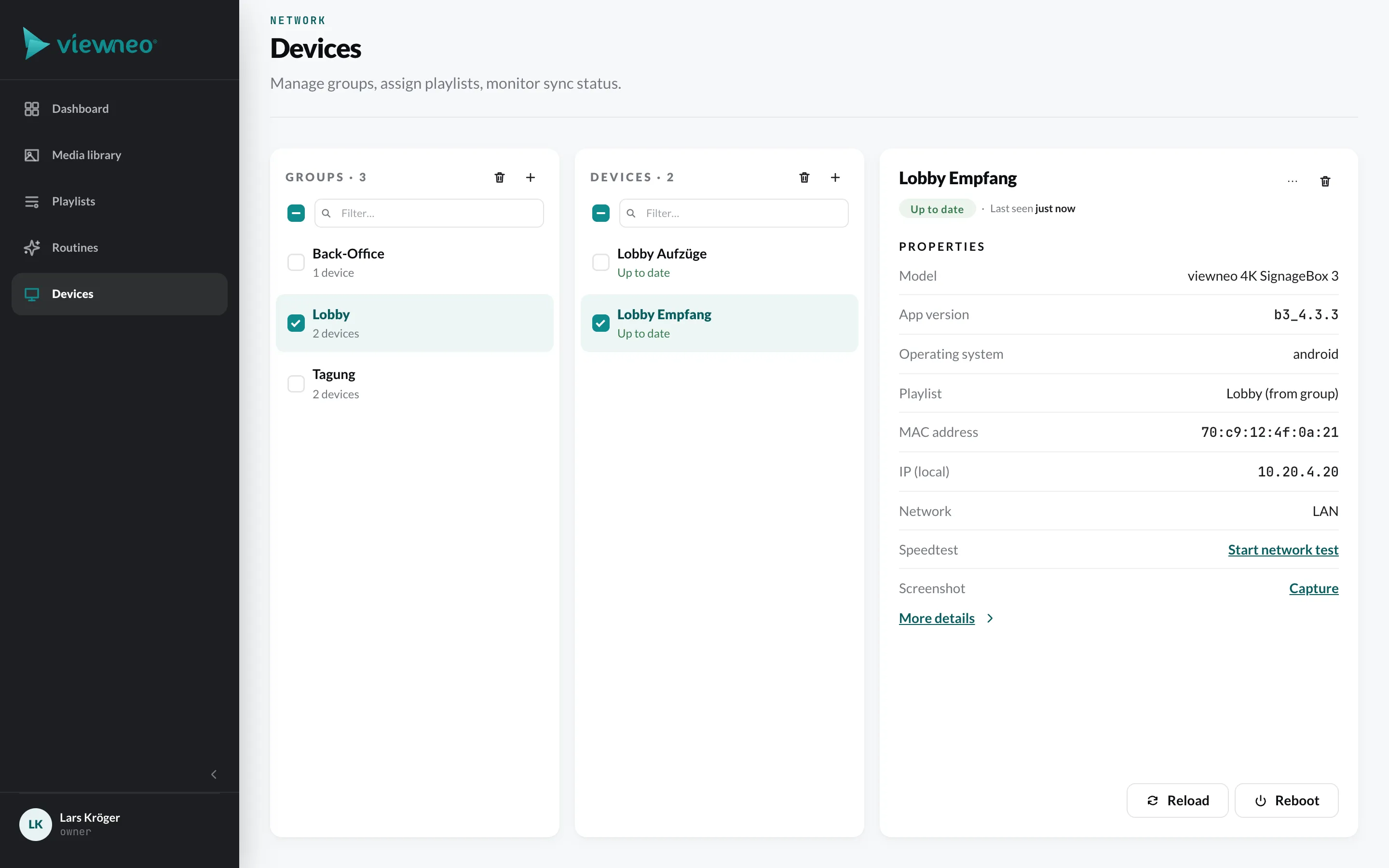
With groups you organize your players – for example by location or purpose: “Lobby”, “Tagung”, “Back-Office”. Every player belongs to exactly one group. The group specifies a playlist and settings that all its devices adopt.
Create a group
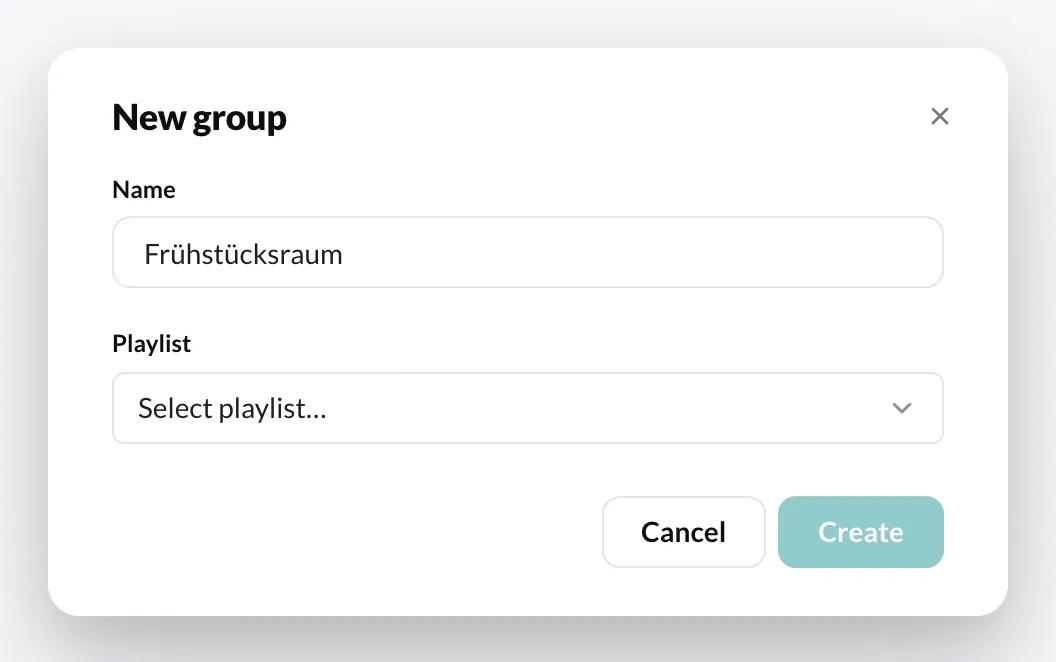
Section titled “Create a group”- Open Devices and click New group on the left.
- Enter a Name.
- Choose the Playlist that the group’s devices play. With + Create new playlist you create a new one directly in the selection field.
- Click Create.
You can then activate devices in the group (see Activate a device).
Configure the group
Section titled “Configure the group”Double-click the group to open its configuration. It has the same sections as a single device – Configuration, Offline Notification and the sections of your player add-ons.
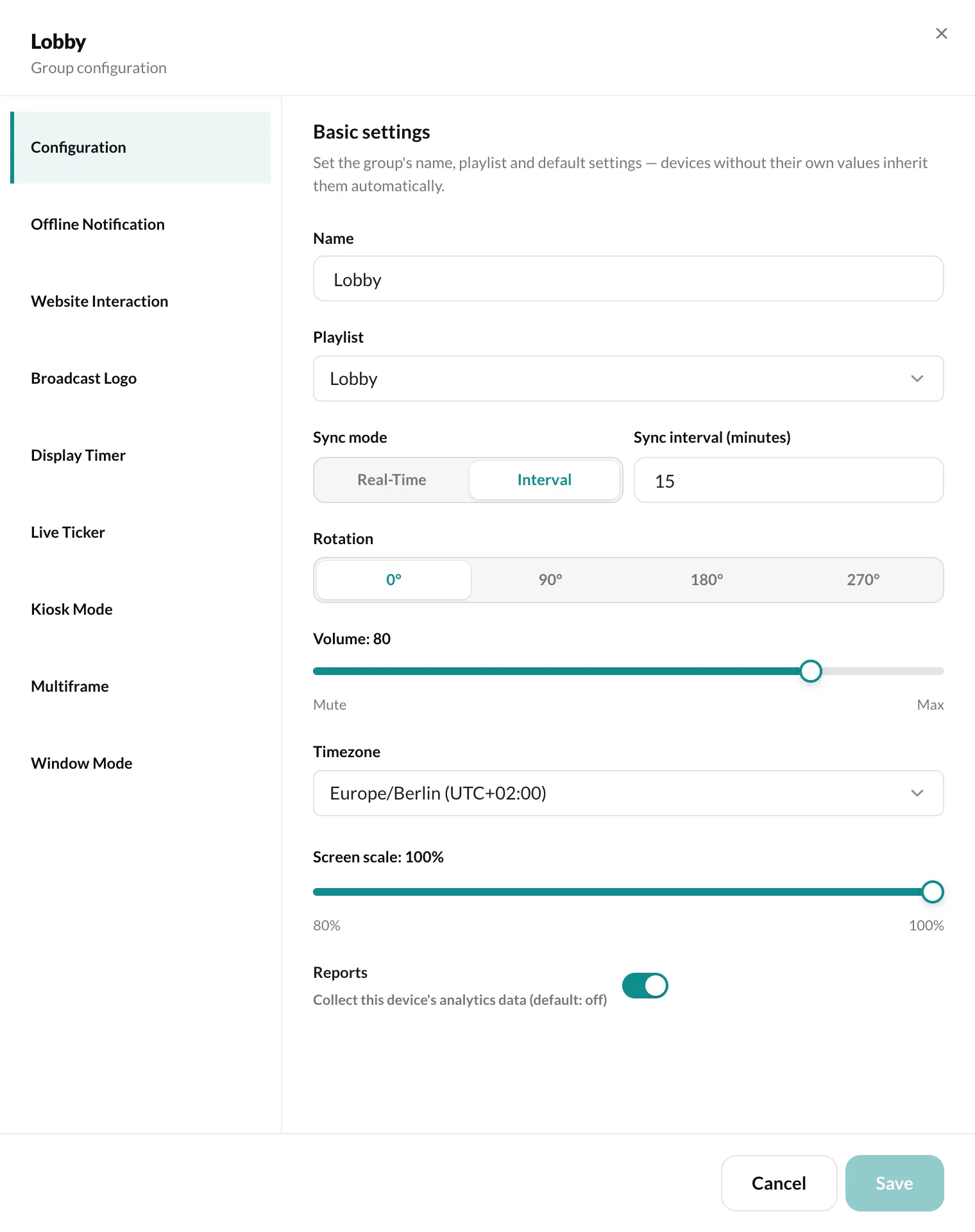
What you set here applies to all devices in the group as long as a device has no value of its own. The device then shows Inherited from group: …. If you enter a value of its own on the device, that value applies – with Use default or Inherit from group you return to the group’s default.
Delete groups
Section titled “Delete groups”Via Delete groups you remove groups you no longer need.