
Nested playlists
A playlist can contain another playlist. This way you compile content once and use it in several playlists – such as an ad block that runs in every lobby playlist.
Add a playlist
Section titled “Add a playlist”- Open the playlist into which another one should go.
- In the media browser on the right, choose the Playlists tab.
- Drag the desired playlist into the content, or select it and click Add.
- Click Save.
A playlist cannot contain itself, and the CMS rejects loops – A contains B, B contains A – when saving.
Configure the behavior
Section titled “Configure the behavior”Double-click the added playlist. On the Configuration tab, you define how it is played:
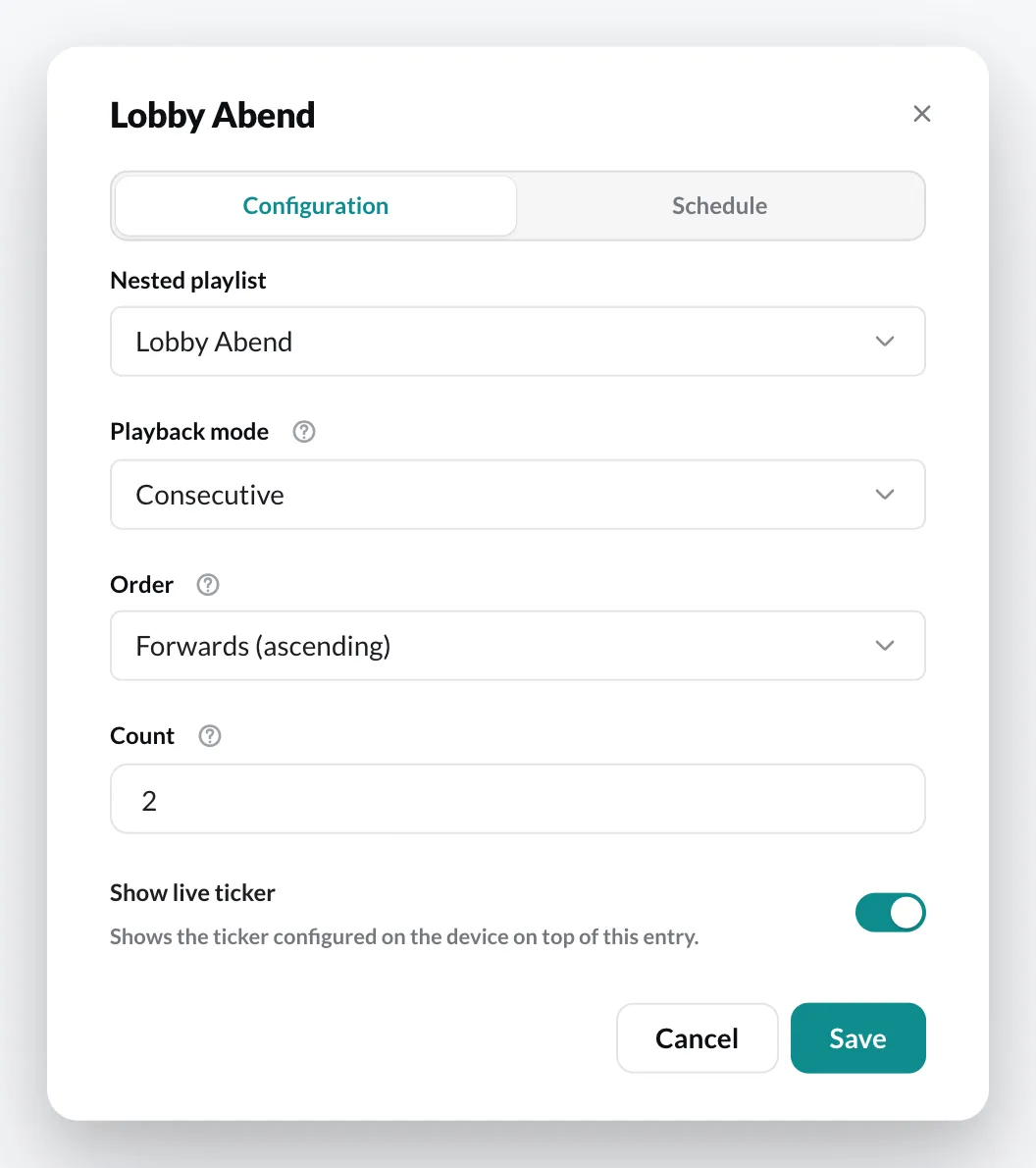
| Playback mode | Meaning |
|---|---|
| Play all | On every pass, all entries are played in order. |
| Consecutive | On every pass, the next N entries are played; the next pass continues from there. |
| Shuffle | On every pass, N random entries are played. |
- Count – how many entries are played per pass (for Consecutive and Shuffle).
- Order – whether the entries are played Forwards (ascending) or Backwards (descending).
On the Schedule & frequency tab you set, as for any content, when the added playlist runs (see Scheduling content). There you can also give it a minimum frequency.