
Media library – Overview
The Media library holds all the content your screens can show: images, videos, documents, Slides, Templates, websites and content from plugins.
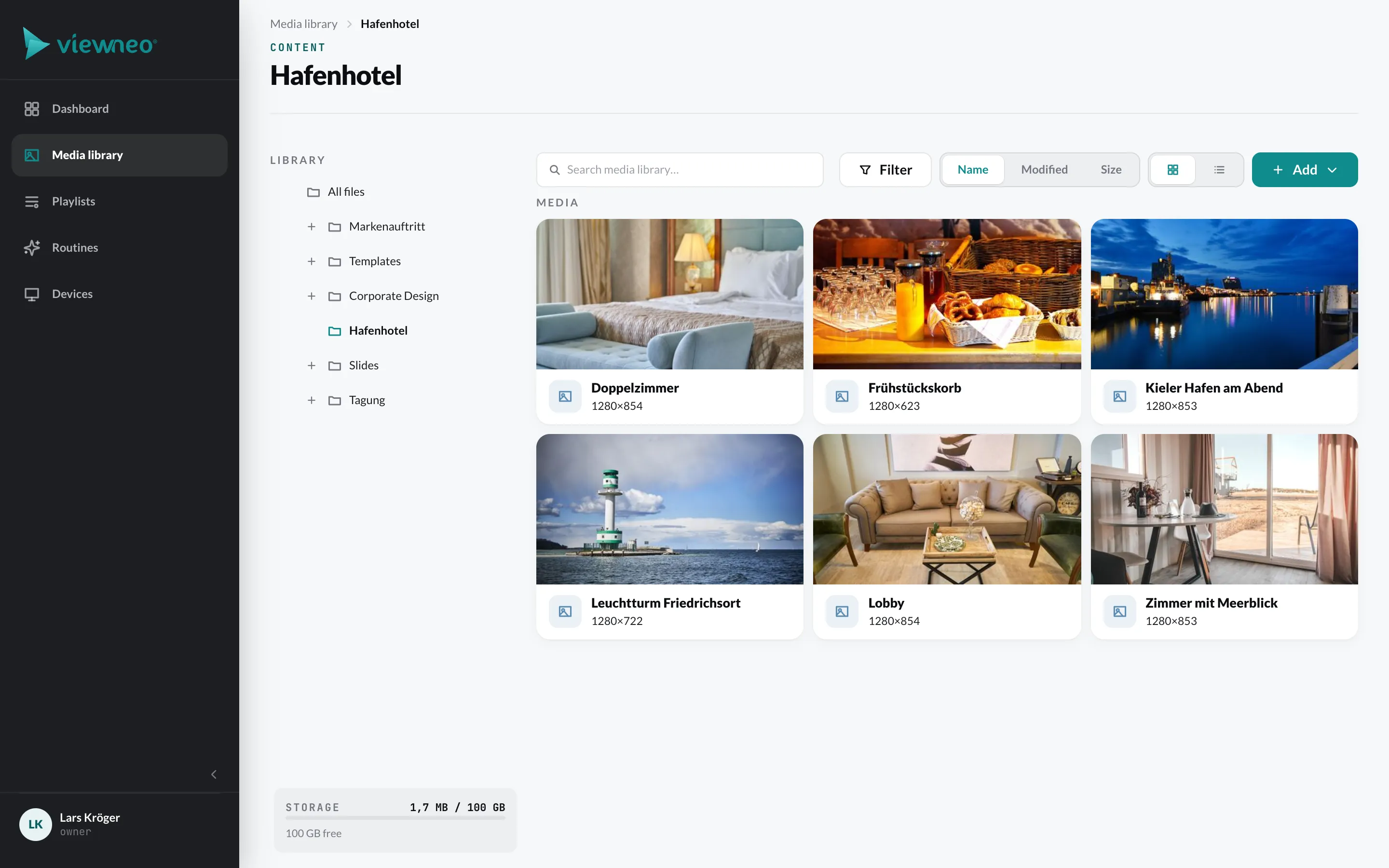
- On the left, the folder tree (Library › All files) and below it the storage indicator.
- At the top, the search (Search media library…), Filter by type, modification date, size and owner, the sorting (Name, Modified, Size) and the switch between grid and list.
- At the top right, the Add button.
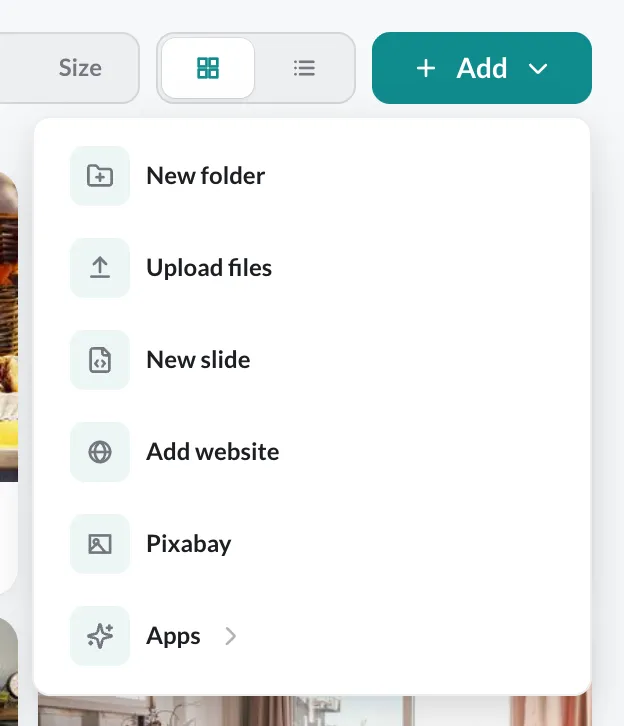
| Entry | What it does |
|---|---|
| New folder | creates a folder in the current folder |
| Upload files | uploads images, videos and documents – also via drag and drop into the media library |
| New slide | opens the Designer |
| New template | like New slide, with placeholders – only with the Template plugin |
| Add website | shows a web page – see Websites as content |
| Pixabay | fetches images and videos from Pixabay – see Pixabay |
| Plugins | creates content from your content plugins – see Content plugins |
Supported file formats
Section titled “Supported file formats”| Type | Formats | Note |
|---|---|---|
| Images | JPEG, PNG, GIF, WebP, SVG | TIFF, BMP and HEIC/HEIF are converted to JPEG or PNG on upload. |
| Videos | MP4, WebM, MOV, AVI, MKV, WMV, FLV, MPEG, 3GP, OGV, TS, M4V | are converted to MP4 (H.264) for the players |
| Documents | PDF, DOCX, DOC, PPTX, PPT, ODT, ODP | are split into page images, see below |
Audio files cannot be uploaded. Sound is available via videos.
Documents
Section titled “Documents”When you upload a document, the CMS splits it into one image per page. The images are placed in a new folder with the name of the document; the original is not kept afterwards. This lets you, for example, add a presentation to a playlist page by page.
Manage files
Section titled “Manage files”Right-click a file to open its context menu. Depending on the type, you will find Preview, Rename, Edit, Create slide, Edit placeholders, Copy, Duplicate, Reports, Share and Delete there. You move files and folders to another folder via drag and drop.