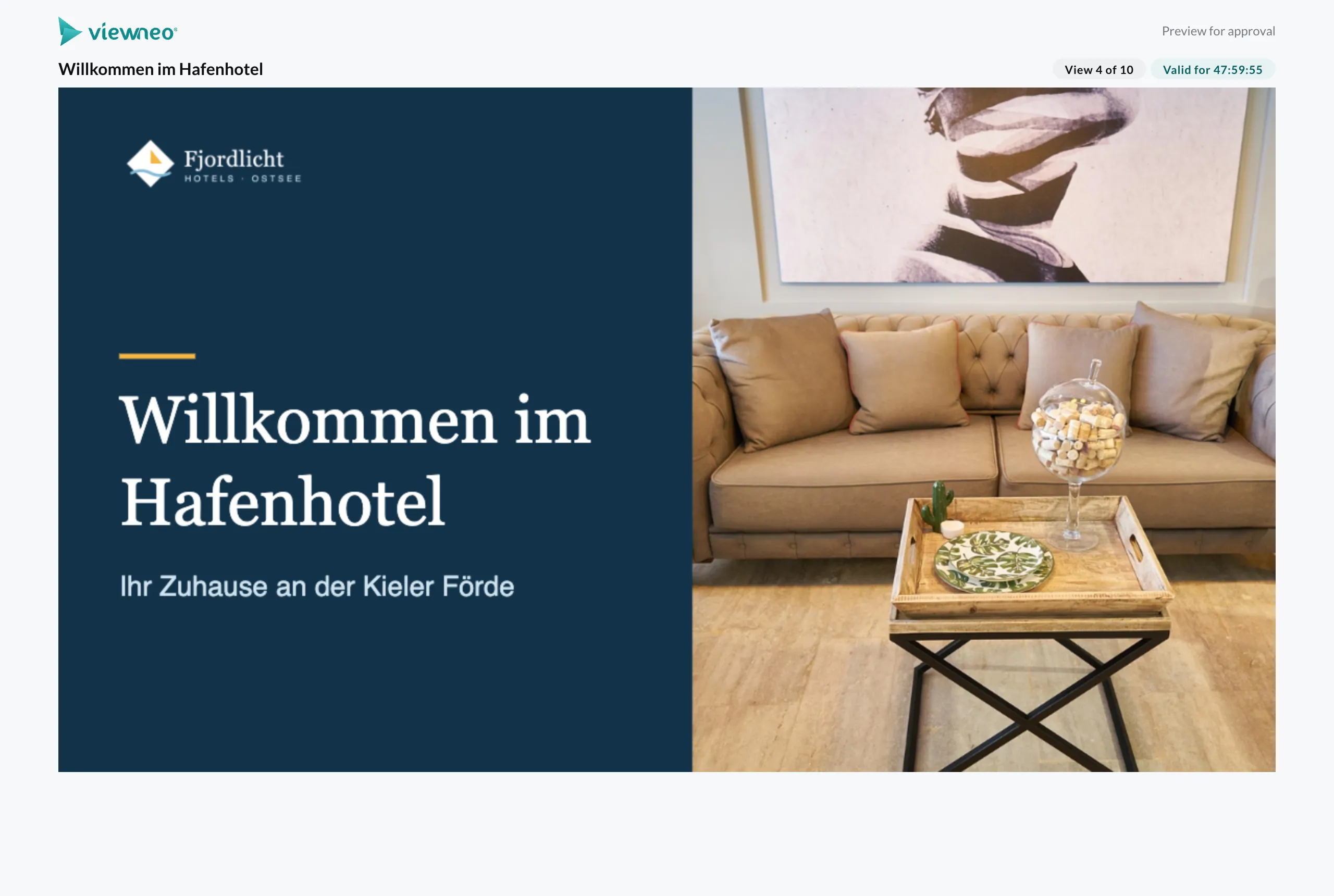
Slides & Templates
With the Designer you design your own content directly in the CMS – such as a welcome sign, a menu or a room sign. There are two kinds:
- Slide – a finished piece of content that you add to a playlist.
- Template – a layout with placeholders from which you create as many Slides as you like. Templates require the Template plugin.
The difference is explained in Slide or Template?.
Create a Slide
Section titled “Create a Slide”- Open the Media library and the folder in which the Slide should be stored.
- Click Add › New slide.
- Enter a Name and choose the Resolution (UHD, Full HD, HD or Custom resolution) and the orientation (Landscape or Portrait).
- Click Continue. The Designer opens.
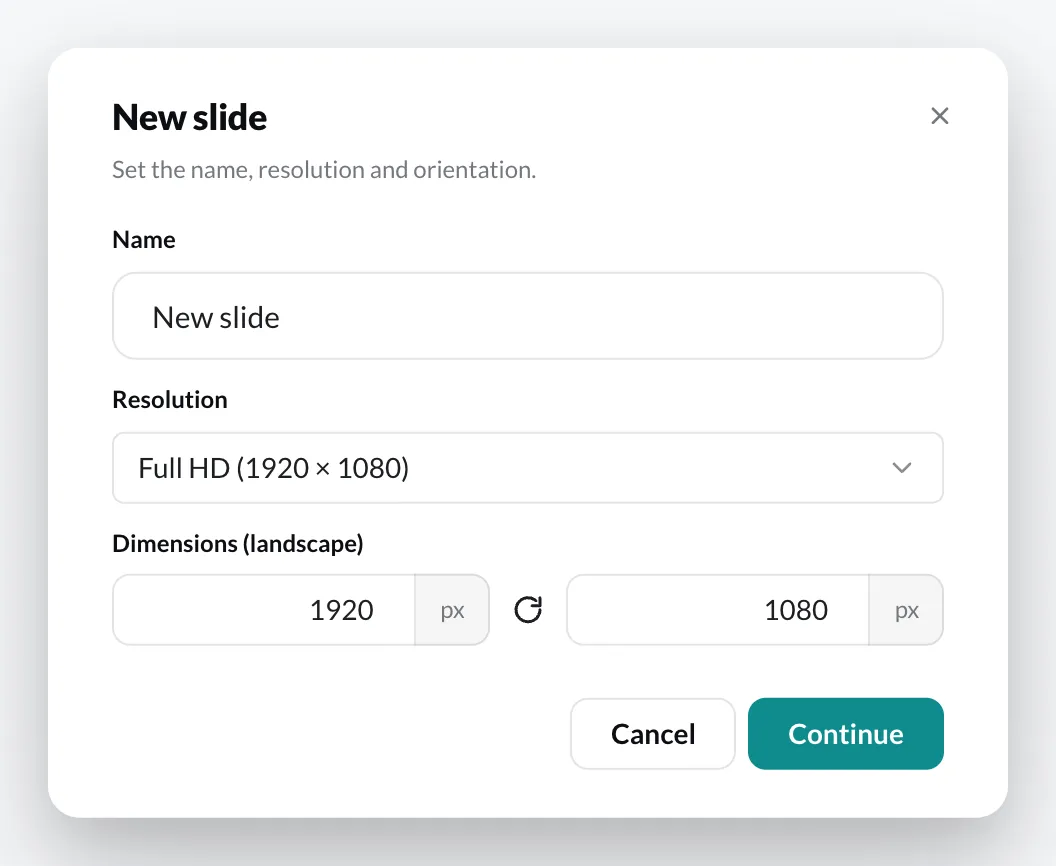
You create a Template the same way – via Add › New template.
The Designer
Section titled “The Designer”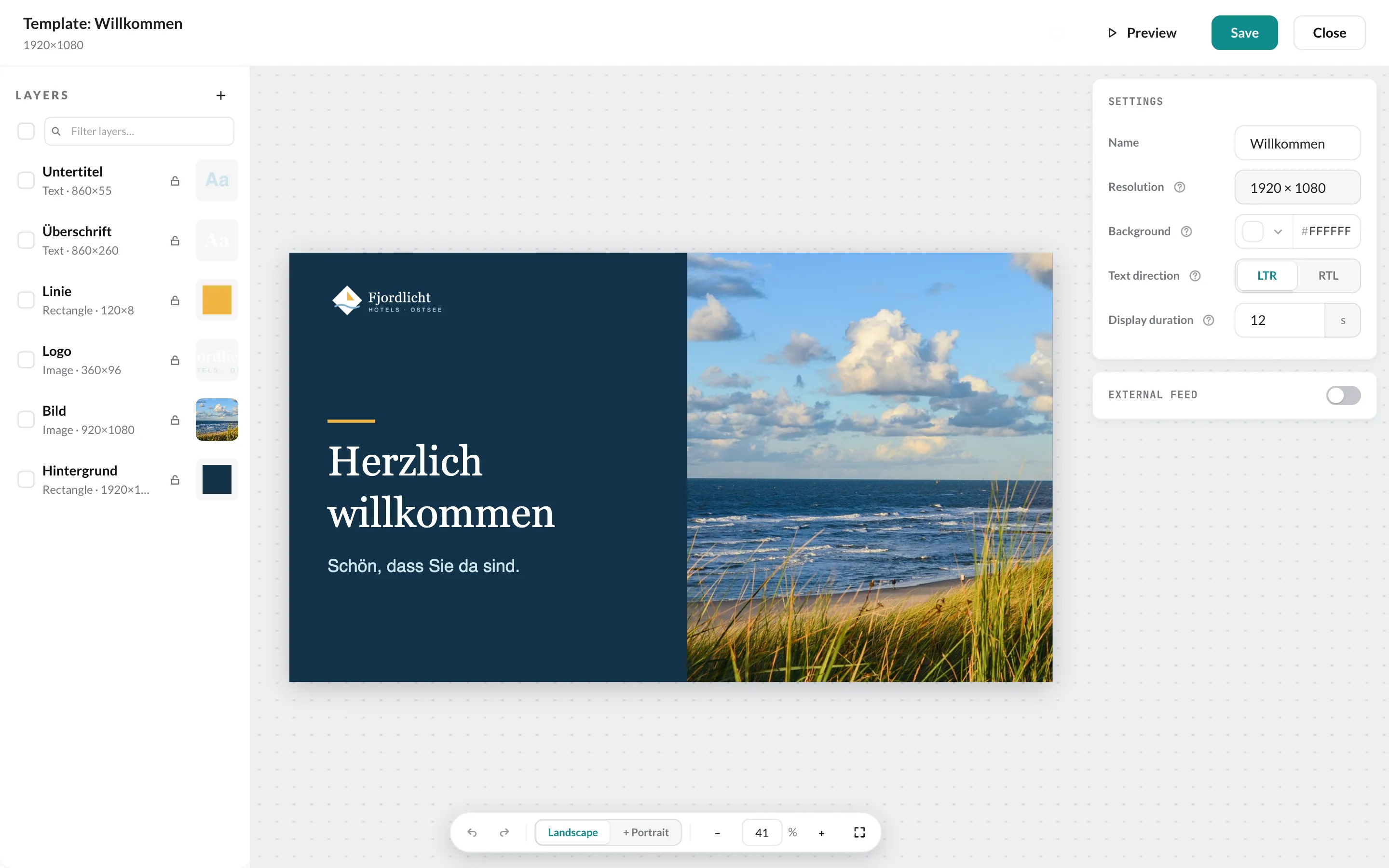
| Area | What for |
|---|---|
| Layers (left) | All elements of the Slide. Use + to add elements; for each layer you can lock, show and hide, rename and change the order. |
| Canvas (center) | The Slide itself. At the bottom: undo/redo, orientation (landscape/portrait), zoom and fit. |
| Properties (right) | The settings of the selected element – or, if nothing is selected, of the document (name, background, text direction, display duration, external feed). |
Continue with Adding elements and Designer basics.
You open an existing Slide in the media library via the context menu › Edit, or in a playlist via Edit in Designer.
External preview for approval
Section titled “External preview for approval”If someone without access to your account should approve a slide or template – a customer, an agency, management –, send them a preview link. They see the template live, with all animations, exactly as on the screen.
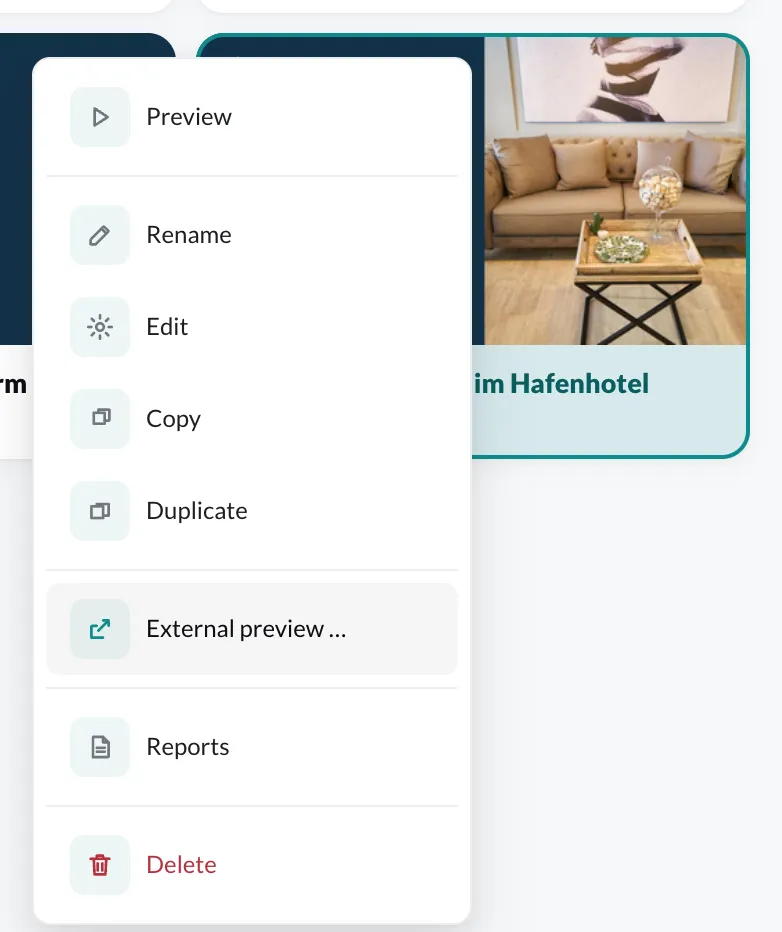
- Right-click the slide or template › External preview …
- Create new link and Copy. The link is only shown at this moment.
- Send the link, e.g. by email.
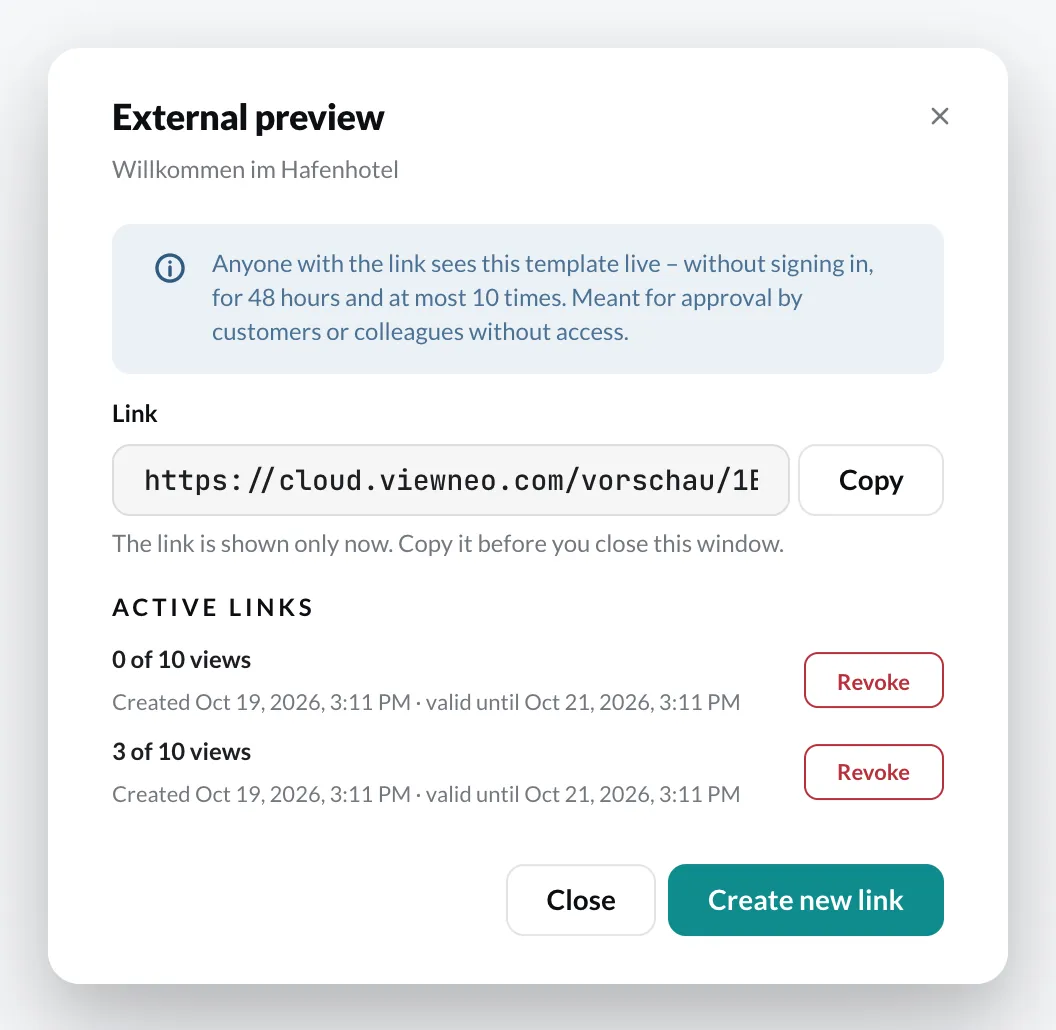
Each link is valid for 48 hours and can be opened at most 10 times. The page shows the recipient which view it is and how long the link is still valid; after that a notice appears. In the same window you see your active links with their count and can revoke any of them.