
Slide / Template Designer
The viewneo Content Designer is a built-in tool for creating slides and templates without external software. You can add text, images, videos, shapes, and other elements to design content for your screens.
Opening the Designer
Section titled “Opening the Designer”- Go to Content in the CMS
- Click Add and select Create Slide (or Create Template)
- Enter the following settings:
- Name — A label for the new slide or template
- Device Group — Optional; automatically sets the correct resolution for your devices
- Dimensions — Manual pixel dimensions (not needed if a device group is selected)
- Click Create to open the Designer
Designer Layout
Section titled “Designer Layout”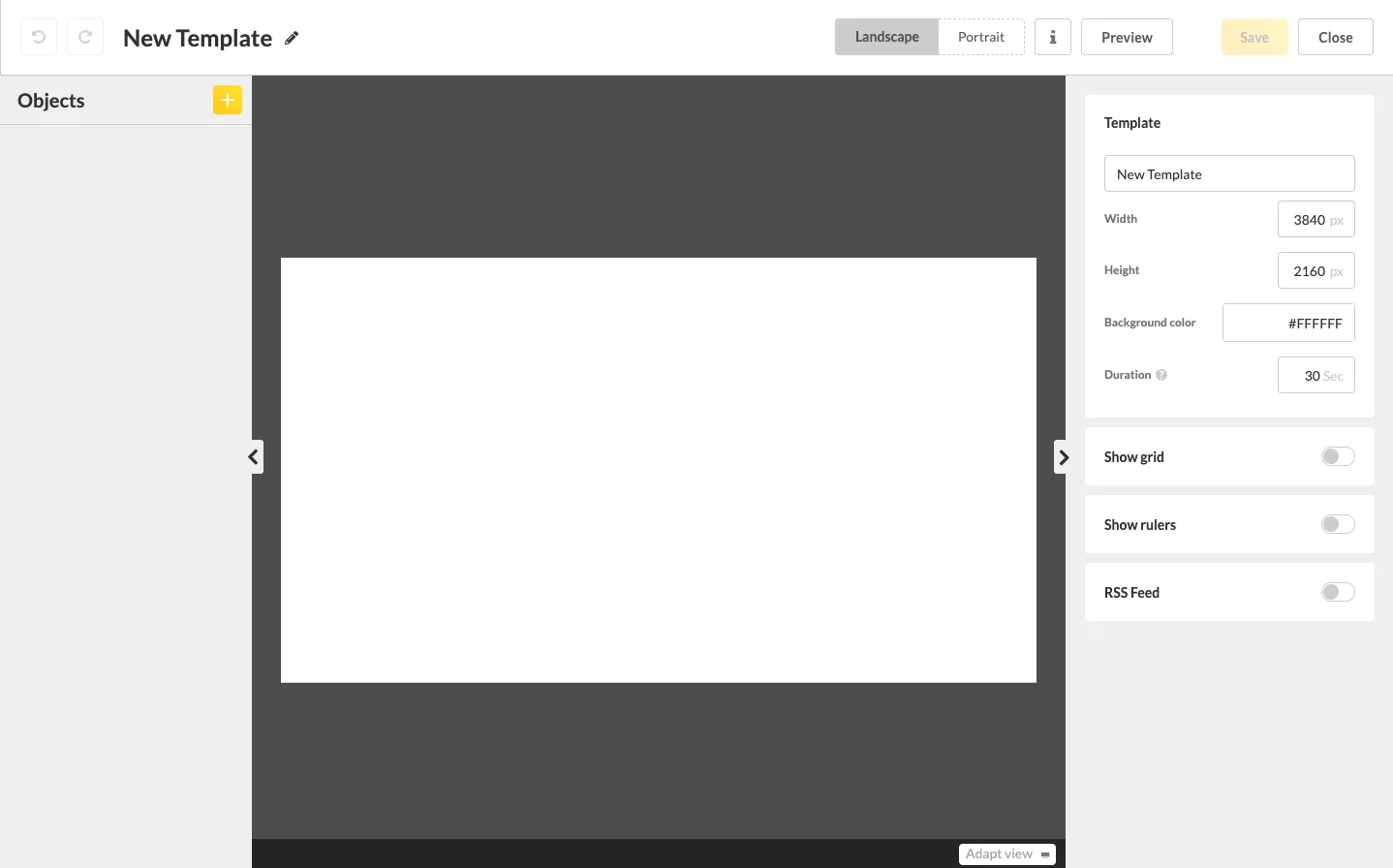
The Designer is divided into three areas:
Object List (Left Panel)
Section titled “Object List (Left Panel)”Displays all objects (text, images, videos, shapes) in the current design. New objects appear at the top of the list. You can reorder objects by dragging them to a new position — this controls the layering (which elements appear in front of or behind others).
Stage (Center)
Section titled “Stage (Center)”The main canvas where you arrange your content visually. This is where you position, resize, and rotate elements.
Properties Panel (Right Panel)
Section titled “Properties Panel (Right Panel)”Shows the properties of the currently selected object (position, size, rotation, colors, etc.). When no object is selected, the stage properties are displayed instead (background color, dimensions).
Working with the Designer
Section titled “Working with the Designer”Adding Objects
Section titled “Adding Objects”Click the + icon next to the “Objects” header, or right-click on the stage.
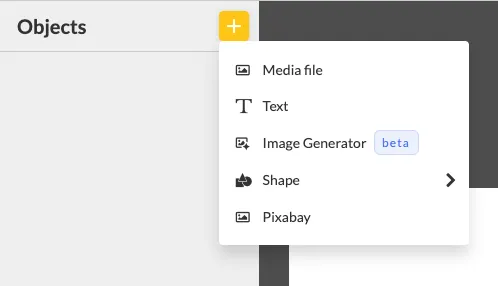
You can add:
- Text elements
- Media files (images, videos, websites)
- Shapes
- Pixabay images and videos
See Adding Objects for details.
Alignment Grid
Section titled “Alignment Grid”Press the ALT key to display an auxiliary grid that helps you align objects precisely on the stage.
Expanding the Canvas
Section titled “Expanding the Canvas”Use the small arrow buttons on either side of the stage to hide the left or right panel, giving you more workspace.
Preview
Section titled “Preview”Click Preview to see how your content will look on the player.
Saving
Section titled “Saving”Click Save to store your changes. If this slide or template is already used in a playlist, the updated version will be applied automatically.