
Using Text Elements
Text elements allow you to add static or dynamic text to your slides and templates.
Adding a Text Object
Section titled “Adding a Text Object”- Click the + icon in the left panel or right-click on the stage
- Select Text from the object menu
- A new text object appears on the stage
Editing Text
Section titled “Editing Text”There are two ways to edit text content:
Direct Editing
Section titled “Direct Editing”Click the text object on the stage to activate the cursor, then type your content directly.
Properties Panel
Section titled “Properties Panel”Select the text object, then edit the text in the Properties panel on the right side. This is useful when you want to see all text properties at once.
Positioning and Rotating
Section titled “Positioning and Rotating”Manual Placement
Section titled “Manual Placement”Click and drag the text object to move it anywhere on the stage. Use the anchor on the upper object frame to rotate it freely.
Precise Positioning
Section titled “Precise Positioning”Enter exact pixel values for position and rotation in the Properties panel on the right side for pixel-perfect placement.
Text Formatting
Section titled “Text Formatting”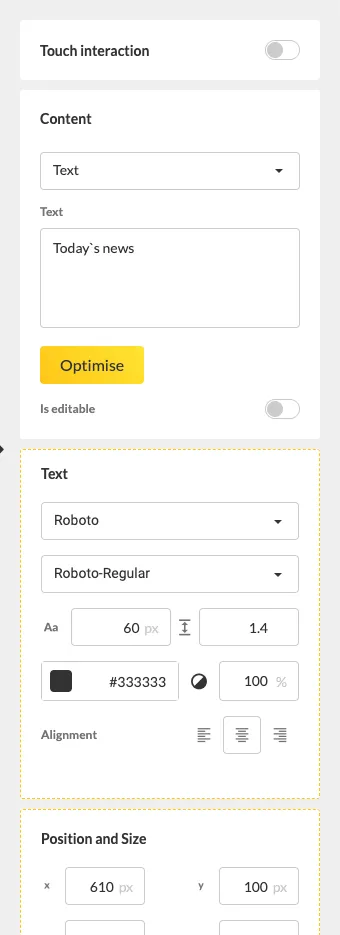
The Properties panel offers various formatting options:
- Font family and font size
- Bold, italic, and underline
- Text color and background color
- Padding — Add spacing around the text
- Alignment — Left, center, or right
Dynamic Text Sources
Section titled “Dynamic Text Sources”Text fields can also display dynamic content:
- RSS/XML feeds — Display live data from RSS or XML sources in a text field
- Date and time — Show current date and time using format codes
- Template placeholders — Define editable text areas in templates (requires the Template Plugin)