
Images
You can upload image files to the viewneo media library and use them in playlists, slides, and templates.
Supported Formats
Section titled “Supported Formats”| Format | Extensions |
|---|---|
| JPEG | .jpeg, .jpg, .jpe |
| PNG | .png |
| GIF | .gif |
| BMP | .bmp |
| TIFF | .tiff, .tif |
| ICO | .ico |
Uploading Images
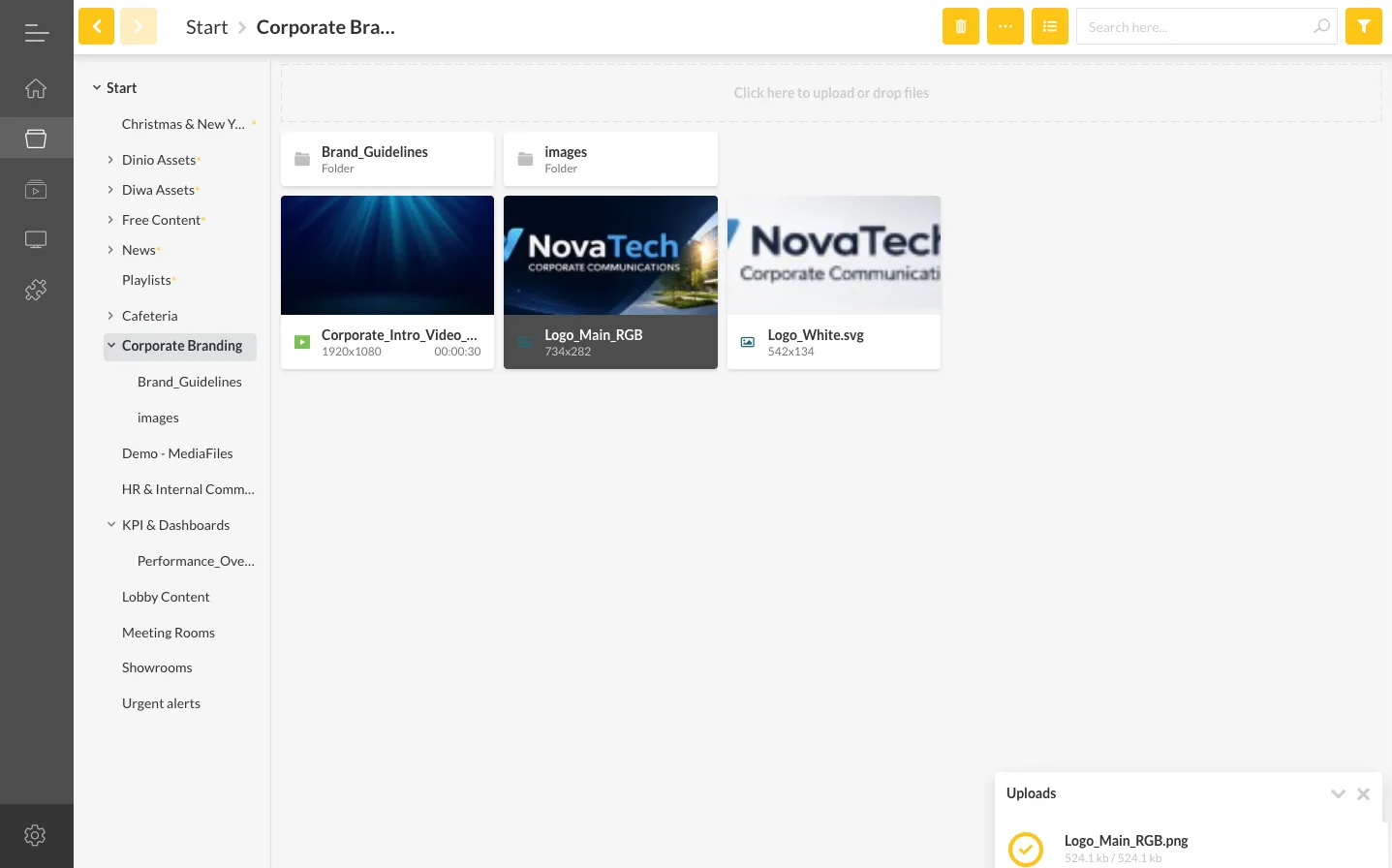
Section titled “Uploading Images”There are three ways to upload images to the media library:
- Drag and drop — Drag image files directly from your computer into the content area
- Add button — Click Add and select Upload file
- Right-click menu — Right-click in the content area and select Upload file
Uploaded images are placed in the currently selected folder. You can move them to a different folder later by dragging them.
Managing Images
Section titled “Managing Images”Right-click any image in the media library to access these options:
- Rename — Change the display name
- Copy — Duplicate the image to another folder
- Delete — Remove the image from the media library
Using Images
Section titled “Using Images”Images can be used in several ways:
- In playlists — Drag an image directly into a playlist to display it as full-screen content
- In the Content Designer — Insert images into slides and templates as design elements
- From Pixabay — Access over 1 million free stock images directly from the CMS. See Pixabay for details.