
Advanced Settings
Each device and device group has advanced settings that let you fine-tune behavior, display, and connectivity options.
Accessing Advanced Settings
Section titled “Accessing Advanced Settings”- Go to Devices in the CMS
- Select a device or device group
- Click Advanced Settings
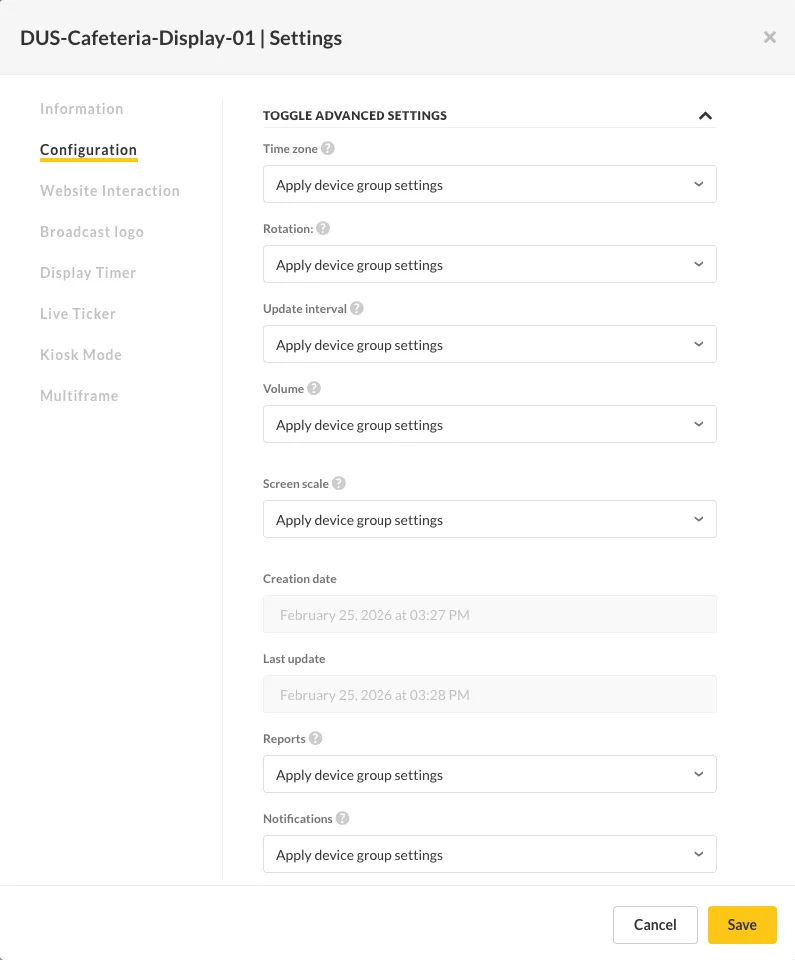
Available Settings
Section titled “Available Settings”| Setting | Description |
|---|---|
| Time Zone | The time zone where the device is located. Required for correct scheduling and display timer behavior. |
| Rotation | Adjusts content rotation based on how the display is mounted (landscape or portrait). Content is automatically rotated to match. |
| Update Interval | How often the player checks for new content or updates. Default: 15 minutes. |
| Volume | Controls the audio volume on the device. |
| Screen Scaling | Adjusts image scaling to ensure content fills the entire display. Useful when some screens cut off content at the edges. |
| Reports | Enable or disable player behavior reporting. Disabling reduces network traffic. |
| Notifications | When enabled, the system sends email and in-app notifications for device events (e.g., connection loss). |
| Remarks | A free-text field for custom notes about the device (e.g., location, hardware details). |
Read-Only Information
Section titled “Read-Only Information”| Field | Description |
|---|---|
| Created on | The date and time when the device was added to the system |
| Last updated | When the player last checked for updates from the server |
Group vs. Device Settings
Section titled “Group vs. Device Settings”Settings can be configured at both the group level and the device level:
- Group settings apply to all devices in the group
- Device settings override group settings for that specific device