
Creating a Device Group
Device groups let you manage multiple players together. All devices in a group share the same playlist and settings by default, making it easy to control multiple screens at once.
Why Use Device Groups?
Section titled “Why Use Device Groups?”- Centralized control — Assign a playlist once and it applies to all devices in the group
- Consistent settings — Volume, rotation, update interval, and other settings are shared
- Easy management — Make changes at the group level instead of configuring each device individually
Creating a Device Group
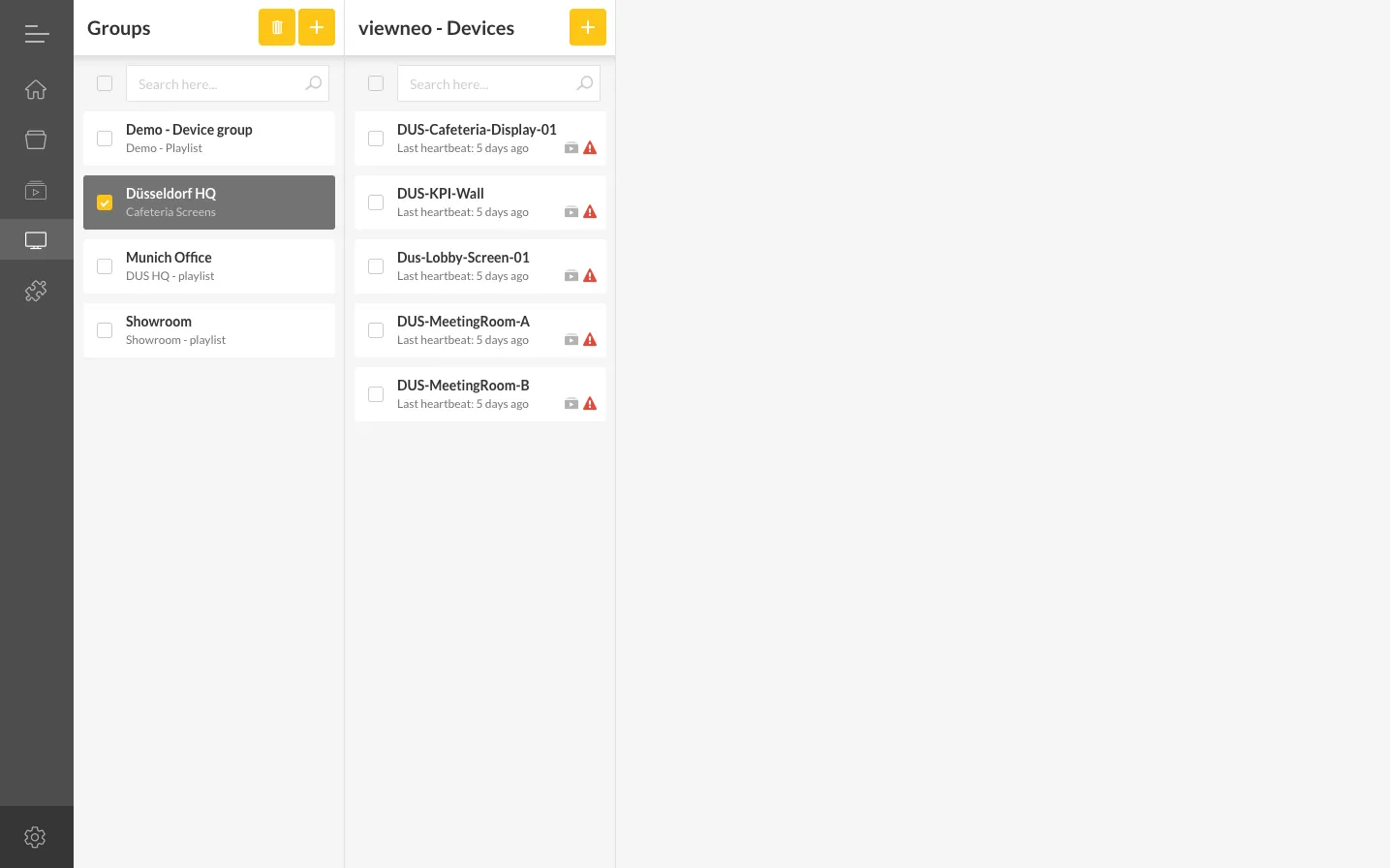
Section titled “Creating a Device Group”- Go to Devices in the left-hand menu
- Click the + icon to create a new device group
- Enter a name for the group (e.g., “Lobby Screens”, “Reception”)
- Select a playlist to assign to the group (this can be changed later)
- Configure Advanced Settings if needed (volume, scaling, etc.)
- Save the group
Individual Device Overrides
Section titled “Individual Device Overrides”Even within a group, individual devices can have their own settings. For example, one device out of ten can play a different playlist than the rest of the group. Device-level settings override group-level settings.
Color Labels
Section titled “Color Labels”You can color-code device groups for better visual organization:
- Right-click on a device group
- Select a color from the menu
- The group is now visually labeled with your chosen color
This is helpful when managing many device groups across different locations or departments.
Next Steps
Section titled “Next Steps”After creating a device group, you can add devices to it.