
Sharing Folders
You can share content folders from your Enterprise account with all sub-accounts. Shared folders appear in the sub-account’s media library with a star icon, allowing users to copy and use the content.
Sharing a Folder
Section titled “Sharing a Folder”- Go to Content in the left navigation
- Right-click the folder you want to share
- Select Share folder
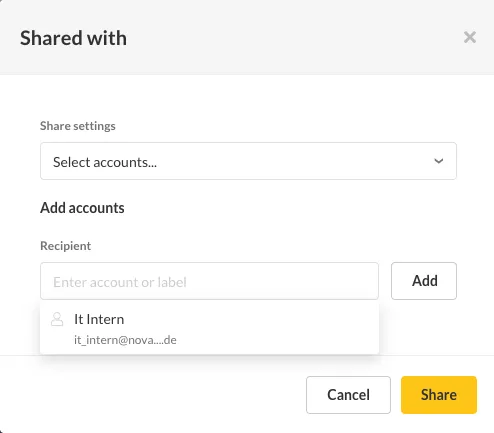
The folder is marked with an asterisk and becomes visible to all sub-accounts.
Removing a Shared Folder
Section titled “Removing a Shared Folder”- Right-click the shared folder
- Select Do not share anymore
Sub-accounts will lose access to the folder contents.
Locking Templates
Section titled “Locking Templates”You can share templates while preventing sub-accounts from copying or modifying them:
- Copy the template to a shared folder
- Right-click the template
- Select Prohibit copying
- A lock icon appears in the lower-right corner of the template
What locked templates allow:
- Sub-accounts can create content from the template and fill in editable placeholders (text and media)
- Sub-accounts cannot copy the template to their own media library
- Sub-accounts cannot modify the template design itself