
Sub-account Management
Sub-accounts are standalone viewneo accounts managed from your Enterprise account. Each sub-account can have its own devices, content, playlists, and users.
Accessing Sub-account Management
Section titled “Accessing Sub-account Management”- Click the gear icon in the left navigation
- Select the Sub-Accounts tab
Here you can view all sub-accounts, their status, and associated costs.
Creating a Sub-Account
Section titled “Creating a Sub-Account”Click Create first Sub-Account (or the + button) to start a five-step process:
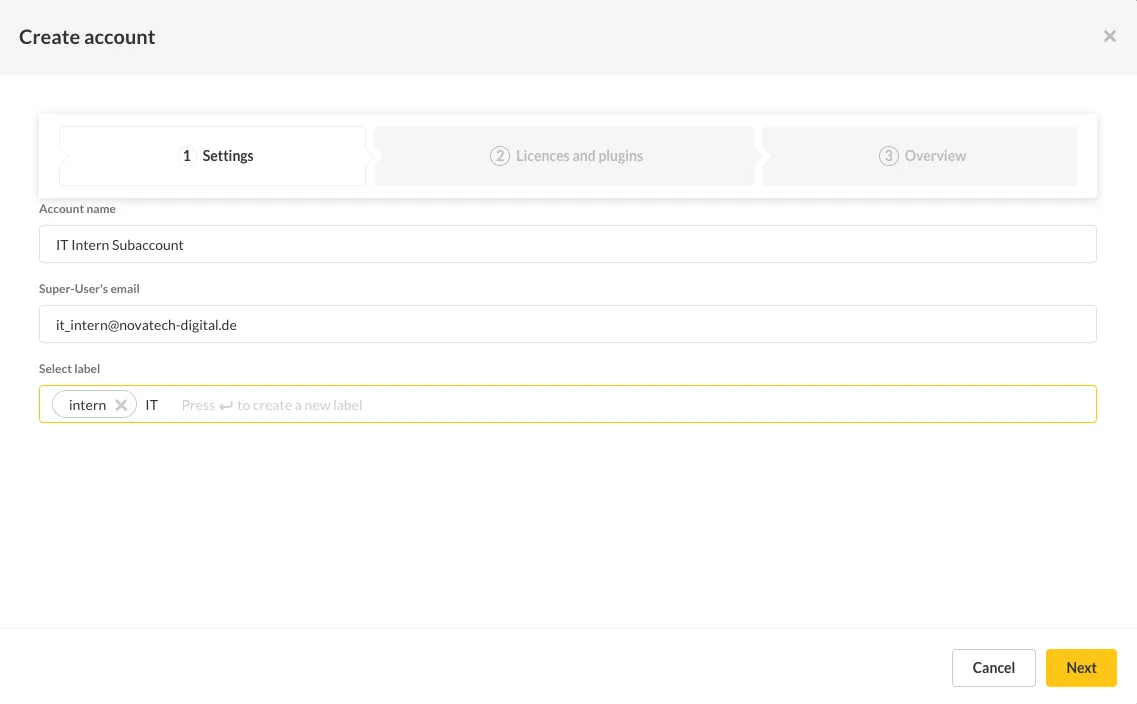
Step 1: Settings
Section titled “Step 1: Settings”- Name — The sub-account name (e.g., company or location name)
- Super User email — The email address for the sub-account’s administrator
- Labels — Tags for organizing sub-accounts into groups
- Permissions — Restrictions for the sub-account (e.g., content upload limits)
Step 2: Device Licenses
Section titled “Step 2: Device Licenses”Select the number of device licenses for the sub-account. This can be changed later.
Step 3: Plugins
Section titled “Step 3: Plugins”Choose which plugins to activate for the sub-account. These can also be modified later.
Step 4: Overview
Section titled “Step 4: Overview”Review the cost summary. You can still adjust device licenses and plugins before confirming.
Step 5: Confirm
Section titled “Step 5: Confirm”Click Create Sub-Account to generate the account. Costs are added to your monthly bill.
Managing Sub-Accounts
Section titled “Managing Sub-Accounts”Click the options button (three dots) next to any sub-account to:
- Edit subscription — Add/remove plugins and adjust device licenses
- Edit — Change name, labels, and permissions
- Lock/Unlock — Temporarily block access to the sub-account
- Edit Mandatory Playlist — Assign a mandatory playlist
- Delete — Permanently remove the sub-account and all its data
Labels
Section titled “Labels”Labels help you organize sub-accounts into logical groups:
- Click the options button next to a sub-account and select Edit
- Click the Labels field
- Select existing labels or type a new label name and press Enter
- Click Save
Labels can also be used to share playlists with all sub-accounts that have a specific label.