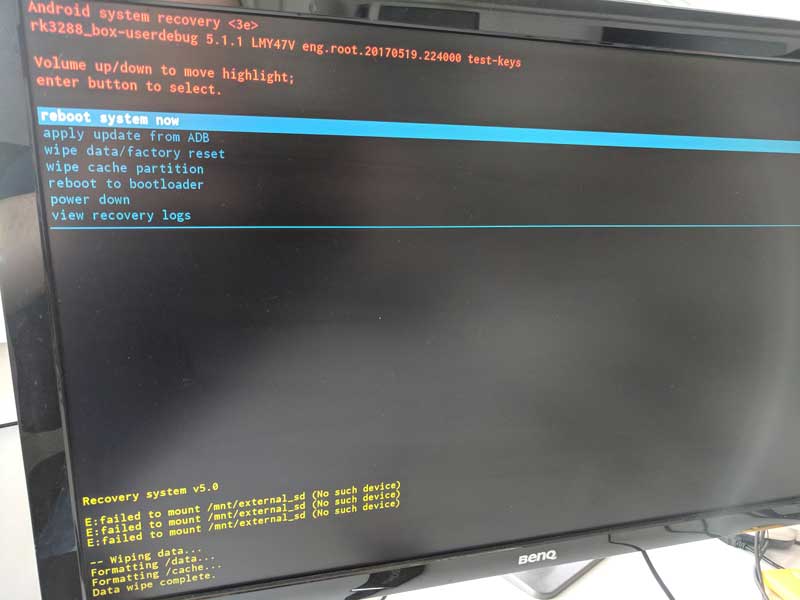
Reset
Reset (Soft Reset)
Section titled “Reset (Soft Reset)”A soft reset restores the SignageStick to factory settings via the Android settings.
- Open the player menu and switch to the System tab
- Click Settings
- Select Backup & Reset
- Select Factory Data Reset
- Confirm with Reset Tablet
- Confirm with Erase Everything
Factory Reset (Hard Reset with Paperclip)
Section titled “Factory Reset (Hard Reset with Paperclip)”If the SignageStick no longer starts correctly, only shows the boot logo, or becomes completely unresponsive, a hard reset can be performed using the physical reset button.
- Disconnect the SignageStick from power (the HDMI connection to the screen can remain)
- Connect a USB keyboard via the USB port
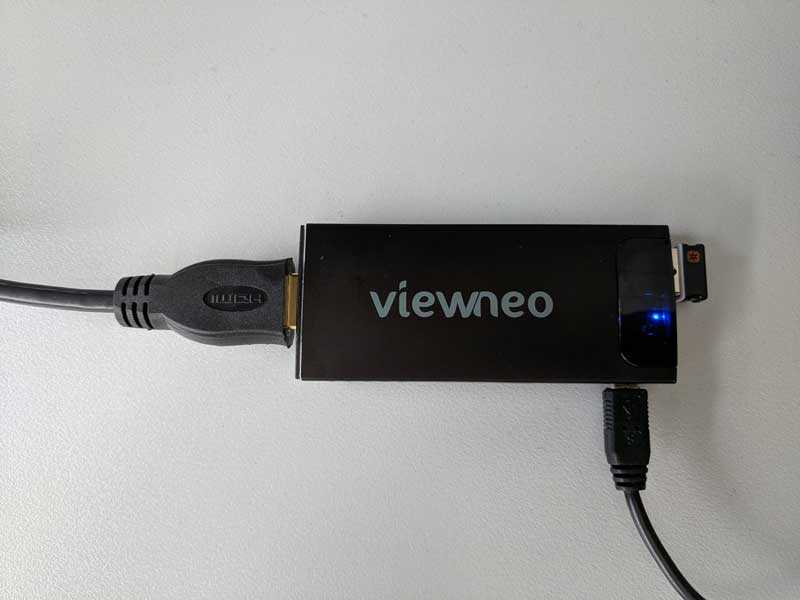
- The setup should look like this: SignageStick connected to the screen via HDMI, keyboard connected via USB
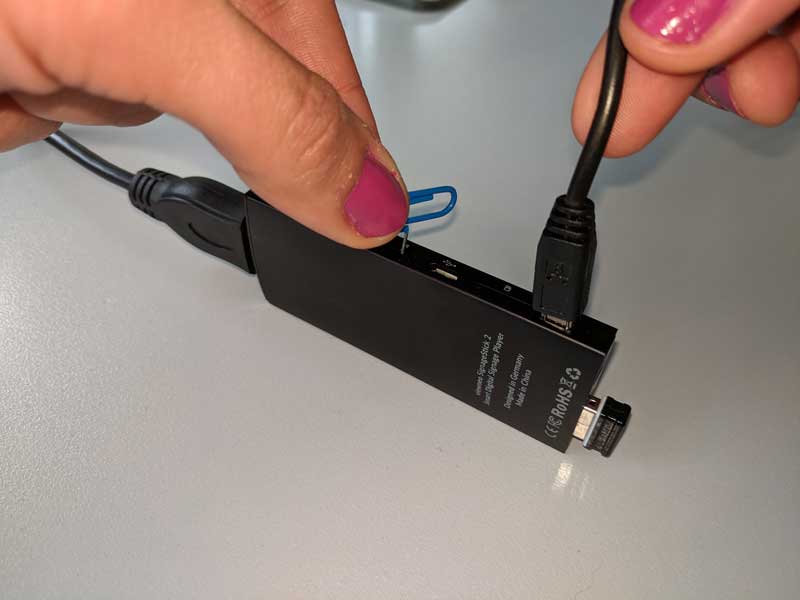
- On the side of the stick, there is a small reset hole. Press the button inside the hole with the paperclip and hold it down. Simultaneously connect the power and continue holding the button for 3 more seconds
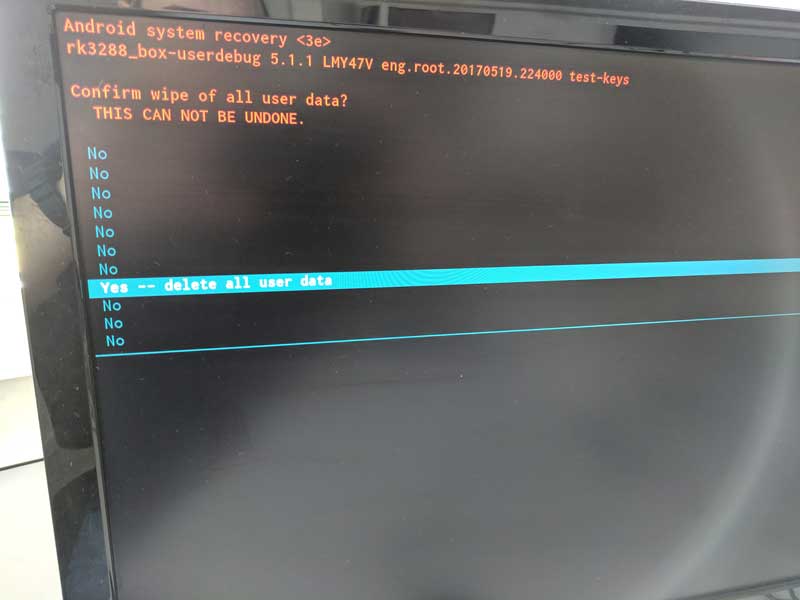
- The recovery menu appears on the screen. Navigate with the arrow keys on the keyboard to wipe data/factory reset and press Enter
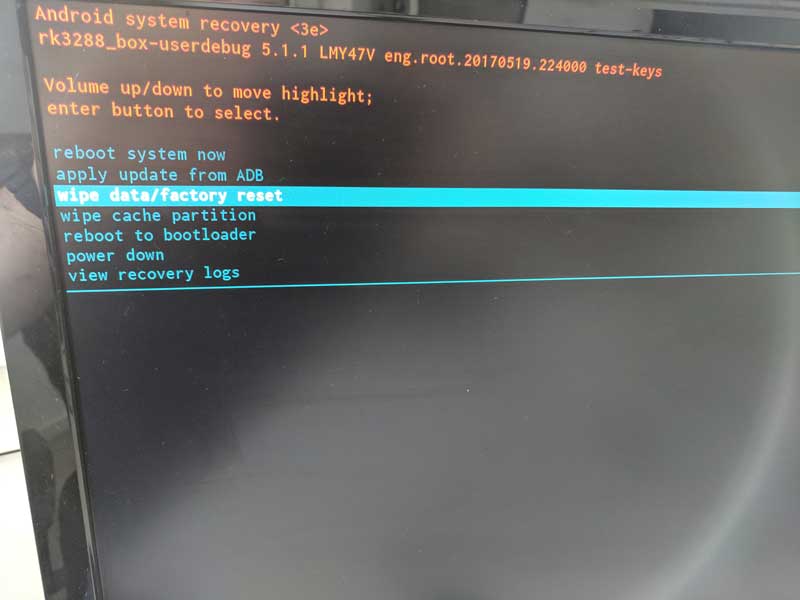
- Confirm with Yes — delete all user data
- After completion, select Reboot system now