Reset
Reset (Soft Reset)
Section titled “Reset (Soft Reset)”A soft reset restores the SignageBox to factory settings via the Android settings.
- Open the player menu and switch to the System tab
- Click Settings
- Select Backup & Reset
- Select Factory Data Reset
- Enable Erase SD Card and confirm with Reset Tablet
- Confirm with Erase Everything
Factory Reset (Hard Reset with Paperclip)
Section titled “Factory Reset (Hard Reset with Paperclip)”If the SignageBox no longer starts correctly or becomes unresponsive, a hard reset can be performed using the physical reset button.
- Disconnect the power cable from the device
- Connect a USB keyboard and the HDMI cable
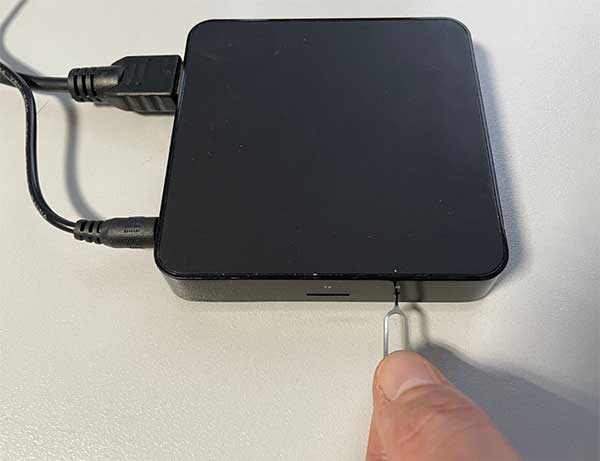
- On the left side of the device, there is a small opening marked with R. Insert the paperclip or SIM card ejector tool and hold the button down
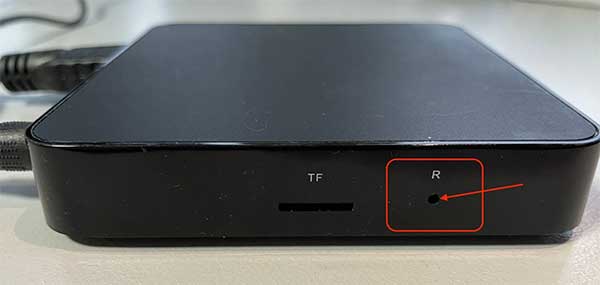
- Continue holding the button while simultaneously connecting the power cable. Keep holding the button until the message boot appears on the display
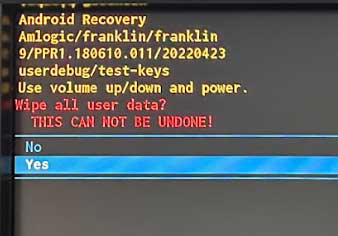
- The recovery menu appears on the screen. Select Wipe data/factory reset
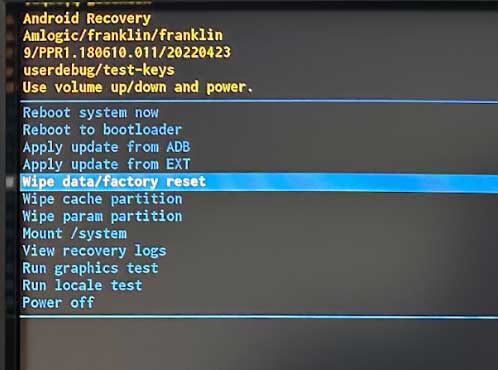
- Confirm with Yes
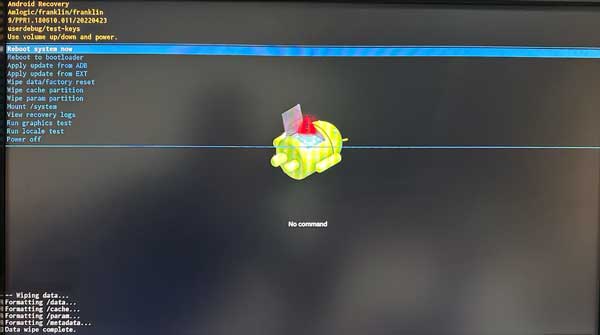
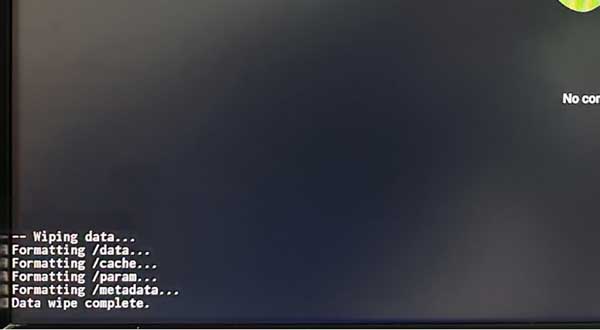
- After completion, the message Data wipe complete appears
- Select Reboot system now — the device restarts and is reset