
Events Overview
The Events system lets you add interactive and automated behavior to your playlists. Events consist of triggers, optional filters, and actions — allowing your screens to respond to user interactions, time conditions, or sensor input.
How Events Work
Section titled “How Events Work”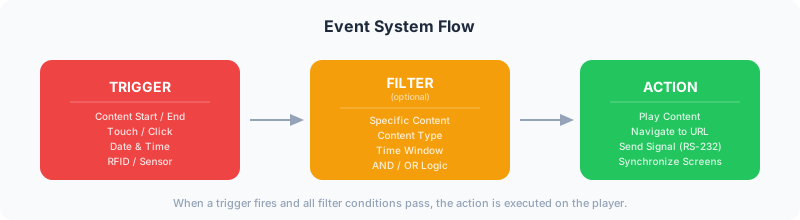
An event follows a simple logic:
- A Trigger detects a condition (e.g., content starts, a touch occurs, a specific time is reached)
- Optional Filters narrow down when the trigger should fire (e.g., only for specific content, only on certain days)
- An Action is executed (e.g., switch content, navigate to a URL, send a signal)
Accessing Events
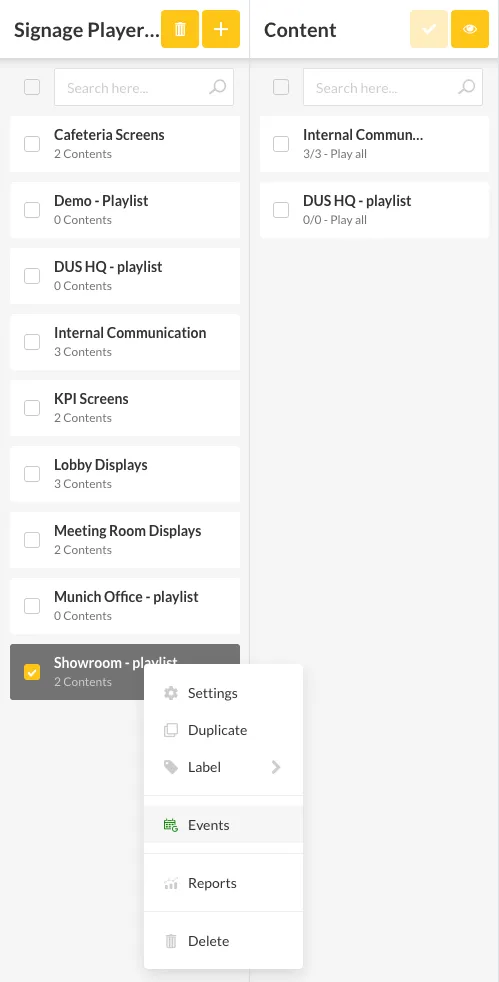
Section titled “Accessing Events”- Go to the Playlists section
- Click the gear icon next to a playlist name
- Select the Events tab
Plugin Requirements
Section titled “Plugin Requirements”Events are powered by plugins. The available triggers and actions depend on which plugins are activated on your account:
| Plugin | Triggers | Actions |
|---|---|---|
| Smart Playlist | Content Start, Content End, Date and Time | Various |
| Touch Elements | Touch | Navigate, switch content |
| Screen Sync | Content Start, Content End | Synchronize displays |
Use Cases
Section titled “Use Cases”- Interactive kiosks — Touch a product to show details
- Time-based actions — Switch content at specific times without manual intervention
- Sensor-driven displays — Respond to RFID tags, motion sensors, or button presses
- Synchronized screens — Keep multiple displays in sync