
Scheduling Content
Scheduling allows you to control exactly when content in a playlist is displayed. You can restrict playback to specific dates, times of day, or weekdays.
Accessing the Schedule
Section titled “Accessing the Schedule”- Edit a playlist and select the content item you want to schedule
- Open the Schedule tab in the content settings
- Select Content plays on a schedule
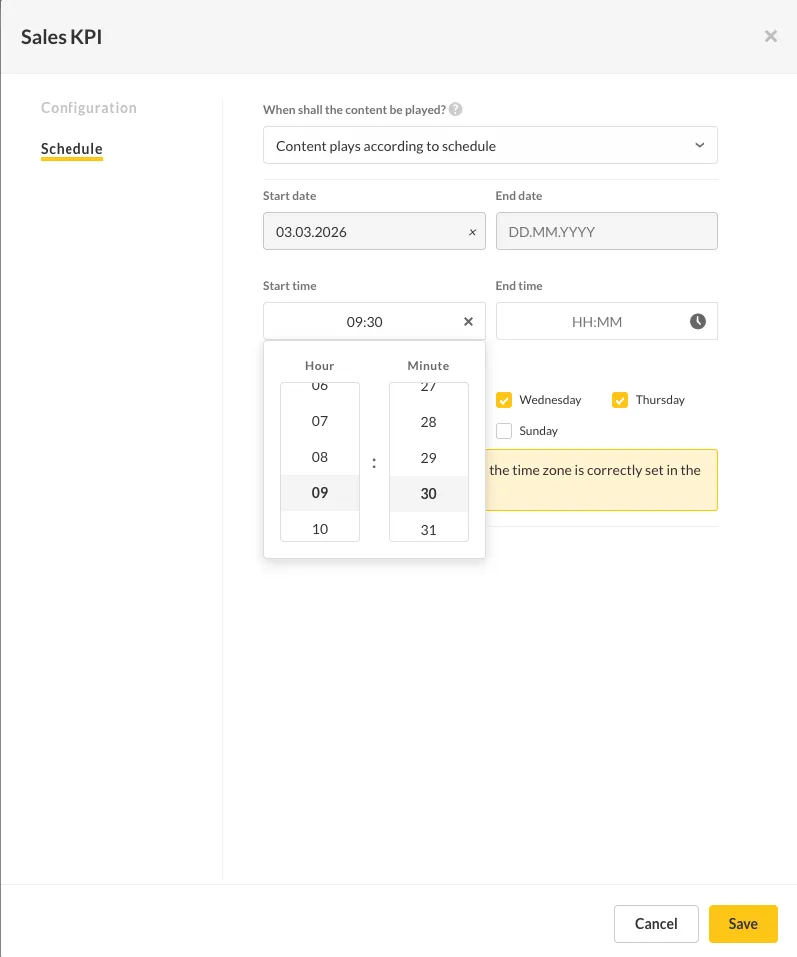
Date-Based Scheduling
Section titled “Date-Based Scheduling”You can set content to play:
- From a specific date — Content starts playing on the selected date
- Until a specific date — Content stops playing after the selected date
- Between two dates — Content plays only within the defined date range
Time-Based Scheduling
Section titled “Time-Based Scheduling”Define a daily time window for content playback:
- Set a start time and end time in HH:MM format
- Content plays only within this time window each day
Flexible options:
| Configuration | Behavior |
|---|---|
| Start time only (e.g., 11:45) | Content plays from 11:45 until midnight |
| End time only (e.g., 19:00) | Content plays from midnight until 19:00 |
| Both start and end time | Content plays within the defined window |
Weekday Scheduling
Section titled “Weekday Scheduling”Use the weekday checkboxes to select which days of the week the content should play. Uncheck any days when the content should not be displayed.
Auto-Removal
Section titled “Auto-Removal”Content can be set to automatically remove itself from the playlist after a specified period. The content is only removed from the playlist — it remains available in your media library for future use.
Combining Rules
Section titled “Combining Rules”You can combine date, time, and weekday rules for precise control. For example:
- Play content Monday to Friday between 9:00 and 17:00
- Play content only on weekends from a start date until an end date