
Calendar Plugin
The Calendar Plugin lets you display events from your Google Calendar directly on your digital signage screens — ideal for meeting rooms, reception areas, and event displays.
Prerequisites
Section titled “Prerequisites”- An active viewneo subscription that includes the Calendar Plugin
- A Google account with access to Google Calendar
- At least one registered player
Creating Calendar Content
Section titled “Creating Calendar Content”Step 1: Open the Media Library
Section titled “Step 1: Open the Media Library”- Navigate to the Media Library in the sidebar
- Right-click in the content area to open the context menu
- Select Calendar from the list of content types
Step 2: Connect Your Google Account
Section titled “Step 2: Connect Your Google Account”Log in to your Google account and authorize viewneo to access your calendar data. After successful authorization, the settings dialog appears with two tabs: Settings and Template.
Step 3: Configure the Calendar
Section titled “Step 3: Configure the Calendar”| Setting | Description |
|---|---|
| Name | A name for the content for internal reference |
| Event type | Select which types of events to display: Running, Upcoming, and/or All day |
| Calendars | Select which calendar to display from your Google account |
| Meetings per Site | How many events to show on each screen page |
| Language | The display language for the calendar |
| Logo | Upload a custom logo to display alongside the calendar |
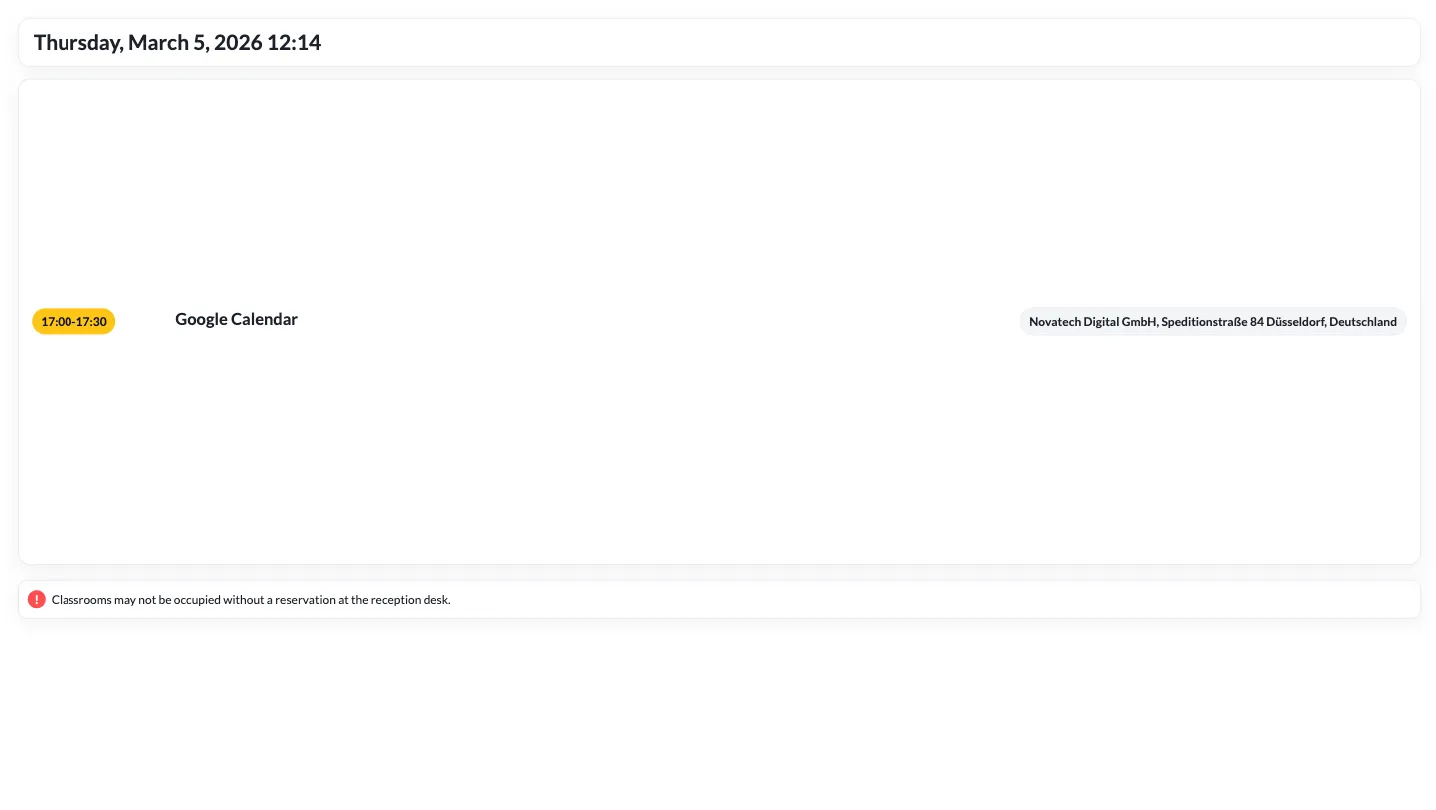
Step 4: Save and Add to Playlist
Section titled “Step 4: Save and Add to Playlist”- Click Create to create the calendar content
- The new content appears in your media library
- Add the content to a playlist as usual
Use Cases
Section titled “Use Cases”Corporate — Meeting Rooms
Section titled “Corporate — Meeting Rooms”Display the room schedule outside each meeting room so employees can see current and upcoming bookings.
Education — Event Calendars
Section titled “Education — Event Calendars”Show campus events, lectures, and deadlines on displays in common areas.
Healthcare — Office Hours
Section titled “Healthcare — Office Hours”Display doctor schedules and appointment availability in waiting areas.
Frequently Asked Questions
Section titled “Frequently Asked Questions”Which calendar services are supported?
Section titled “Which calendar services are supported?”The Calendar Plugin currently supports Google Calendar. You connect your Google account directly, and the plugin reads your calendars and events.
Are new events automatically displayed?
Section titled “Are new events automatically displayed?”Yes — the plugin fetches the latest calendar data at regular intervals. New events appear automatically without manual updates.
Next Steps
Section titled “Next Steps”- Fill Playlist — Learn how to add content to a playlist
- Zapier Plugin — Automate calendar-based content changes