
Weather Plugin
The Weather Plugin displays current weather data and a multi-day forecast on your screens — for example in reception areas, shop windows, or on info displays.
Prerequisites
Section titled “Prerequisites”- An active viewneo subscription that includes the Weather Plugin
- At least one registered player
Creating a Weather Content
Section titled “Creating a Weather Content”Step 1: Open the Media Library
Section titled “Step 1: Open the Media Library”- Navigate to the Media Library in the sidebar
- Right-click in the content area to open the context menu
- Select Weather from the list of content types
Step 2: Configure the Weather Display
Section titled “Step 2: Configure the Weather Display”The settings dialog offers the following options:
| Setting | Description |
|---|---|
| City | The city whose weather data should be displayed |
| Display Name | An alternative name shown on screen (e.g., the name of your location or business) |
| Language | The language for the weather display |
| Temperature Unit | Celsius or Fahrenheit |
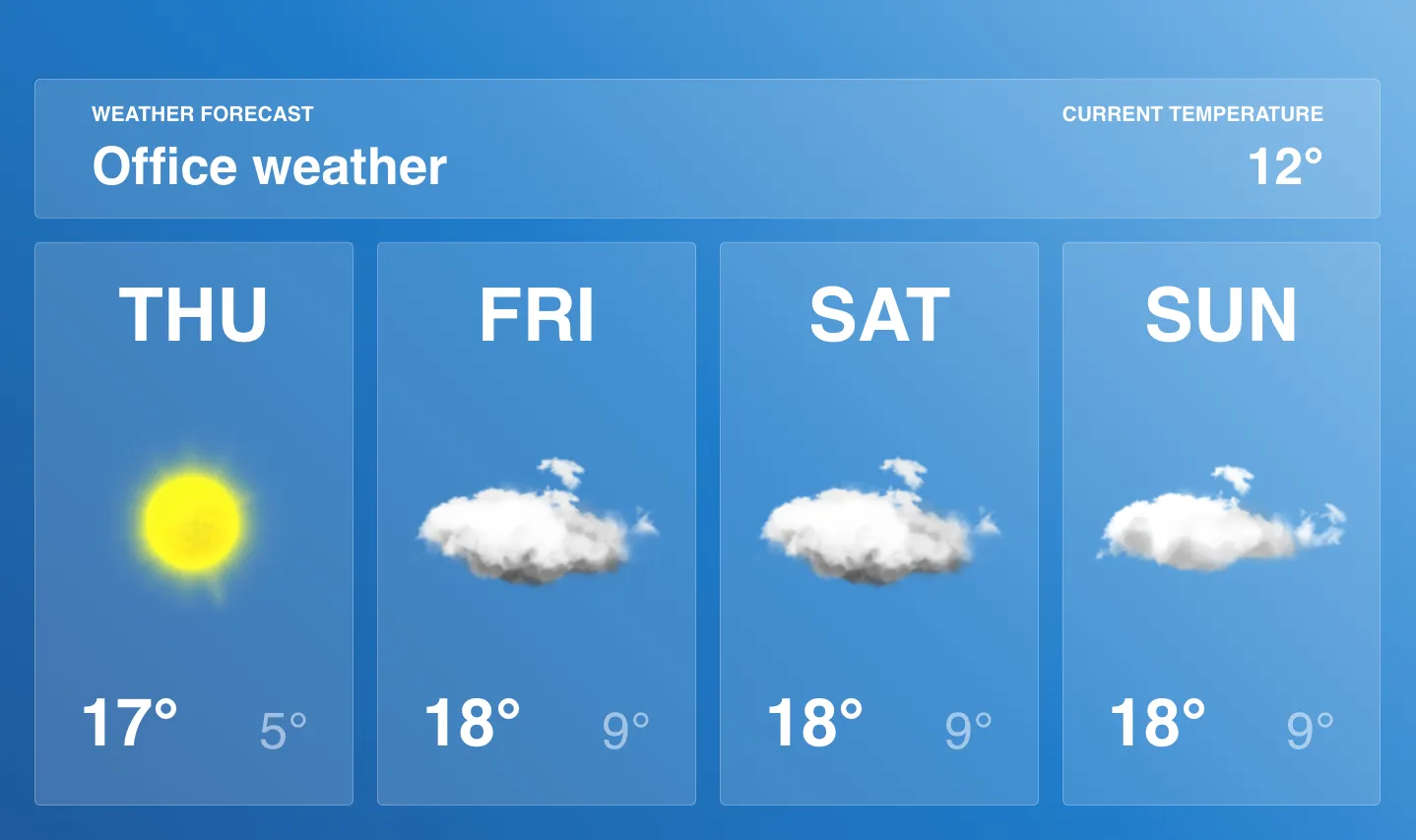
Step 3: Save and Add to Playlist
Section titled “Step 3: Save and Add to Playlist”- Click Save to create the weather content
- The new content appears in your media library
- Add the content to a playlist as usual
Use Cases
Section titled “Use Cases”Healthcare
Section titled “Healthcare”Display the current weather in a clinic’s waiting area to provide patients with helpful information.
Hospitality
Section titled “Hospitality”Show the weather forecast on a hotel’s welcome screen so guests can plan their day.
Retail
Section titled “Retail”Use the weather display in your shop window as an eye-catcher and complement it with matching product recommendations.
Frequently Asked Questions
Section titled “Frequently Asked Questions”How often is the weather data updated?
Section titled “How often is the weather data updated?”The weather data is updated automatically at regular intervals, provided the player is connected to the internet.
Can I display weather for multiple cities?
Section titled “Can I display weather for multiple cities?”Yes. Create a separate weather content item for each city in the media library and add them to your playlist.