
Developer Menu (Expert Settings)
This page explains the settings options of the viewneo Player App on Android-based viewneo devices. A distinction is made between device settings and player settings.
Device Settings vs. Player Settings
Section titled “Device Settings vs. Player Settings”| Type | Description | Access |
|---|---|---|
| Device Settings | System settings of the Android device (WiFi, Ethernet, resolution, language, reset) | USB mouse |
| Player Settings | Settings of the viewneo Player App (synchronization, cache, display, developer options) | Long press on the viewneo logo |
The device settings are documented on the respective device pages:
- viewneo 4K SignageBox III
- viewneo 4K SignageBox II
- viewneo 4K SignageBox
- viewneo SignageStick 2
- Qbic FHD-100
Accessing Device Settings
Section titled “Accessing Device Settings”- Connect a USB mouse to the player
- Double-click on the screen
- Click the lock icon (upper right)
- Select System
- Select Settings
Accessing Player Settings
Section titled “Accessing Player Settings”- Connect a USB mouse to the player
- Double-click on the screen
- Click the lock icon
- Move the cursor to the viewneo logo (upper left)
- Hold the left mouse button for approximately 2 seconds
Developer Menu
Section titled “Developer Menu”The developer menu contains advanced settings for the viewneo Player App. It is divided into five tabs: Main, Player, Device, Apps, and Info.
In the title bar at the top right, there are three icons (from left to right):
| Icon | Function |
|---|---|
| Gear | Opens the Android system settings |
| Power | Opens the power menu (see below) |
| Restart | Restarts the Player App |
The power menu offers the following options:
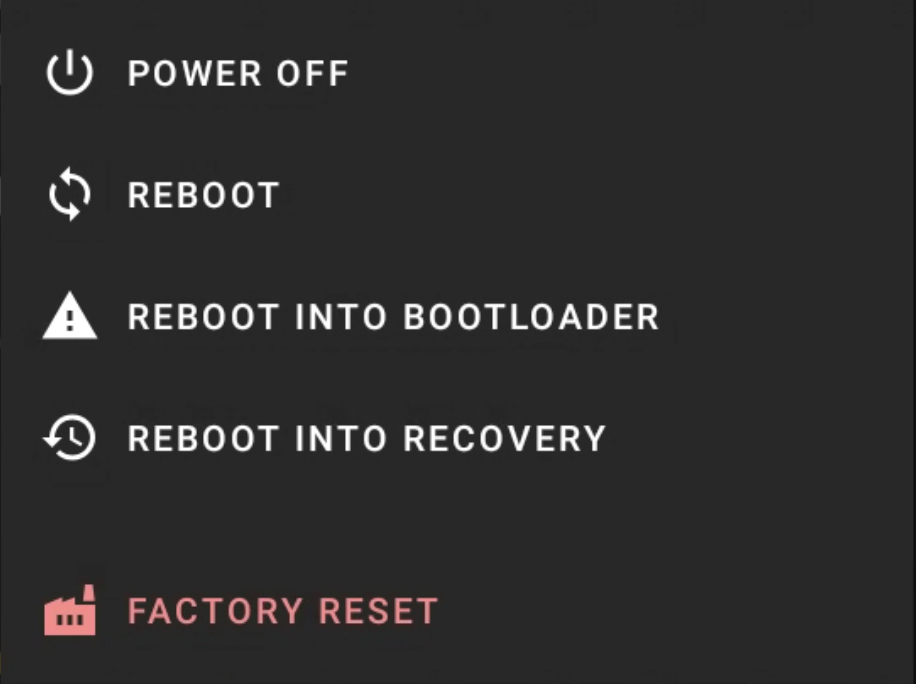
| Option | Description |
|---|---|
| Power off | Turns off the device |
| Reboot | Restarts the device |
| Reboot into bootloader | Boots into the bootloader (developers only) |
| Reboot into recovery | Boots into recovery mode (developers only) |
| Factory reset | Resets the device to factory settings |
The Main tab contains connection settings, app settings, logging, and developer options.

Connection
Section titled “Connection”| Setting | Description |
|---|---|
| Custom server | Enables a custom CMS server |
| Reports server | Enables a custom reports server |
| Realtime server | Enables a custom realtime server |
| Update server | Enables a custom update server |
Via the <·> icon next to each server setting, a dialog opens with the following network options:

| Option | Description |
|---|---|
| Do nothing | No action on connection issues |
| Counted reboot | Reboot after a certain number of failed connection attempts |
| Disable reconnection | Disables automatic reconnection |
App settings
Section titled “App settings”In the App settings area, there are several icons on the right (from left to right):
| Icon | Function |
|---|---|
| Warning icon | Shows the Android permissions of the Player App |
| Update device (forced) | Forces the current settings from the CMS |
| App update | Sets the update settings. Only change when instructed by support. |
| Delete settings | Deletes saved data (see below) |
Delete settings opens a dialog with the following options:
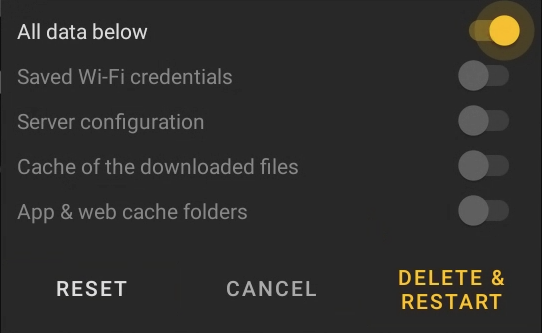
| Option | Description |
|---|---|
| All data below | Selects all following options at once |
| Saved Wi-Fi credentials | Deletes saved WiFi credentials |
| Server configuration | Resets the server configuration |
| Cache of the downloaded files | Deletes the cache of downloaded content |
| App & web cache folders | Deletes the app and web cache |
After making your selection, you can confirm the action via Delete & Restart or reset the selection via Reset.
The warning icon opens a dialog with an overview of the Android permissions required by the Player App:
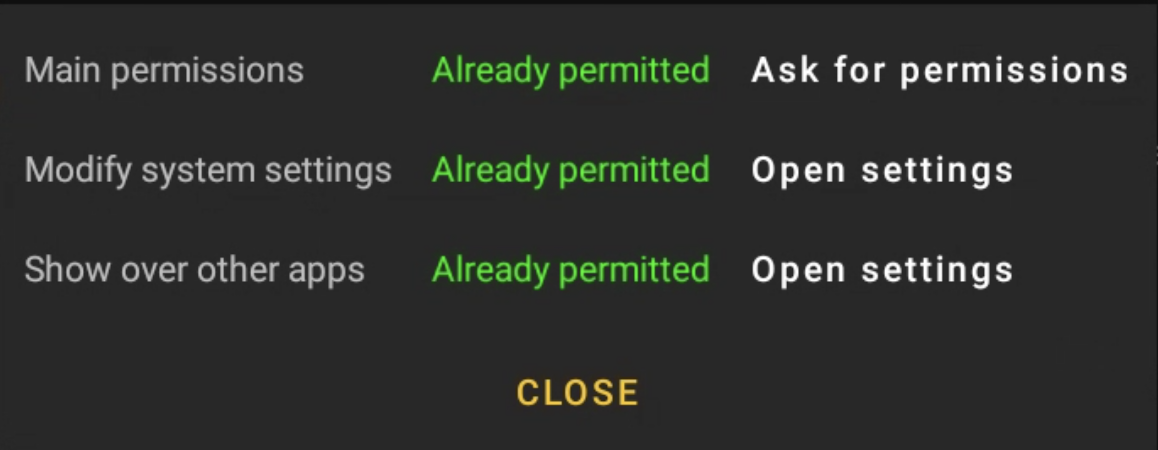
Each permission is color-coded: green (granted) or red (missing). For missing permissions, the button on the right (Ask for permissions or Open settings) can be used to trigger manual confirmation.
| Setting | Description |
|---|---|
| Run on boot | Starts the viewneo Player App automatically on device startup (Enabled, Force start, or Disabled) |
| App restarts on going to background | Prevents the Player App from being closed or sent to the background (e.g., by user action) |
Logging
Section titled “Logging”The Logging area is exclusively for troubleshooting and should only be used when instructed by viewneo support.
Next to the heading, there are three icons (from left to right):
| Icon | Function |
|---|---|
| System log (LogCat) | Shows the Android system log |
| Player logs | Shows the player logs |
| Send logs | Sends the player logs to viewneo support |
| Setting | Description |
|---|---|
| Save LogCat | When enabled, the Android system logs (LogCat) are saved to the player logs. Used for extended troubleshooting by support. |
Developer options
Section titled “Developer options”Restart the app
Section titled “Restart the app”Manually restarts the viewneo Player App.
Player
Section titled “Player”The Player tab controls playback behavior and is divided into four areas: Playback, Web, Interaction, and Miscellaneous.
At the top right, there are three icons (from left to right):
| Icon | Function |
|---|---|
| RSS test | Downloads the RSS feed configured in the CMS |
| Download media | Downloads the media files |
| Remove media | Removes all downloaded media files |
Playback
Section titled “Playback”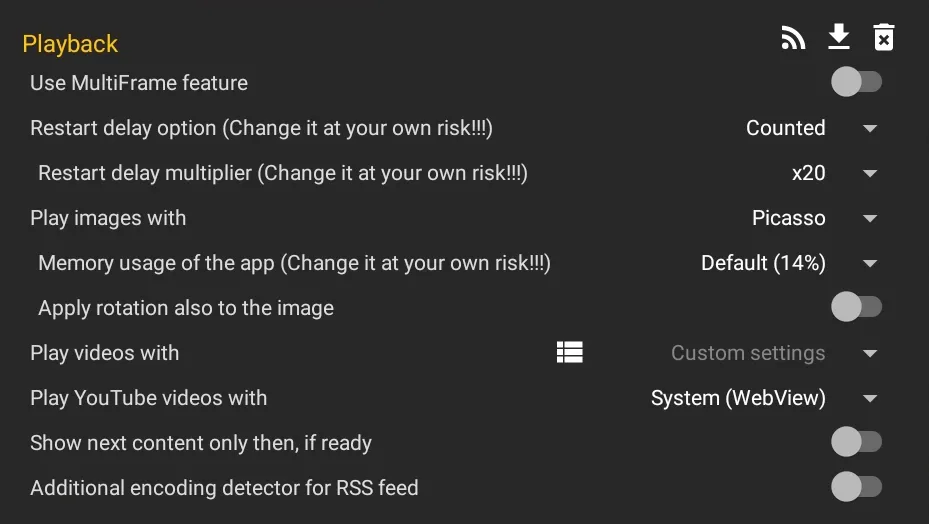
| Setting | Description |
|---|---|
| Use MultiFrame feature | Enables MultiFrame playback for multiple simultaneous content items |
| Restart delay option | The app is periodically restarted to prevent memory leaks with web content. Modes: Disabled (recommended only for pure image/video playlists), Scheduled (restart at a set time), or Counted (memory-intensive content is counted by weight — when the limit is reached, a restart occurs, and the playlist resumes at the same position). Change at your own risk. |
| Restart delay multiplier | Increases the restart delay by up to 100x. The higher the value, the less frequent the restart (change at your own risk). |
| Play images with | Rendering method for images: Picasso (default, sharp display, no smooth transition), WebView (display in web browser), or Default (standard Android rendering, may cause memory leaks) |
| Memory usage of the app | Increases the cache for faster image loading. May cause memory leaks (change at your own risk). |
| Apply rotation also to the image | Also rotates images according to the rotation settings. Helpful for portrait display on devices that do not support portrait mode. |
| Play videos with | Choice of rendering method for videos: Texture (CPU) or Default (GPU). Via the list icon, the method can be configured separately for portrait and landscape mode. |
| Play YouTube videos with | Rendering method for YouTube videos: In-app (Crosswalk) (only for Android 5) or System (WebView) (for all other Android versions) |
| Show next content only then, if ready | Waits until the next content item (e.g., external website) is fully loaded. The current content may be displayed longer as a result. When enabled, the animation time between images and videos can be set in milliseconds. |
| Additional encoding detector for RSS feed | Enables additional character encoding detection for RSS feeds |
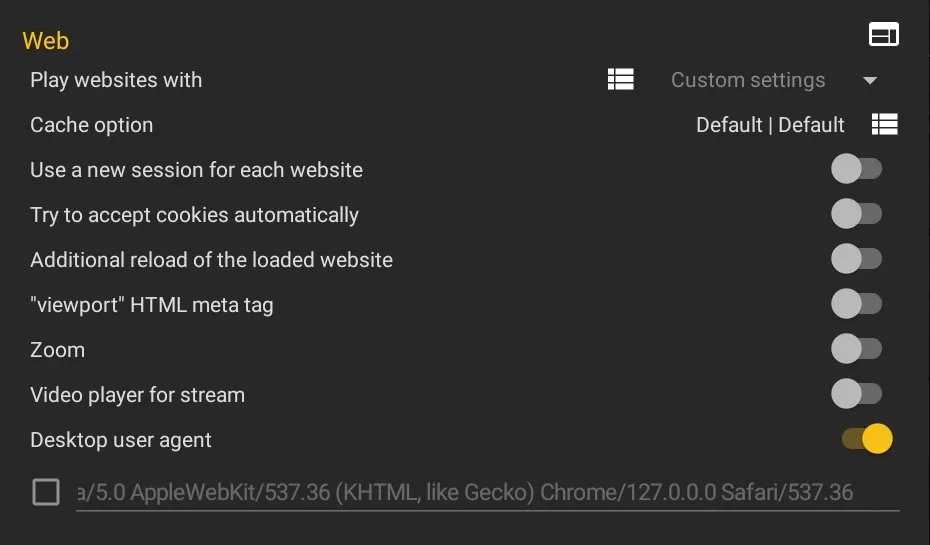
Via the browser icon next to the heading, you can load a custom website for preview. If additional engine settings are available, they can also be adjusted there.
| Setting | Description |
|---|---|
| Play websites with | Rendering method for websites: In-app (Crosswalk), System (WebView), or In-app (Gecko). Via the list icon, a menu opens where the engine can be configured individually per content type (see below). |
| Cache option | Cache settings for internal and external websites. Can reduce load time. For frequently changing content, select “no cache”. |
| Use a new session for each website | Each website call runs in its own session (the previous one is closed). Gecko only. |
| Try to accept cookies automatically | Attempts to automatically accept cookie consent banners on websites. Gecko only. |
| Additional reload of the loaded website | Reloads the website after the initial load. Can help make content visible. |
| ”viewport” HTML meta tag | Enables support for the viewport meta tag. Can improve rendering but may also worsen it. When disabled, the layout width always matches the browser width in CSS pixels. |
| Zoom | Enables zoom controls and gestures in the web browser. Some websites use zoom for correct positioning — this option can help with such pages. |
| Video player for stream | Uses a video player instead of the web browser for streaming content. Filters URLs by extension (e.g., .m3u8, .mp4). |
| Desktop user agent | By default, web servers detect the Player App as a mobile application and serve a mobile website. This option forces loading of the desktop version. The user agent can be overridden if needed. |
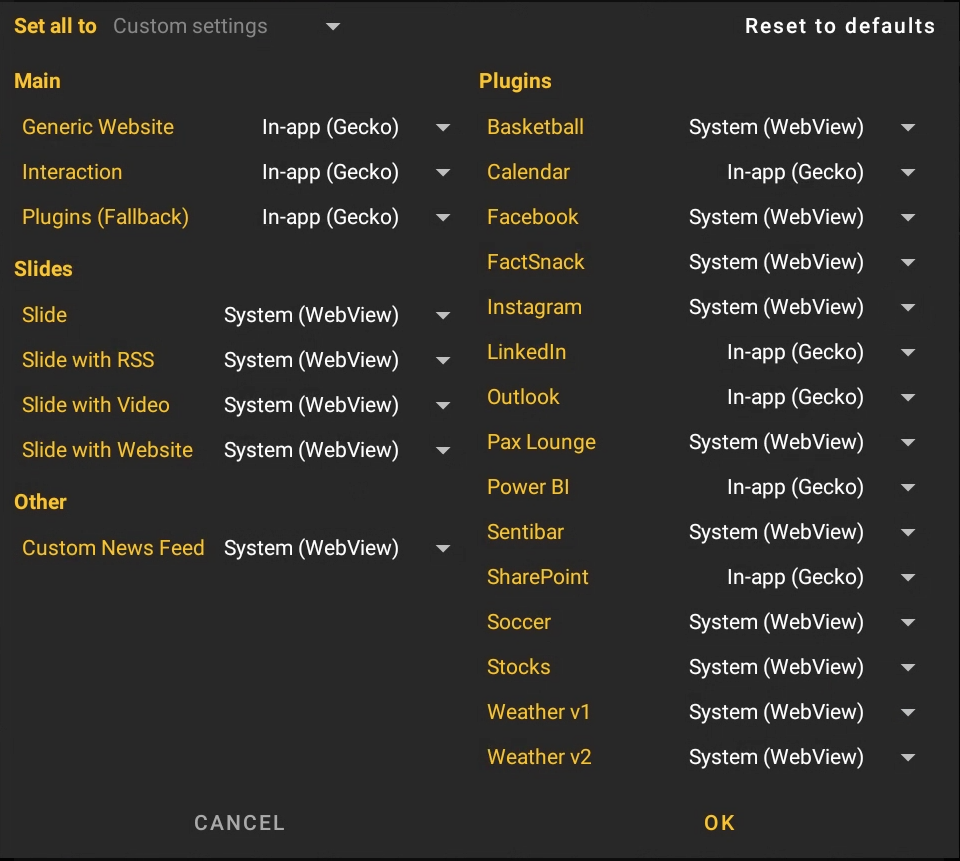
The menu lists all content types (e.g., Generic Website, Interaction, Slide, Plugins) and allows individual assignment of the browser engine. Via Set all to, the selection can be changed for all types at once, and via Reset to defaults, the values can be reset to their defaults.
Interaction
Section titled “Interaction”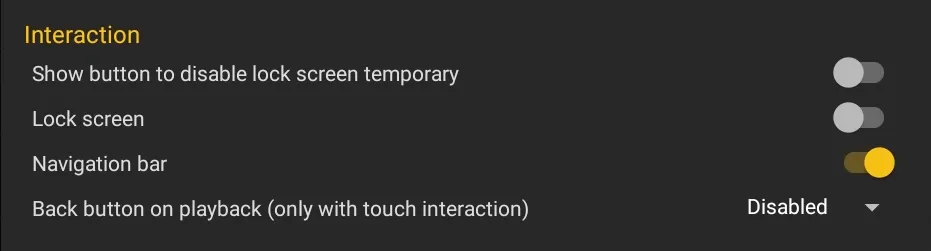
| Setting | Description |
|---|---|
| Show button to disable lock screen temporary | When enabled, a monitor icon appears in the upper-left corner during playback. Clicking it temporarily disables the screen lock, allowing the displayed website to be used like a browser (e.g., for login or cookie consent). The lock is automatically re-enabled when the entry finishes playing. |
| Lock screen | Enables the lock screen for the interactive website. Must be enabled when the system navigation bar cannot be hidden. |
| Navigation bar | Shows Home, Back, and Forward buttons for navigation in interaction mode |
| Back button on playback | Shows a back button for navigating to the previous playback entry. Only works with playlists that have events and touch interaction. |
Miscellaneous
Section titled “Miscellaneous”
| Setting | Description |
|---|---|
| Show event logs during the playback | Shows event logs during playback: Disabled, Local logs (player logs), or LogCat (Android system log) |
| Show debug information about the playback | Shows debug information during playback: entry index, Playlist name, entry name, and countdown. After enabling, the text color can be changed (Red, Blue, Green, Yellow, Black, White). |
Device
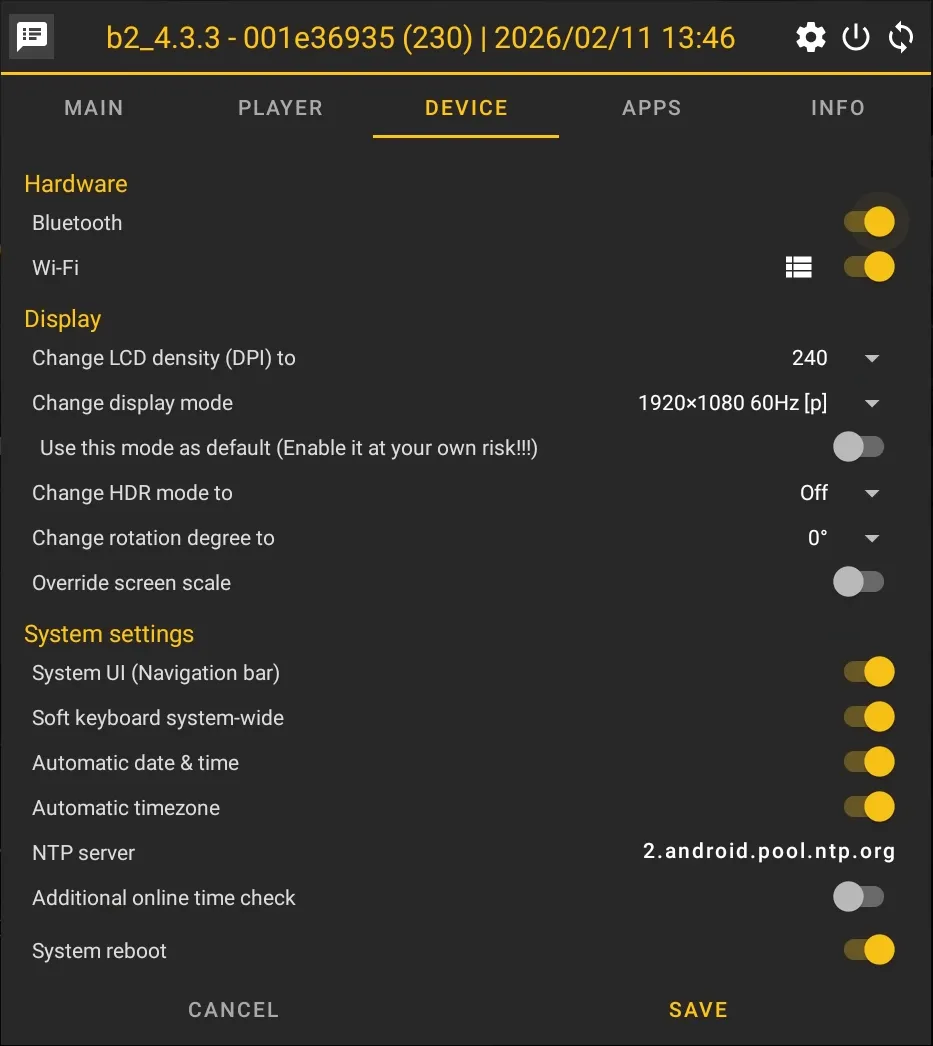
Section titled “Device”The Device tab contains hardware, display, and system settings.
Hardware
Section titled “Hardware”
| Setting | Description |
|---|---|
| Bluetooth | Enables or disables Bluetooth |
| Wi-Fi | Enables or disables Wi-Fi. Via the list icon, a different WiFi network can be selected and connected (as during initial setup). This causes the app to save the WiFi credentials for automatic reconnection. |
Display
Section titled “Display”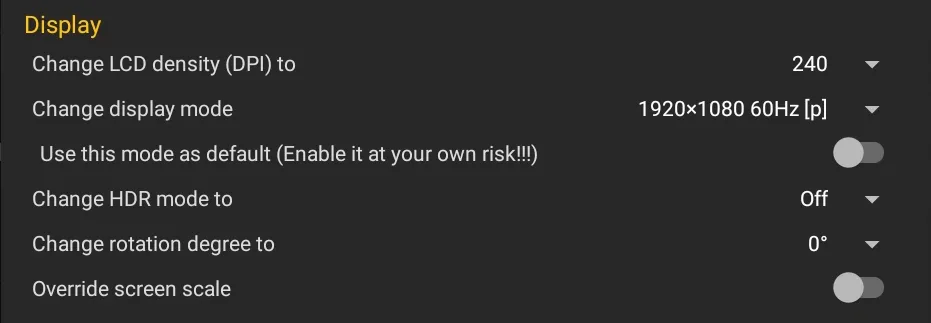
| Setting | Description |
|---|---|
| Change LCD density (DPI) to | Changes the system DPI setting (160–480 dpi). Also affects the web browser resolution (e.g., 160 dpi = 1920x1080, 240 dpi = 1280x720). |
| Change display mode | Shows all available display modes and changes the mode immediately |
| Use this mode as default | Sets the selected display mode as the default, applied at every system startup (change at your own risk) |
| Change HDR mode to | Forces a specific HDR mode (Off, On, Auto) |
| Change rotation degree to | Rotates the display by 0°, 90°, 180°, or 270°. Settings in the CMS account (under Devices/Device Groups) are not overridden. |
| Override screen scale | Overrides the screen scaling. Settings in the CMS account are not overridden. |
System settings
Section titled “System settings”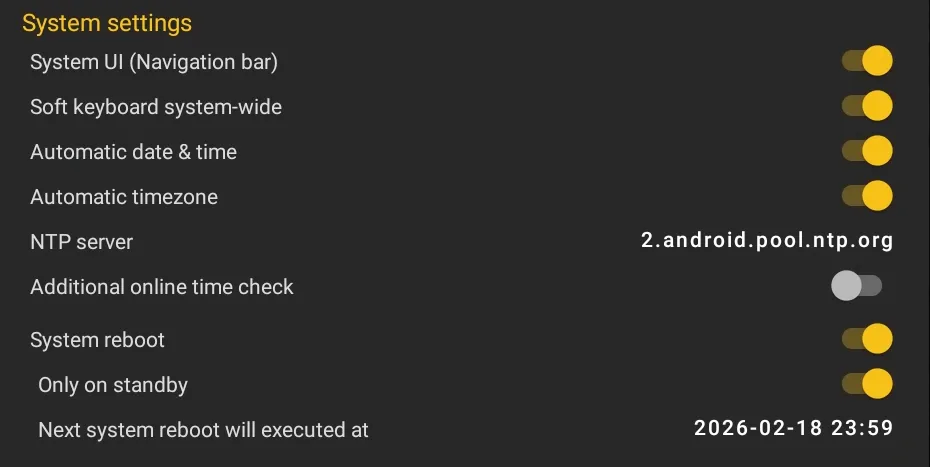
| Setting | Description |
|---|---|
| System UI (Navigation bar) | Shows or hides the system navigation bar. Only takes effect in setup or menu mode. |
| Soft keyboard system-wide | Enables the on-screen keyboard system-wide. Only disable this option if a hardware keyboard is used exclusively. |
| Automatic date & time | Enables automatic date and time setting. Disabling prevents the app from automatically enabling this setting in the system settings. |
| Automatic timezone | Enables automatic timezone detection. Disabling prevents the app from automatically enabling this setting in the system settings. |
| NTP server | Configures the NTP server for time synchronization. Helpful if your network blocks the default NTP server. The NTP server can be changed by clicking on it. |
| Additional online time check | Enables an additional time check via timeapi.io for comparison |
| System reboot | Enables automatic system reboot at a set time. Enable this option if you experience issues with the player hardware or HDMI-CEC. |
| Only on standby | Automatically restarts the device if it has been in standby mode for more than 24 hours. Prevents system failures during extended inactivity. |
Serial port
Section titled “Serial port”
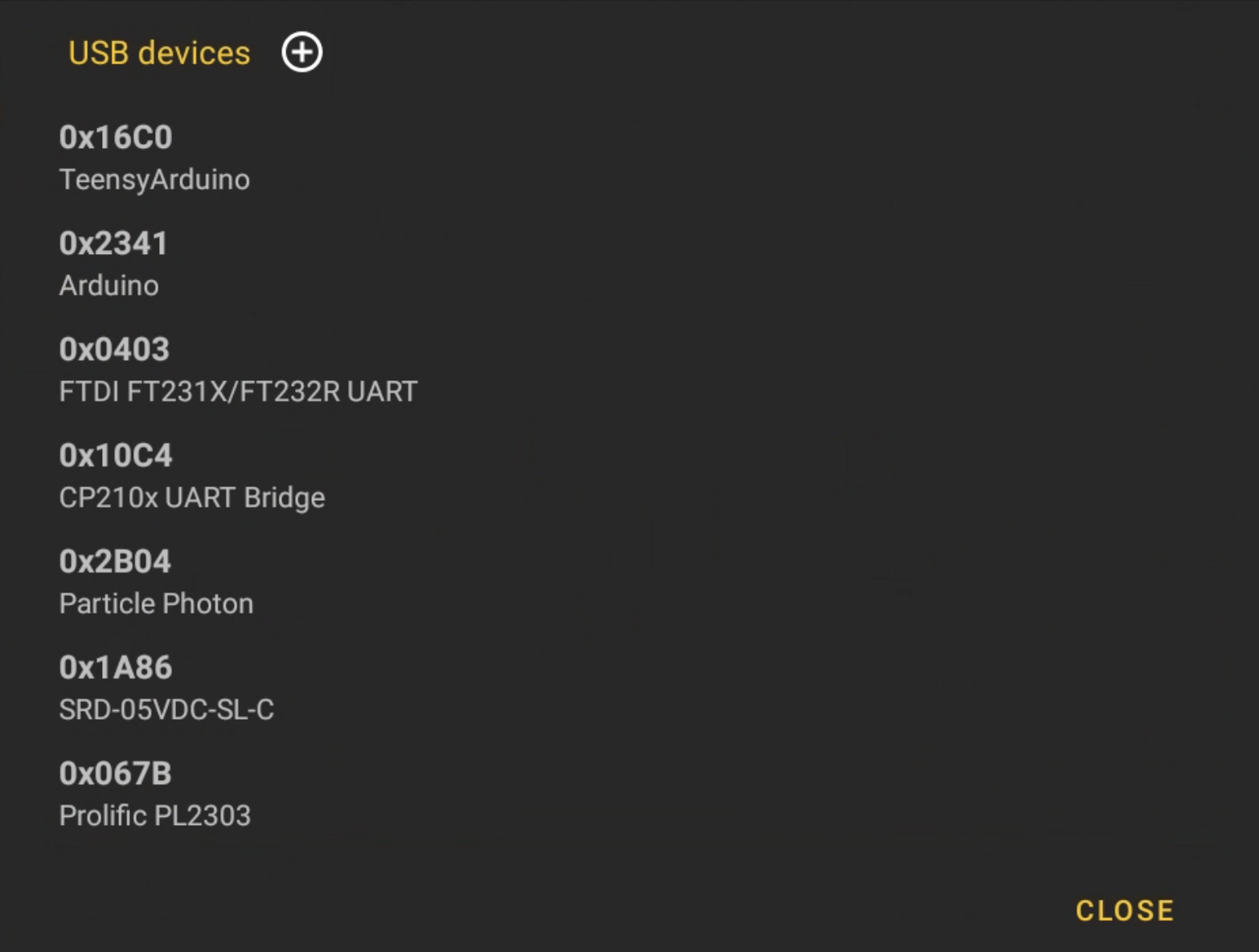
Via the list icon next to the heading, the list of supported USB devices is displayed. Via the + icon, custom devices can be added.
| Setting | Description |
|---|---|
| Use default settings | Uses the default settings for the serial port. When disabled, baud rate, data bits, stop bits, parity, and format can be configured manually. |
| Connect | Establishes the connection to the serial port. After connecting, commands can be sent via the text field and responses received. Used for testing serial devices connected via USB. |
The Apps tab shows all installed applications on the device.
The Info tab displays comprehensive system information. All entries are read-only.
Display
Section titled “Display”| Information | Description |
|---|---|
| DPI | Current screen density in DPI |
| Resolution | Current screen resolution (width x height) |
| Orientation | Current screen orientation |
Hardware
Section titled “Hardware”| Information | Description |
|---|---|
| CPU freq | Current CPU clock frequency |
| CPU usage | Current CPU utilization in percent |
| CPU temperature | Current CPU temperature |
| RAM total | Total RAM |
| RAM usage | Used RAM |
| RAM temperature | Current RAM temperature |
| Storage (Internal) | Free and total internal storage |
| Storage (External) | Free and total external storage |
Network
Section titled “Network”| Information | Description |
|---|---|
| Bluetooth MAC | Bluetooth MAC address |
| Ethernet MAC | Ethernet MAC address |
| Wi-Fi MAC | WiFi MAC address |
Connection
Section titled “Connection”| Information | Description |
|---|---|
| NTP | Current NTP server |
| MAC | MAC address of the active connection |
| Last connection | Time of last server connection |
| Network type | Type of the current network connection |
| Signal strength | Signal strength of the current connection (only visible for WiFi) |
| IP address | Current IP address of the device |
| Subnet mask | Subnet mask |
| Gateway | Default gateway |
| DNS | DNS server |
| Information | Description |
|---|---|
| Date | Current date and time |
| Timezone | Current timezone |
Software
Section titled “Software”| Information | Description |
|---|---|
| Build flavor | Build variant of the Player App |
| Config | Current configuration |
| ABI | CPU architecture (e.g., arm64-v8a) |
| Brand | Device brand |
| Display ID | Android display build ID |
| Fingerprint | Android build fingerprint |
| Manufacturer | Device manufacturer |
| Model | Device model |
| OS version | Android version |
| Product | Android product name |
| Serial | Device serial number |
| Uptime | Uptime since last reboot |
| UUID | Unique identifier of the player (for support requests) |
| Rooted | Indicates whether the device is rooted |
| Is launcher | Indicates whether the Player App is set as launcher |
| viewneo Service | Version of the viewneo Service app |
| viewneo Updater | Version of the viewneo Updater app |
| WebView | Version of the WebView component |
| Google Services | Version of Google Play Services |
Library
Section titled “Library”| Information | Description |
|---|---|
| Open Source | Shows the open-source libraries used |
Compatibility
Section titled “Compatibility”The expert settings are available on all Android devices:
- viewneo 4K SignageBox III
- viewneo 4K SignageBox II (Standard and White Label)
- viewneo 4K SignageBox
- viewneo SignageStick 2
- Qbic FHD-100
- Philips D-Line
- Third-party Android devices