
Routines – Overview
With Routines, your screens react by themselves – to a time of day, a touch, the end of a piece of content or a call from outside or to an object taken off the shelf. A routine consists of three parts:
- Trigger – when the routine starts, e.g. “every day at 11:30” or “nobody has touched the screen for one minute”.
- Filters – optional conditions that must also apply.
- Actions – what happens then, e.g. “jump to this content”.
The routines list
Section titled “The routines list”You find all routines under Routines in the navigation.
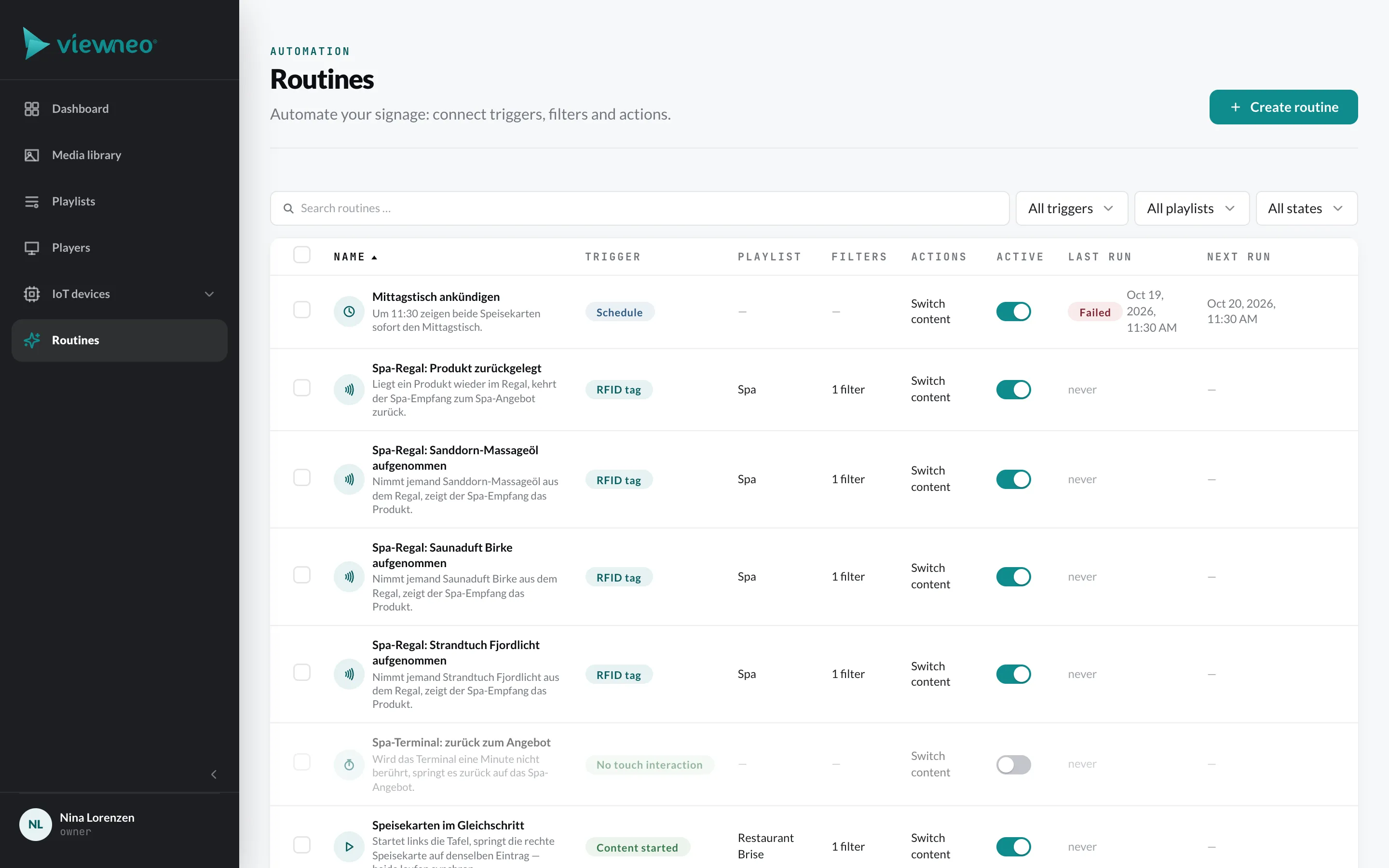
For each routine, the list shows the trigger, playlist, filters, actions, whether it is active, when it last ran and – for schedules – when it will run next. With the switch in the Active column you turn a routine on or off. Via the menu at the end of the row you reach Duplicate and the Log.
Create a routine
Section titled “Create a routine”- Click Create routine. The editor opens on the right.
- Enter a Name.
- Under 01 Trigger, choose exactly one trigger.
- Under 02 Filters, add conditions if needed.
- Under 03 Actions, add at least one action.
- Click Save. With the Active switch at the bottom left you determine whether the routine applies immediately.
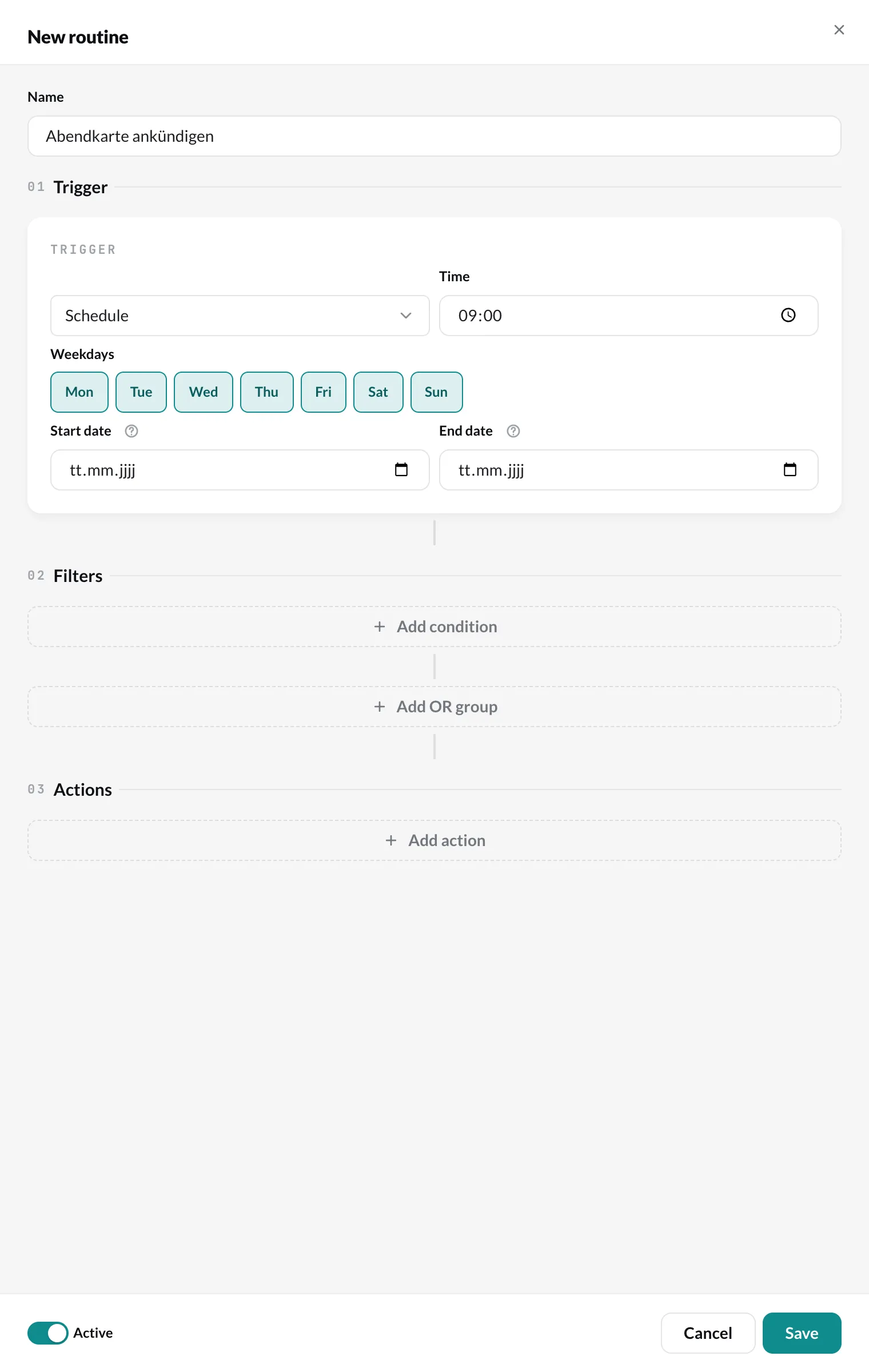
With Test routine in the editor you try out a saved routine: schedule and webhook are executed immediately, and the result then appears in the Log.
What you need
Section titled “What you need”Routines are a plugin that you book and assign per player. The Routines base module is free of charge; you unlock the triggers with two options:
| Option | Triggers |
|---|---|
| Touch | Touch interaction, No touch interaction |
| Smart Playback | Content started, Content finished, Schedule, Webhook (incoming) |
The RFID tag trigger appears as soon as your account has an RFID hub.
An action only takes effect on players to which the Routines plugin is assigned. Prices under Plans & subscriptions.
Examples
Section titled “Examples”- Announce the lunch menu – trigger Schedule daily at 11:30, action Switch content to the lunch menu Slide of both menu boards.
- Reset a touch terminal – trigger No touch interaction after 60 seconds, action Switch content to the start offer – on the triggering device.
- Update a room sign – trigger Webhook (incoming), called by the booking system, action Switch content to the matching room sign.
- Pick up a product, the screen shows it – trigger RFID tag on the shelf hub, filter “Sanddorn-Massageöl lifted”, action Switch content to the product Slide on the screen next to it. See RFID in routines.
- Screens in step – trigger Content started on the player that sets the beat, action Switch content on the other players. This keeps playlists in sync or stretches one motif across several screens, see Synchronize screens.