
Run a video wall with a controller
You can run a video wall or LED wall with viewneo in two ways:
- One player per screen. Each player shows its part of the motif and a routine keeps them in step – see Synchronize screens.
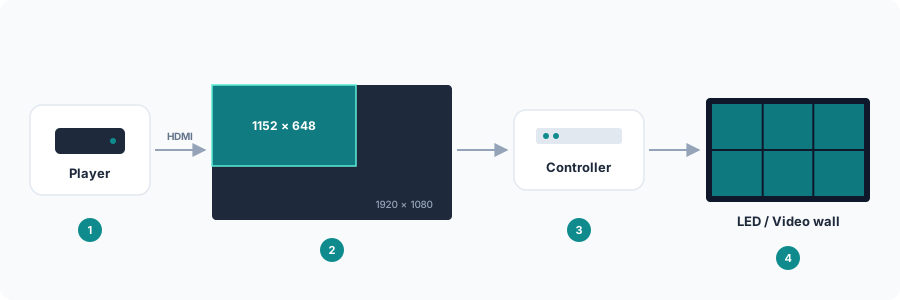
- One player and a controller. The player delivers a single video signal, and a video wall controller or the sending card of an LED wall spreads it over the surface. This is frame-accurate and needs only one licence. That is what this page is about.
When you need the output area
Section titled “When you need the output area”Many controllers take the whole video signal and stretch it over the wall. Then there is nothing to set – the player plays full screen as usual.
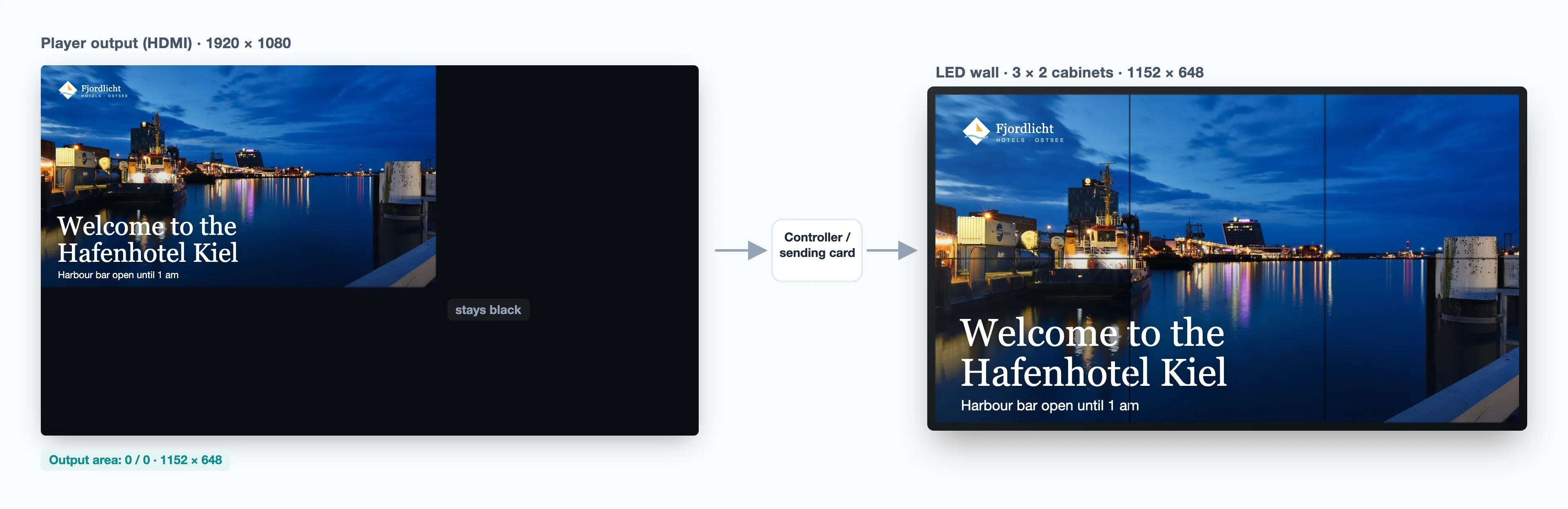
Other controllers, above all the sending cards of LED walls, only pick up a section of the signal, typically starting at the top-left corner. An LED wall with 1152 × 648 pixels then shows only that piece of a 1920 × 1080 picture – the rest is lost. With the output area you make your playlist play exactly in that section. Everything outside stays black.
Pixel mapping: where the values come from
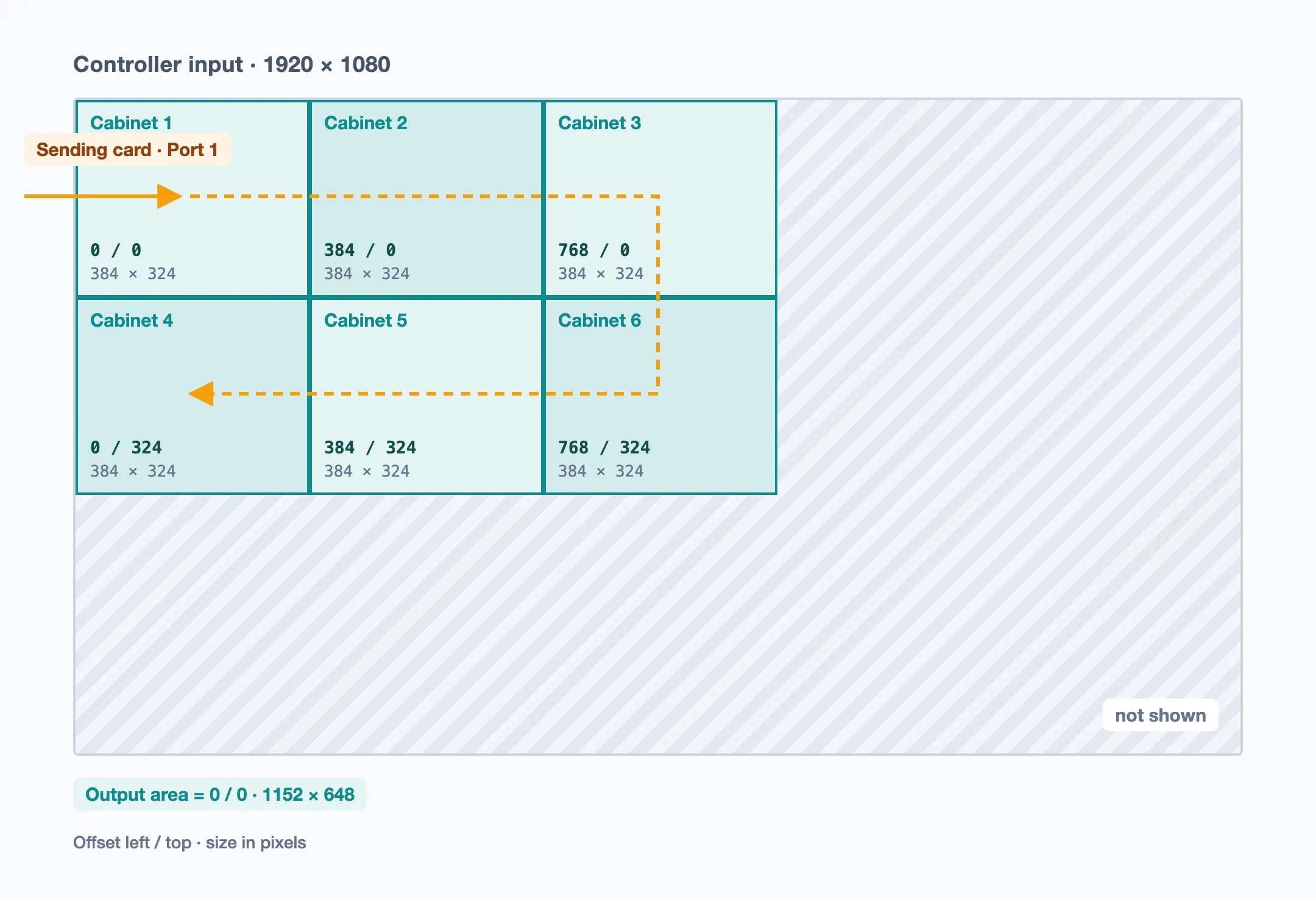
Section titled “Pixel mapping: where the values come from”In the software of your controller or LED sending card you define which part of the input picture lands on which cabinet (module) of the wall – the pixel mapping. In the example the wall consists of 3 × 2 cabinets of 384 × 324 pixels each. The sending card takes them from the top-left corner of the input picture, cabinet by cabinet, and feeds them in a row over one cable (dashed).
This gives the values for the output area:
- Offset left / top = the position of the top-left cabinet (here 0 / 0).
- Width = columns × cabinet width (3 × 384 = 1152), Height = rows × cabinet height (2 × 324 = 648).
- The wall does not show anything outside this rectangle – the player stays black there.
If the mapping does not start at 0 / 0 (e.g. because a second wall on the same controller sits at the top left), enter the position of the first cabinet as Offset left and Offset top.
Step by step
Section titled “Step by step”-
Read the values from the controller. You need the point where the mapped section starts (offset from the left and from the top) and its size in pixels. You find them in your controller’s software or menu.
-
Create a group for the wall. Create a device group, e.g. “Video wall foyer”, and add the player – see Create a device group. That way the setting applies to every player you connect to the wall later.
-
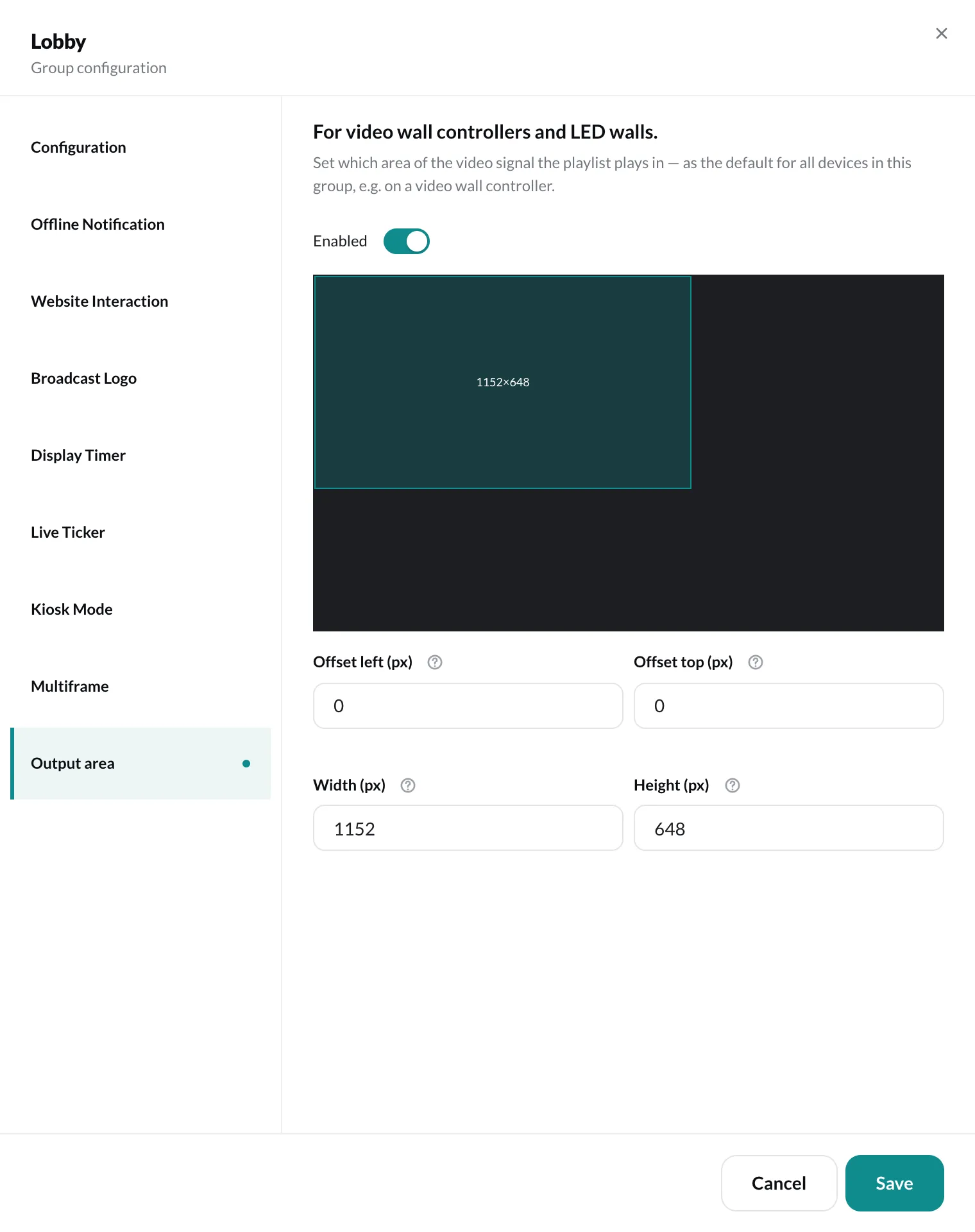
Set the output area. Open the group, choose Output area on the left and switch on Enabled. Enter Offset left, Offset top, Width and Height and Save.
-
Create content in the right format. The playback is fitted into the area without distortion. Plan your content in the aspect ratio of the area – for 1152 × 648 that is 16:9.
-
Check at the wall. The player picks up the area at its next sync. Depending on the player, playback restarts briefly.
How the player calculates
Section titled “How the player calculates”-
All values refer to a canvas of 1920 × 1080 pixels – whatever resolution the player actually outputs. The player converts them to its output. If it outputs 3840 × 2160, for example, an area of 960 × 540 lands on 1920 × 1080 real pixels.
-
If your controller uses a different input resolution, convert its values: value × 1920 ÷ input width (or × 1080 ÷ input height). Example: input 3840 × 2160, section 2304 × 1296 → 1152 × 648 in the CMS.
-
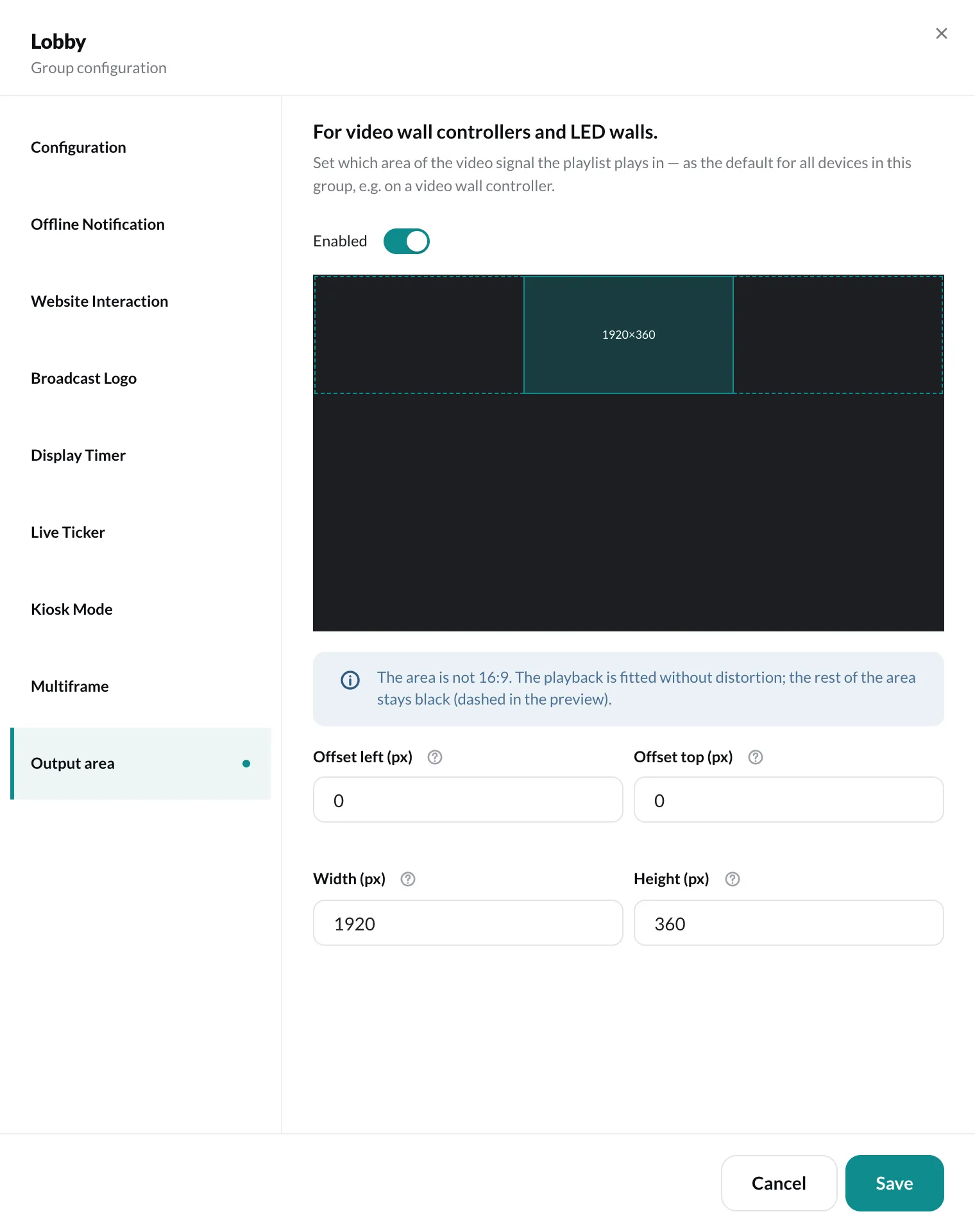
The playback is never distorted. If the area is not 16:9, the playback is fitted and the rest of the area stays black. The CMS then shows a hint and draws the area dashed in the preview:
-
If the area reaches beyond 1920 × 1080, the overhanging part is cut off. The CMS announces that too.
Examples
Section titled “Examples”| Setup | Offset left | Offset top | Width | Height |
|---|---|---|---|---|
| LED wall 1152 × 648, controller takes the picture from the top left | 0 | 0 | 1152 | 648 |
| Bottom-left quarter of a 2 × 2 wall | 0 | 540 | 960 | 540 |
| Whole picture (the controller stretches the signal over the wall itself) | – | – | – | – (output area off) |
Setting single devices differently
Section titled “Setting single devices differently”If several players at different walls share one group, you set one of them differently: right-click the device › Settings › Output area. There you choose Inherit from group, Custom configuration or Disabled – more in Device settings.
Read on
Section titled “Read on”- Synchronize screens – video wall with one player per screen
- Multiframe – split one screen into several areas with their own playlists
- Device settings – rotation, screen scale and all other settings
- Hardware – our SignageBoxes