
Synchronize screens
When several screens stand together, they often need to work as one: show the same thing at the same time, play their playlists in step, or form one large picture together. You do all of this with routines.
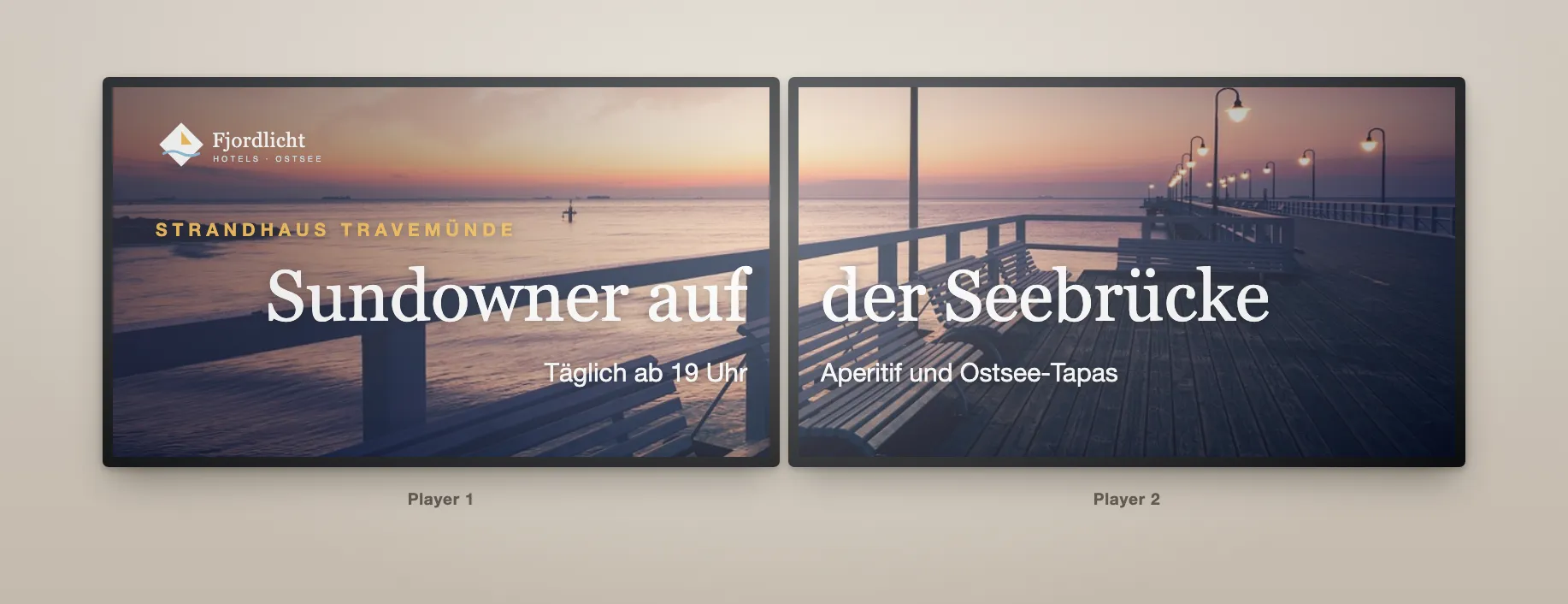
Requirements
Section titled “Requirements”- Every player involved has the Routines plugin – for the Content started trigger with the Smart Playback option, see What you need.
- All players involved use the Real-Time sync mode (Advanced settings). Over this connection a player reports that content starts, and over it it receives jump commands. In Interval mode the player does not keep this connection.
- The players are online. A player that is offline misses the jump and keeps playing as before.
- A jump target is always an entry of the playlist the player is currently playing.
How exact is “synchronous”?
Section titled “How exact is “synchronous”?”All players of an action receive the jump command at the same time. It is still not frame-accurate: the command travels over the network, and each player needs a moment until the new content is up. How large the offset is depends on the connection and the device. Still images and calm motifs therefore work best; with fast movement across a screen border, a small offset can become visible.
Switch several screens at once
Section titled “Switch several screens at once”The simplest case: one event should switch several screens at once – at a time of day, via webhook or on a touch.
- Create a routine with the matching trigger, e.g. Schedule daily at 11:30.
- Add the action Switch content and choose Specific device.
- Select all players that should switch, and set each one’s jump target.
Example: at 11:30 both menu boards of the restaurant show the lunch menu. Because the trigger here is not a player, the routine cannot trigger itself again.
Playlists in step
Section titled “Playlists in step”Even when several players play the same playlist, they drift apart – for example because one was switched on later. To keep them in step, one player sets the beat: when a certain entry starts on it, the others jump to the same entry.
- Create a routine with the trigger Content started, Playlist = the shared playlist.
- Under Only on these players, choose the player that sets the beat, e.g. “Speisekarte links”.
- Add the filter Content › Exactly matches and choose the entry where all players should meet – usually the first one in the playlist.
- Add the action Switch content › Specific device, choose the other players and the same entry as the jump target for each.
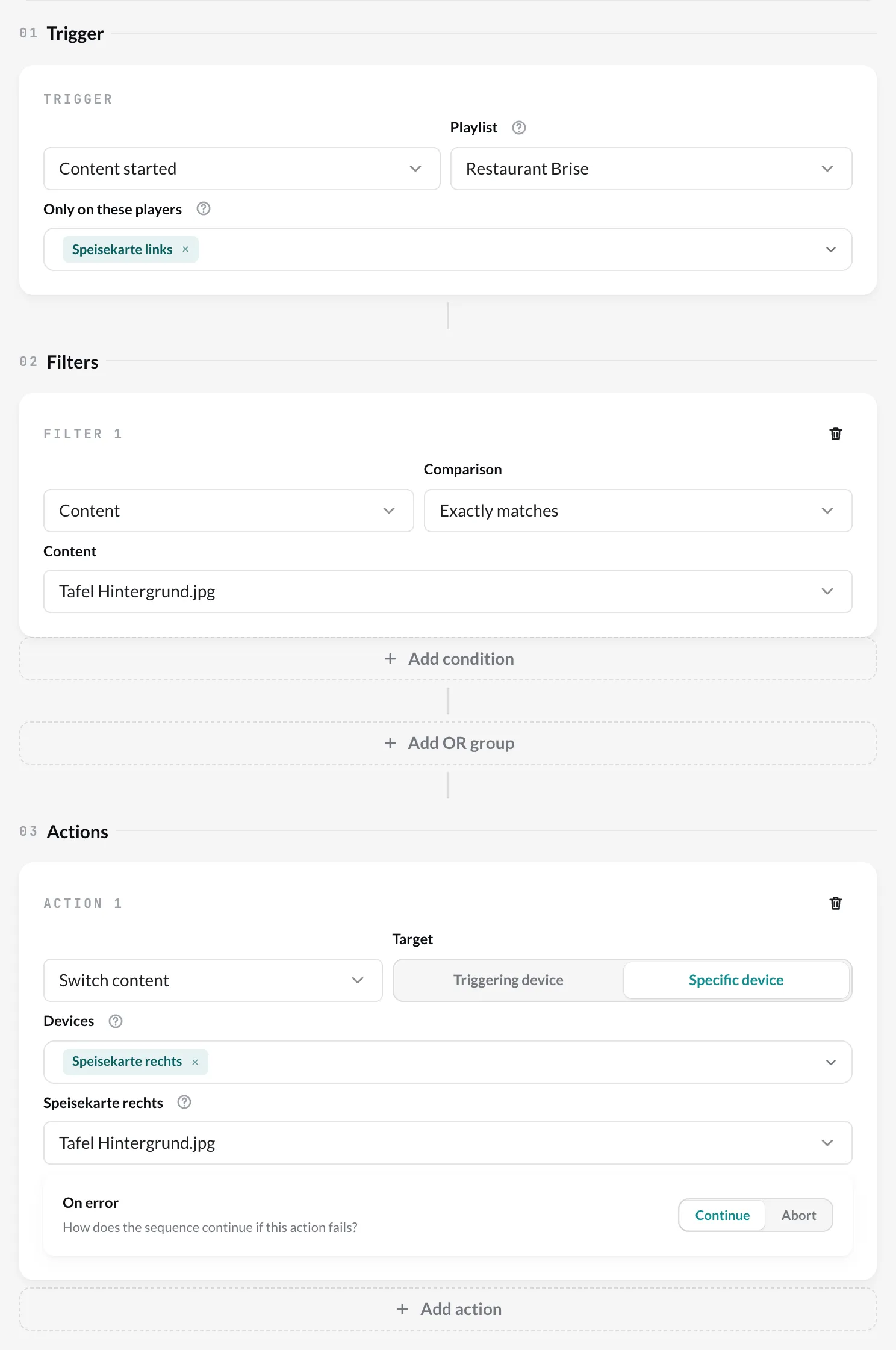
On every run, the other players catch up at this entry. Small deviations that build up during a run are evened out again and again.
One motif across several screens
Section titled “One motif across several screens”Several screens together form one large surface – side by side as a band (1 × 2, 1 × 3) or as a video wall (2 × 2, 3 × 3 …). Each player shows its section of the motif; a routine keeps them together.
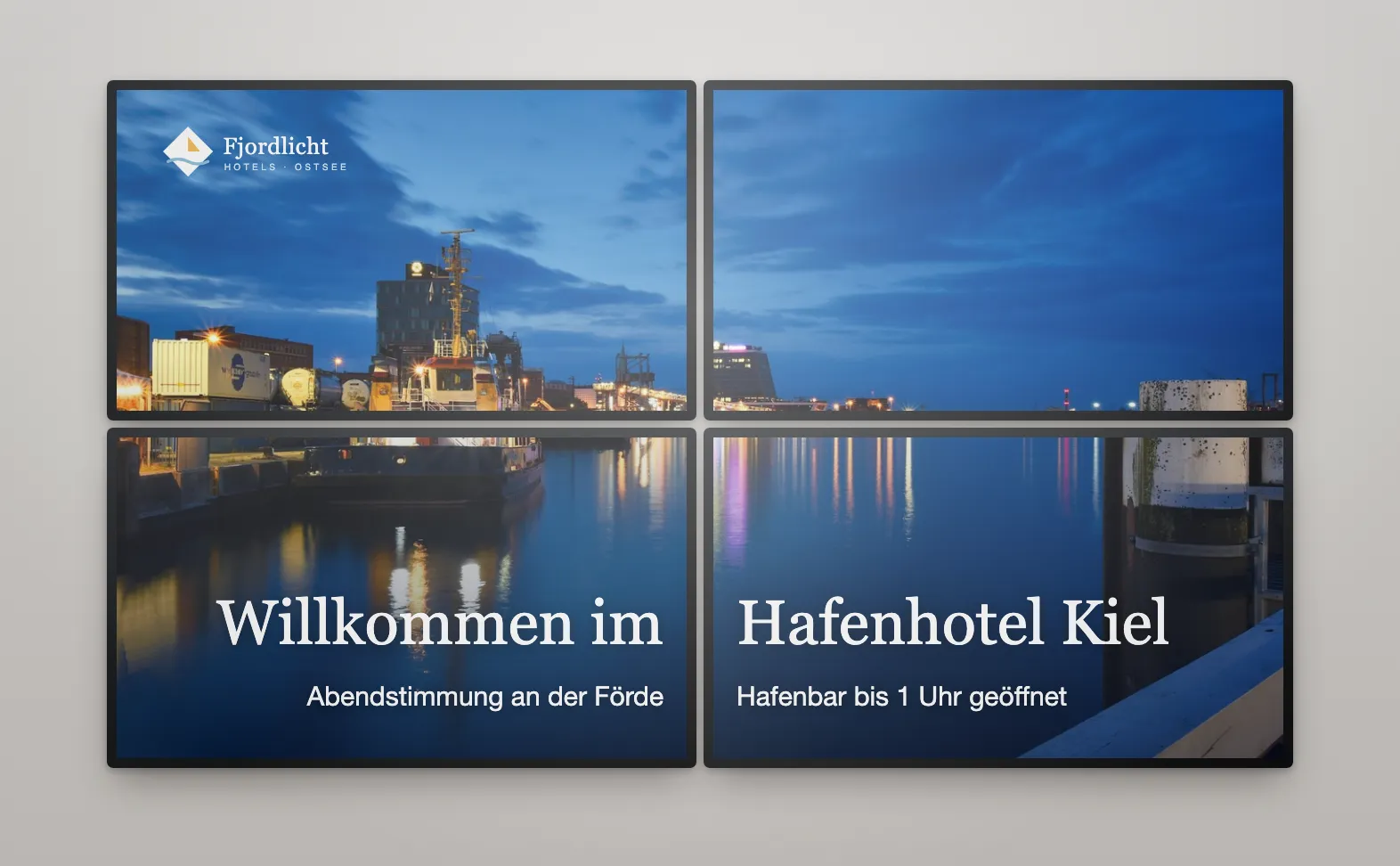
- Prepare the content. Split your motif into as many parts as there are screens – for 1 × 2 into two halves, for 2 × 2 into four quarters. Each part has the resolution of one screen, e.g. 1920 × 1080. The parts of a video are all the same length.
- One playlist per player. Each player gets its own playlist with its parts – in the same order and with the same durations as the others.
- Create the routine. Trigger Content started with the playlist of player 1, under Only on these players player 1. Filter Content › Exactly matches › the first part.
- Action. Switch content › Specific device › all other players. For each one, choose its matching part from its own playlist as the jump target.
Check that it works
Section titled “Check that it works”Every run is listed in the log. Many entries marked Skipped are normal: the routine checks every piece of content that starts on the beat-setting player and only jumps at the sync point. If an action shows an error for a player, that player is usually offline or not in the Real-Time sync mode.