
Touch interaction
On a touch screen, every element of a Slide can react to touch. What happens then is defined with a routine.
Make an element touchable
Section titled “Make an element touchable”- Open the Slide in the Designer and select the element.
- In the properties, turn on Touch interaction.
- Save the Slide.
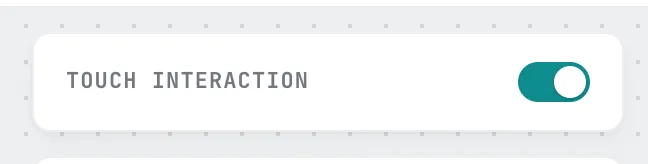
The Touch interaction section only appears if your account has booked the Routines plugin.
What happens on touch
Section titled “What happens on touch”Create a routine with the trigger Touch interaction and, in the Touch element filter, select the Slide and the element. As the action, you could for example jump to a detail page with Switch content – on the Triggering device.
You get back to the starting point with a second routine: the trigger No touch interaction with a waiting time, e.g. 60 seconds.
More under Triggers, Filters and Actions. The touch triggers are unlocked by the Routines option Touch.
Whether a touch reaches the player depends on its sync mode – see Touch interaction and sync mode.