
Minimum frequency
With a minimum frequency you make sure a content item plays at least that often per hour – for example an ad spot that has to be seen twelve times an hour. If the playlist is too long for that, the player additionally inserts the item between two other items. If the playlist is short enough, nothing changes: the item already plays often enough.
Set a minimum frequency
Section titled “Set a minimum frequency”- Open the playlist and double-click the content item.
- Switch to the Schedule & frequency tab.
- Under Minimum frequency, enter how often the item should play at least per hour (1 to 120). Empty means: no minimum frequency.
- Click Save, then save the playlist.
12 per hour means roughly every 5 minutes. The question mark next to Minimum frequency shows you the interval.
A separate minimum frequency per time window
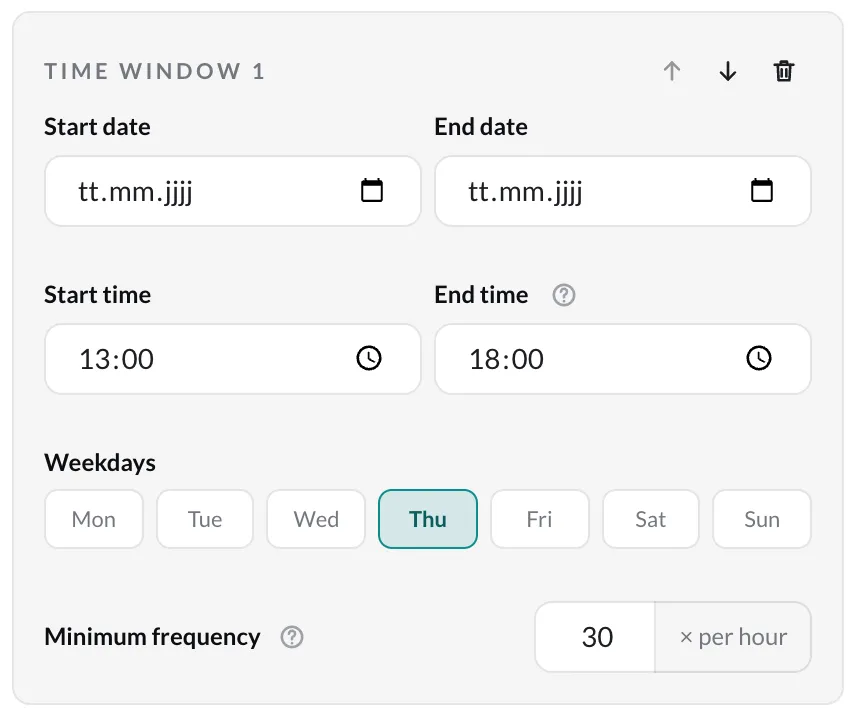
Section titled “A separate minimum frequency per time window”If the item runs on schedule, the minimum frequency belongs to the time window. With several time windows, an item can play at different rates at different times, e.g. 30 times per hour on Thursdays from 13:00 to 18:00 and 12 times per hour on the other days from 09:00 to 18:00. Outside all windows it doesn’t play at all.
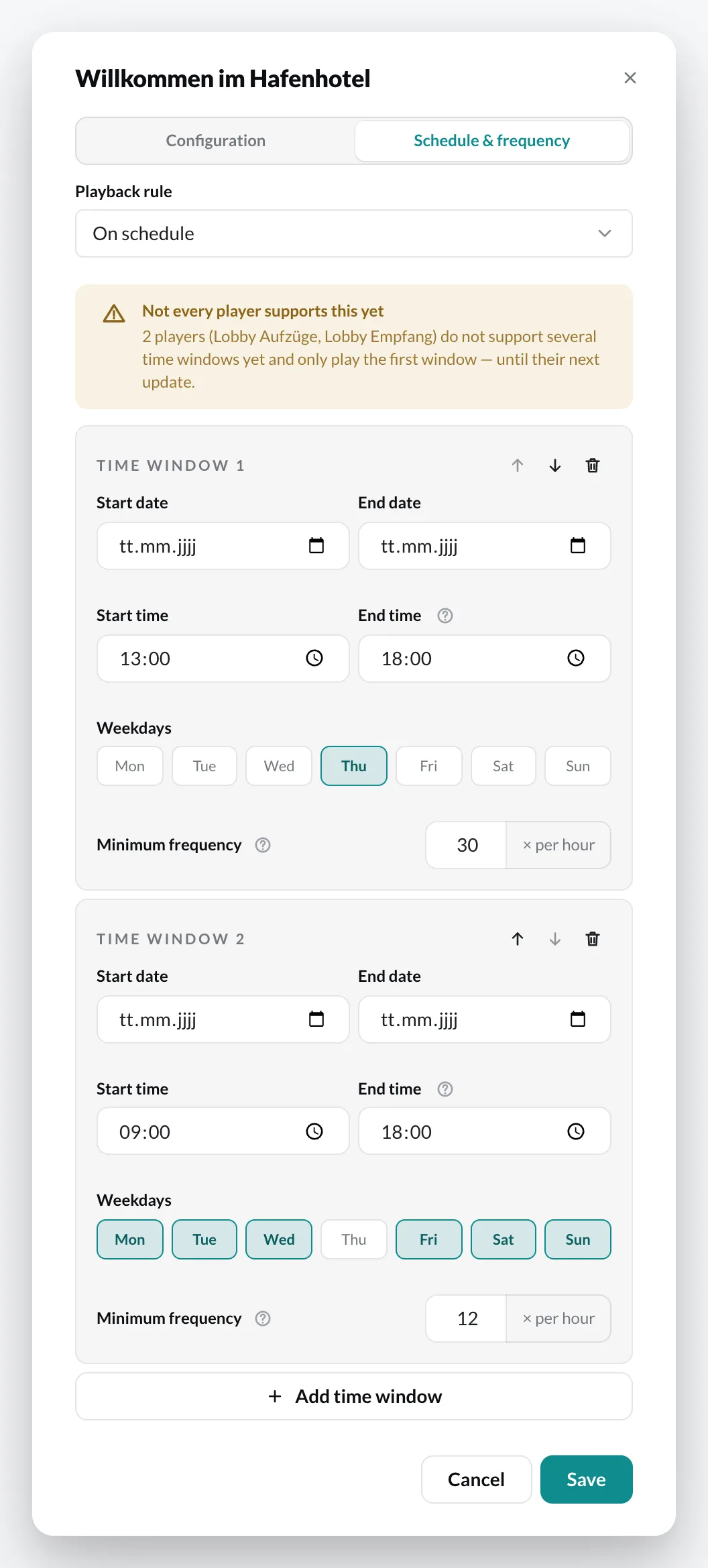
If two windows overlap, the higher minimum frequency applies. With the playback rule Always, there is just the one Minimum frequency field.
Minimum frequency on a nested playlist
Section titled “Minimum frequency on a nested playlist”A nested playlist can have a minimum frequency too. The player then plays it as often per hour as you enter, in the way its Playback mode specifies. This lets you pace several motifs of a campaign together: each time, the next one plays.
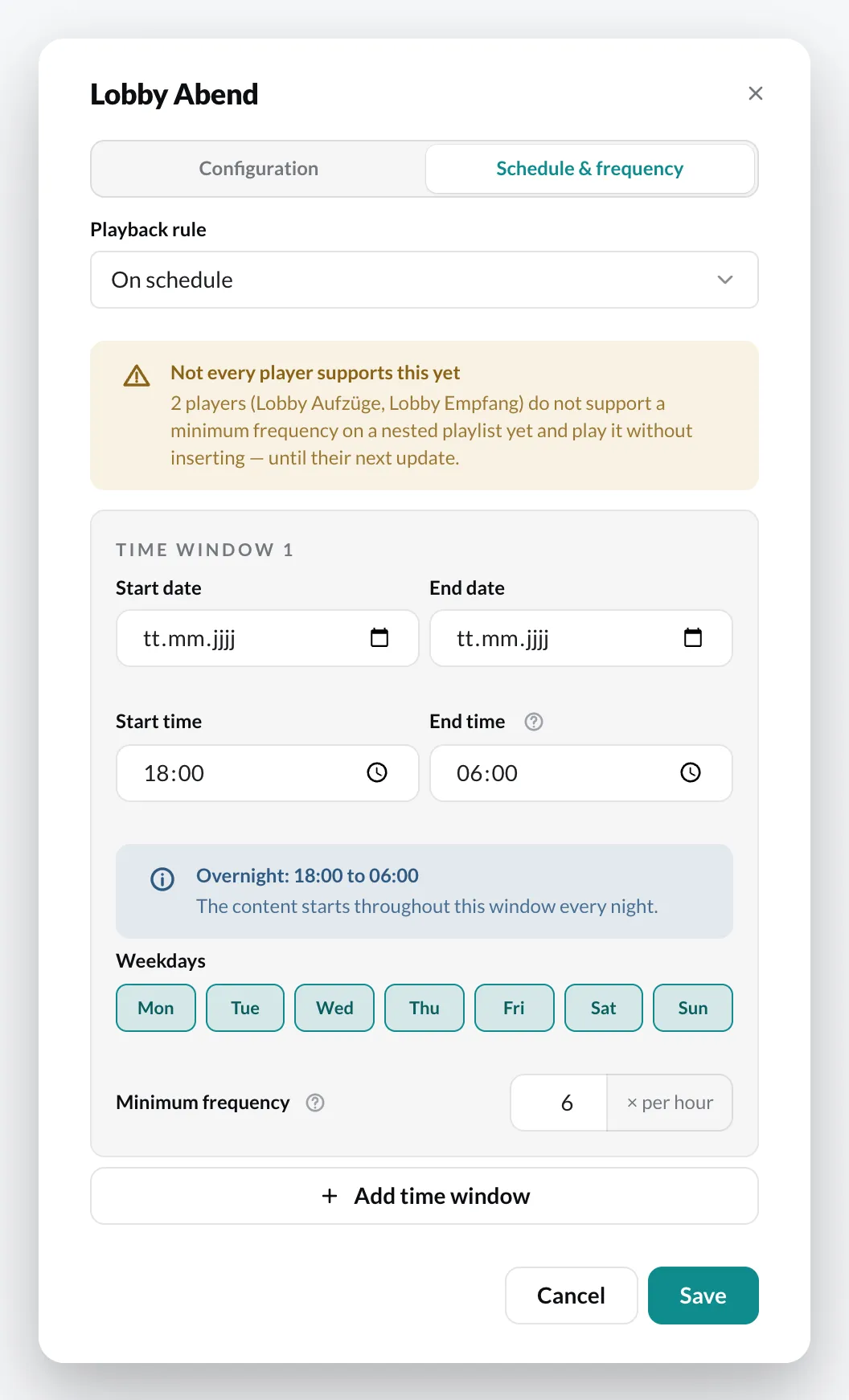
Items inside a nested playlist with a minimum frequency cannot have their own. The CMS then does not save the playlist.
In the playlist overview
Section titled “In the playlist overview”- The content item shows on the right of its second line how often it plays at least, e.g. 12/hour. If its time windows have different values, it shows the range, e.g. 12–30/hour. Hover over it to see the approximate interval.
- Every playlist with minimum frequencies – including one that contains them through a nested playlist – shows an icon in the list on the left. Hover over it to see how much of an hour the minimum frequencies take up at most.
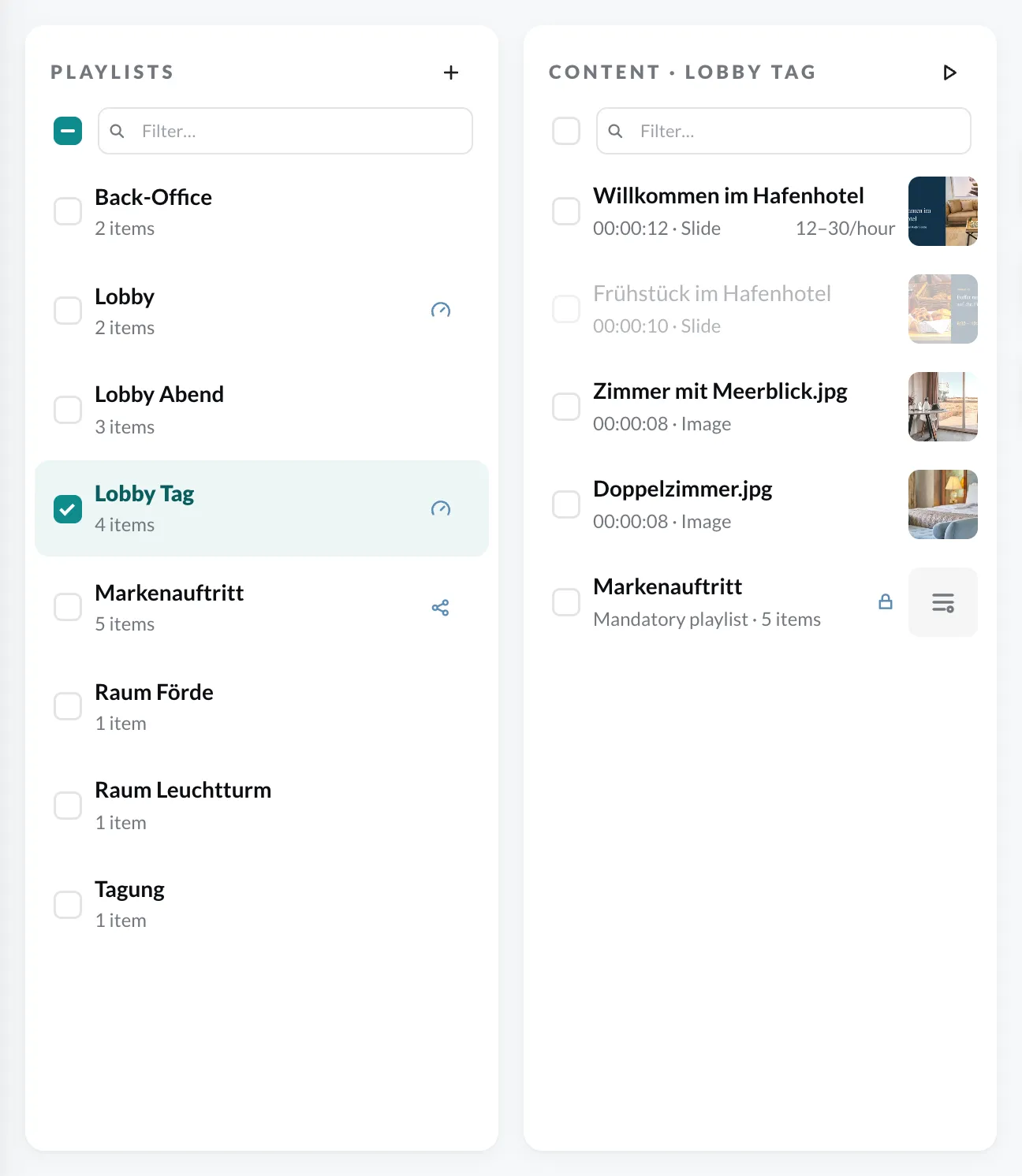
The icon has three colours:
| Colour | Meaning |
|---|---|
| Blue | Everything is fine. |
| Yellow | From 60 % of every hour: the rest of the playlist comes up noticeably less often. |
| Red | Above 100 %: more cannot be played – the playlist cannot be saved like this. |
Example: an item lasting 12 seconds at 12 per hour takes up 144 seconds of every hour, i.e. 4 %.
With a schedule, only what plays at the same time counts. If an item has a schedule, it only counts on the days and at the times it plays, with the minimum frequency of the respective time window. What matters is the busiest hour: two spots, one running in November and one in December, do not add up – each counts on its own. Items set to Never and items whose end date has passed do not count at all.
If the busiest hour only occurs at certain times, the icon tells you when, e.g. “Minimum frequencies take up to 72% of an hour. Busiest: 11/15/2026–11/20/2026, Mon–Fri, 09:00–13:00”.
How the player inserts
Section titled “How the player inserts”- The player only inserts between two content items, never in the middle of one.
- After an inserted item, a regular item of the playlist always plays next. The order of your playlist is kept – it is only interrupted.
- A schedule on the item still applies: outside its time windows it is not inserted either. When a window with a different minimum frequency begins, the player follows that one from then on.
- With a nested playlist, every complete pass counts as one playout.
- If another section runs longer in one piece (e.g. a long video), the interval cannot be kept exactly there. The icon on the playlist points this out.
Inserted playouts in the reports
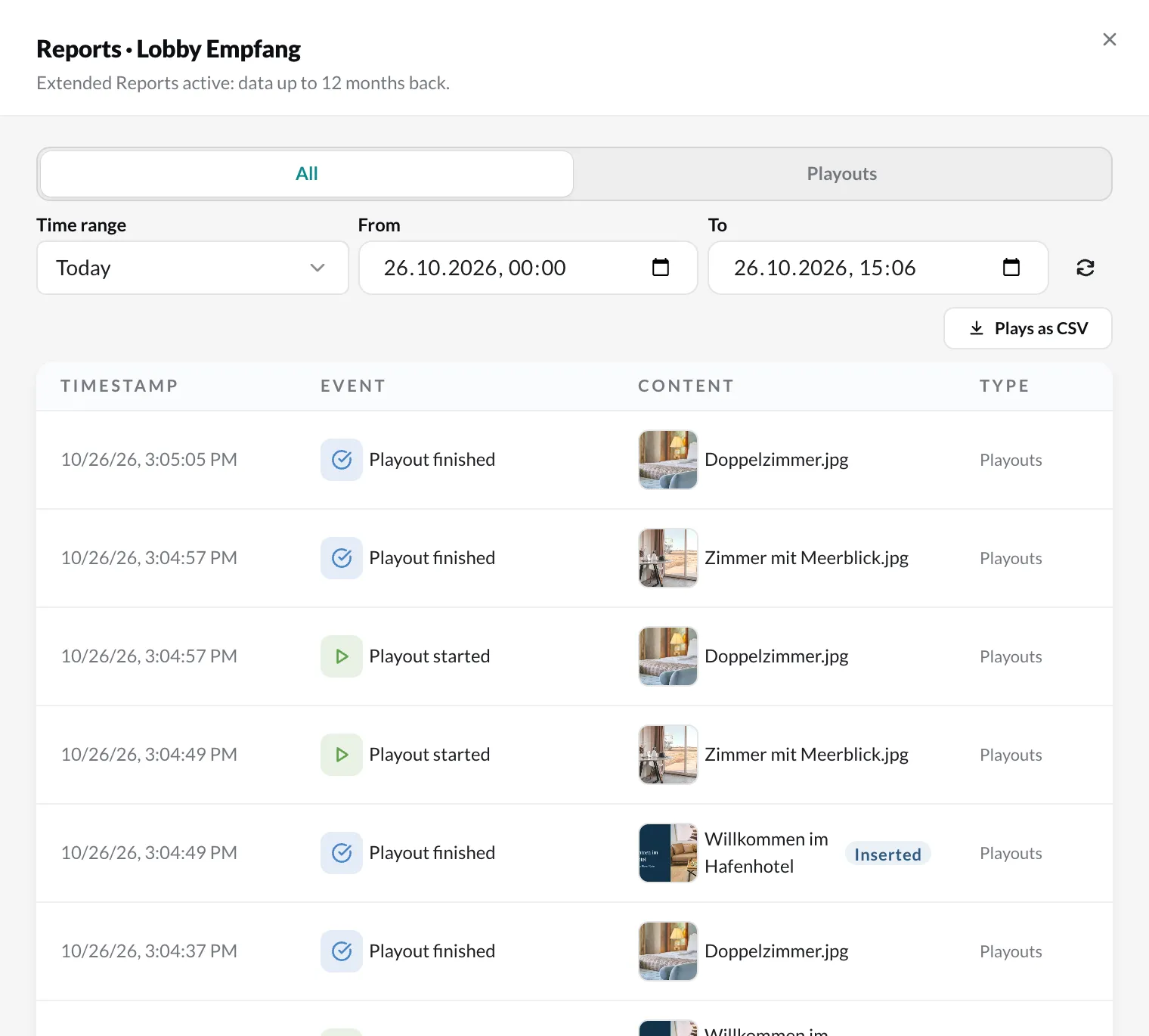
Section titled “Inserted playouts in the reports”In the reports you can see when an item was inserted: its name is followed by Inserted – in the device report, in a playlist run and in the playouts of a content item. Hover over it to see the minimum frequency that was set.
Good to know
Section titled “Good to know”- Player app: the minimum frequency needs an up-to-date player app. An older player keeps playing the playlist in order as before. Multiple time windows and the minimum frequency on a nested playlist need an even newer update. If a player of the playlist can’t do this yet, the CMS shows the notice Not every player supports this yet on the Schedule & frequency tab and names the players. Until the update, such a player only plays the first time window and a nested playlist without pacing.
- Free plan: the minimum frequency is not included in the free Free plan – the field carries the Pro label. Values you set stay saved and take effect again as soon as you have a subscription.
- Mandatory playlist (Enterprise): no minimum frequency applies in a mandatory playlist. Items of a sub-account with a minimum frequency are never inserted into the mandatory playlist, but before or after it.